
If a vendor's website asks for a 6-digit code from an authenticator app, add that vendor's setup under Location settings > Sign-in codes once, and the code lives in RestaurantMate instead of on one person's phone.
What a sign-in code is
Some vendor websites use two-step sign-in (also called two-factor authentication, or 2FA). After you type your password, the site asks for a short code. With an authenticator app, that code comes from an app on a phone, such as Google Authenticator or Microsoft Authenticator. The app shows a new 6-digit code every 30 seconds.
To set it up, the vendor's website shows you a QR code (the square barcode) and usually a key, which is a row of letters and numbers. Anything that holds that key can make the codes. RestaurantMate can hold it in place of a phone.
Once the key is in RestaurantMate, your team opens the code in the app when they sign in by hand, so nobody has to ask the manager for it at 6 am. RestaurantMate can also enter the code when it signs in to vendors whose connection supports it.
You'll see "RMate" in a few places in the app. It is short for RestaurantMate.
Before you start
- Your access. You need to be an owner, or have Full access to Location settings at this location. The built-in Admin and Location manager roles have it. Other people don't see the Sign-in codes tab at all. See Give each person only the pages they need.
- Your own two-step sign-in. If you turned on multi-factor sign-in for your own RestaurantMate account, you have to sign in with your authenticator before the tab shows your codes.
- The vendor login. Connect the vendor first, so you can link the code to its login. See Connect a vendor that has a website. You can also add a code without a link and link it later.
- The vendor's website, open on a computer. Sign in to the vendor account and find the option to turn on an authenticator app. It is usually in the account's security or profile settings. Keep that page open until you finish.
Add the code
In this example, Juniper Kitchen · Main Street buys from Heartland Foodservice. Heartland now asks for an authenticator code every time someone signs in as ops@juniperkitchen.com.
Start the setup on the vendor's website. On the Heartland Foodservice site, choose to turn on an authenticator app. The page shows a QR code. Many vendors also show the key or a setup link, often under a link like "Can't scan it?". Leave this page open.
Open the Sign-in codes tab. In RestaurantMate, click Location settings in the sidebar (in the Business group), then click the Sign-in codes tab.
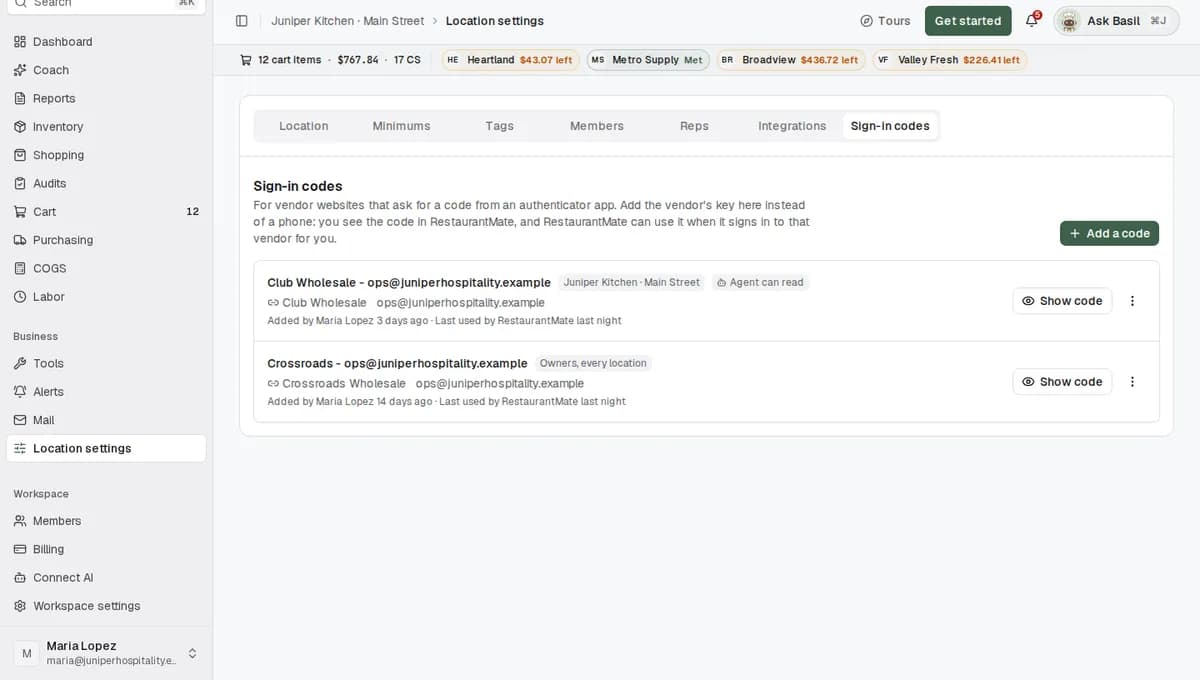
Click Add a code. The Add a code window opens. It asks for the setup the vendor showed you: the link, the key or a screenshot of the QR code.
Give RestaurantMate the setup. Pick the tab that matches what the vendor's page shows you.
- Paste link: copy the link that starts with
otpauth://and paste it into Setup link. - Enter key: type or paste the letters and numbers into Key. Spaces are fine. Below the key you'll see Digits, New code every and Algorithm. Leave them as they are unless the vendor tells you otherwise. Most vendors use 6 digits, 30 seconds and SHA1.
- QR image: take a screenshot of the vendor's QR code, then choose, drop or paste it into the box. Your browser reads the QR code on your computer. The image itself is never uploaded.
- Paste link: copy the link that starts with
Fill in the details.
- Name: something your team will recognize, such as "Heartland Foodservice - ops@juniperkitchen.com". If you used a link or a QR image, RestaurantMate may fill this in from it. Change it if it isn't clear.
- Vendor login: pick the Heartland Foodservice login. A linked code shows on that vendor login, and RestaurantMate uses it when it signs in.
- Account: the email or username you sign in to the vendor with, such as ops@juniperkitchen.com.
- Who can use it (owners only): leave it set to this location. If every location signs in to this vendor with the same login, choose Owners, every location. Only owners see a code set up that way.
- Let this location's agent read it (owners only): leave this off unless the RestaurantMate team has told you an agent signs in to this vendor for your location. Every read is logged. Basil, the agent you chat with in the app, can never read sign-in codes, even with this switch on.
Click Add code. A window called Confirm with the vendor opens. It shows the current 6-digit code and a ring that counts down to the next one.
Finish on the vendor's website. Type that code into the vendor's setup page and confirm it there. A new code comes every 30 seconds, so if the ring runs out first, type the new one. Then click Done in RestaurantMate.
If the vendor's site says the code is wrong, see Troubleshooting.
What happens next
The code shows up in the Sign-in codes list with its name, the linked vendor login, the account and who added it. A line under it tells you when it was last used, for example "Last used 5 min ago by RMate vendor sign-in". A new code says "Not used yet".
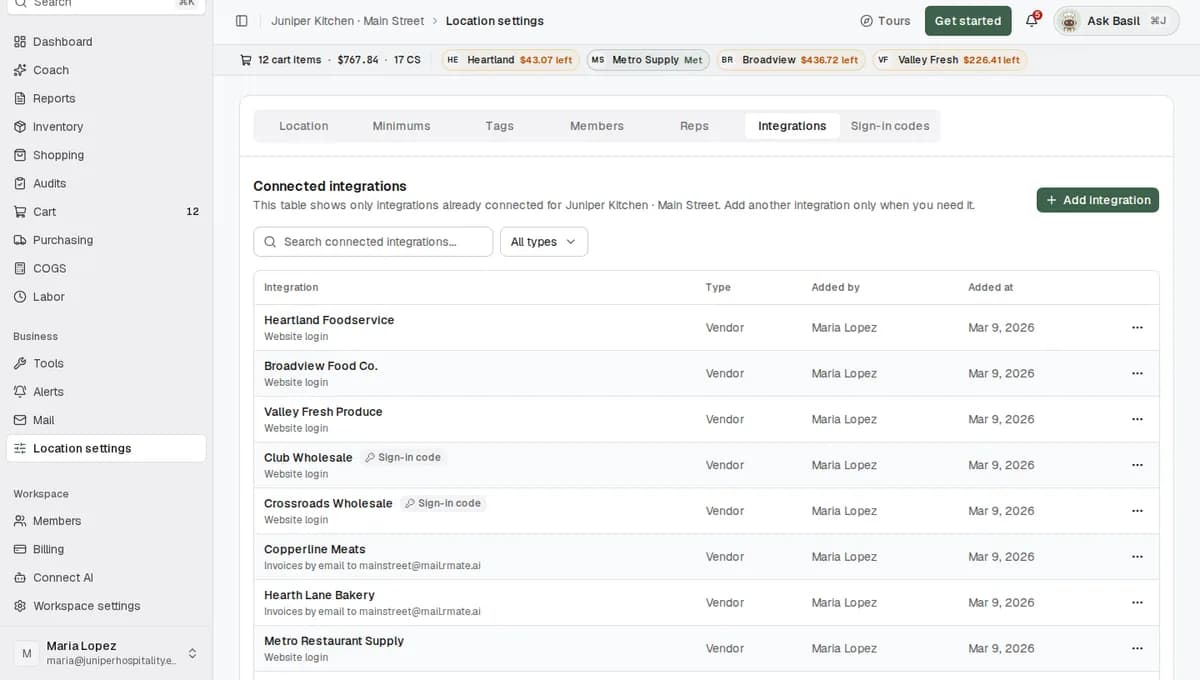
On the Integrations tab, the Heartland Foodservice login now has a Sign-in code button. Click it to see the code without leaving the list of vendor logins.
When someone on your team signs in to the vendor's website by hand, they click Show code on the row, copy the code with the copy button and type it in.
When the RestaurantMate device in your restaurant signs in to a vendor whose connection supports sign-in codes, it asks for the code only at the moment the vendor's page wants one, then enters it. Today only a small number of vendor connections support this. Ask the RestaurantMate team whether your vendor is one of them. Your team can open the code here for any vendor.
Every time a code is shown or used, RestaurantMate records it. Open the menu (three dots) on the row and click History to see each entry (Code shown, Added, Changed or Archived) with who did it and when.
How the key is kept safe
RestaurantMate stores the vendor's key in an encrypted secret store inside its database. The 6-digit code is worked out inside the database as well, so the key never leaves it. Your browser and the RestaurantMate device only ever receive the 6-digit code. RestaurantMate also limits how often a code can be read.
Change or remove a code
- Edit lets you change the name or the vendor login. Add a new key only if the vendor gave you a new one. Leave the key empty to keep the current one.
- Archive deletes the key, and RestaurantMate stops making codes for it. To add it back later you need the vendor's setup again. If you no longer use the authenticator for this login, turn it off on the vendor's website first.
Tips
- Put the vendor and the account in the name. "Heartland Foodservice - ops@juniperkitchen.com" is easier to find than "Heartland".
- Link every code to its vendor login. RestaurantMate then knows which code belongs to which login, and your team finds the code next to the login on the Integrations tab.
- Each vendor login can have one code. A login that already has one doesn't appear in the Vendor login list.
- If both Juniper Kitchen locations sign in to Club Wholesale with the same login, an owner can add the code once with Who can use it set to Owners, every location.
Troubleshooting
I don't see the Sign-in codes tab. Only owners and people with Full access to Location settings at this location can see it. Ask an owner to change your access.
The tab says I turned on multi-factor sign-in. The message reads "You turned on multi-factor sign-in for your RMate account. Sign out and sign in again with your authenticator to see sign-in codes." Sign out, sign back in with your authenticator, then open the tab again.
"No QR code found in that image." Take a sharper screenshot that fills more of the frame with the QR code, and try again. You can also switch to Paste link or Enter key.
"That QR code is not an authenticator setup code." The image has a different QR code in it, such as a link to download an app. Use the QR code on the vendor's authenticator setup page.
The vendor says the code is wrong. Type the code before the ring runs out. If you started the vendor's setup more than once, the vendor usually makes a new key each time, and only the newest one works. Click Edit on the row, paste the newest link or key, and confirm with the code it shows. If the vendor gave you its own settings, check Digits, New code every and Algorithm on the Enter key tab.
My vendor login isn't in the Vendor login list. It may already have a code. Look for it in the Sign-in codes list. If the vendor isn't connected yet, connect it first or ask the RestaurantMate team. You can save the code with Vendor login set to Not linked and link it later with Edit.
RestaurantMate stopped pulling prices or invoices after a vendor turned on two-step sign-in. When a vendor adds a new security step, RestaurantMate can't get past its sign-in page, so it pauses its background work for that login (prices, invoices and order checks). Add the code here and tell the RestaurantMate team, so they can check whether your vendor's connection can use it. See When a vendor login stops working.
The vendor texts or emails me the code. The Sign-in codes tab only works with authenticator apps. Tell the RestaurantMate team which vendor it is and how the code arrives.
Common questions
Why keep the code in RestaurantMate instead of on a phone? RestaurantMate signs in to your vendor websites to refresh prices overnight and pull new invoices daily. It can't reach a code on someone's phone. With the key in RestaurantMate, anyone with access at your location can see the code when they need it, even when the person who set it up is off. RestaurantMate can also enter the code itself for vendors whose connection supports it.
Who can see my codes? Owners and people with Full access to Location settings at that location. Codes set to Owners, every location are seen only by owners. Every time a code is shown, the History records who saw it and when.
Can I still use the authenticator app on my phone? Yes. Before you confirm on the vendor's website, scan the same QR code with the app on your phone as well. The phone and RestaurantMate will then show the same code.
Does RestaurantMate type the code in for every vendor? Only for vendors whose connection supports sign-in codes. Today that is a small number of vendors, so ask the RestaurantMate team about yours. For any vendor, you can store the code here and open it when you sign in yourself.
My location is still being set up. Can I add a code now? While a location is being set up, its pages open the welcome screen, so Location settings isn't available yet. Mention the authenticator in that vendor's Login notes on the welcome screen so the RestaurantMate team knows about it. Add the code here once your location is live. See Tell us about your location.