
Open Audits on your phone, tap a list, type what is on each shelf and tap Submit Audit.
At Juniper Kitchen · Main Street, Sam Ortiz counts the walk-in cooler on Friday afternoon. He walks the shelves with his phone and types each number as he goes. When he taps Submit Audit, RestaurantMate values the count at the prices the kitchen paid and lists what is below par. Maria Lopez, the owner, gets an email a moment later.
Words used in this article
- Count: writing down how much of each item you have right now. RestaurantMate also calls a count an audit. The page in the sidebar is Audits and the button is Submit Audit. Both mean a count.
- List: one storage area you count in one go, like the Walk-in cooler or Dry storage.
- Section: a shelf or group inside a list, like Produce. Sections appear in the order of your shelves. The Inventory page calls them sub-lists.
- Par: the amount you want on the shelf. If you want 4 cases of Roma tomatoes on hand, the par is 4 cs.
- Below par (or short of par): you have less than the par.
- Value on hand: what the stock you counted is worth, at the prices you paid.
Before you start
- Your role needs Edit access to Counts. Owners have it. So do these built-in roles: Admin, Location manager, Counts & purchasing and Inventory counter.
- Buyer, Bookkeeper and View only can look at counts. They can open past counts but can't start a new one. Their list tiles say "You can see past counts but not take new ones." Only a workspace owner can change a role. See Give each person only the pages they need.
- Your location needs lists. Lists are set up on the Inventory page. If Audits says "No lists to count yet", ask your owner or manager. See Set up your order guide: lists, sub-lists and pars.
- Pars are optional. A count without pars is still saved and valued. It just can't tell you what is short.
- Your own login, on your phone. Open RestaurantMate in your phone's web browser and sign in with the account you were invited with.
Count a list
Open Audits. On a phone, tap the menu button at the top left to open the sidebar, then tap Audits. If your role is Inventory counter or Counts & purchasing, RestaurantMate opens on Audits when you sign in. Work at more than one location? Check the location name at the top of the sidebar first.
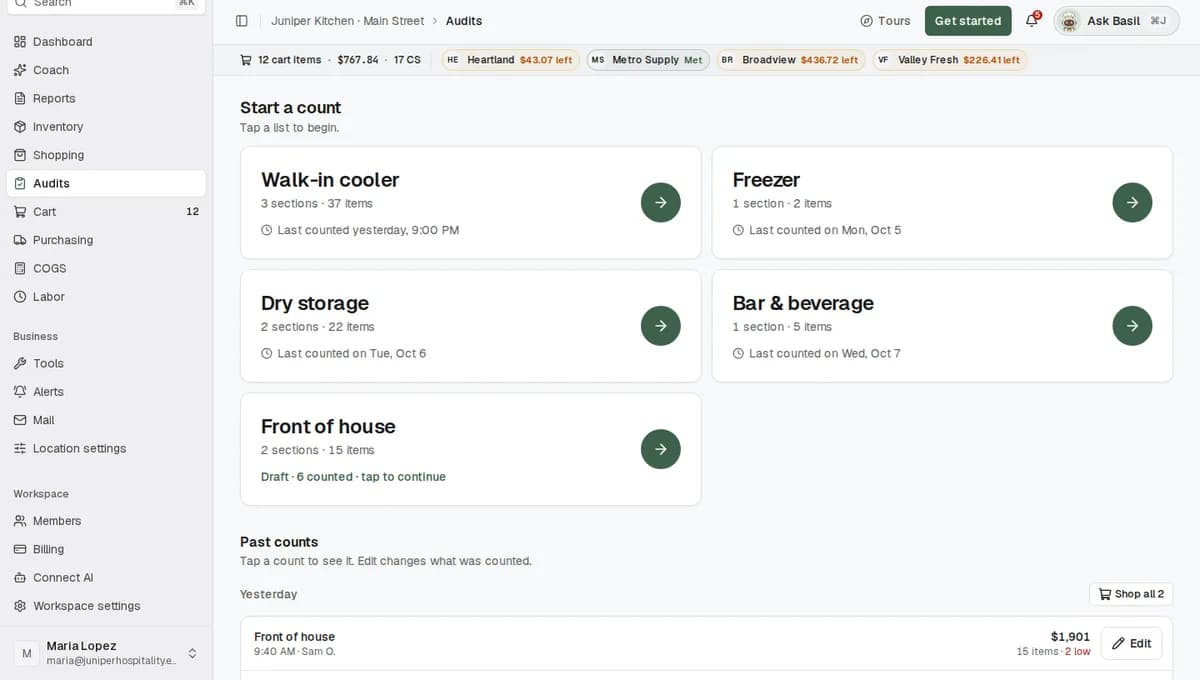
Tap a list under Start a count. Each tile shows the list name, its size (for example "3 sections · 64 items") and when it was last counted, such as "Last counted on Tue, Sep 29" or "Not counted yet".
A tile that says "Draft · 12 counted · tap to continue" holds a count someone started on this phone and hasn't sent. Tap it to pick up where they stopped.
Count each section in shelf order. The screen is titled with the list, for example Walk-in cooler Audit. Items are grouped by section, in the order of your shelves. Each item shows:
- its name and par, for example "par 4 cs"
- a small line with its last delivery, such as "Valley Fresh Produce · Roma tomatoes 25 lb · Oct 7". It helps you spot the right case on the shelf.
- a Qty box and a unit picker
Type what is on the shelf in Qty. The row turns light green once it has a number. The badge next to each section name shows your progress in that section, for example 4/22.
Type 0 when you have none. An empty box means you didn't count that item, and it stays out of this count.
Pick the unit you see. Tap the unit picker and choose the unit in front of you, such as cs (case), ea (each) or lb. It can be a different unit from the par. RestaurantMate converts each count to the item's unit using the pack size. Your phone remembers the last unit you used for each item.
Sam finds 2 cases of Roma tomatoes, so he types 2 and leaves the unit on cs. In Dairy & Eggs he finds half a gallon of heavy cream. He picks gal and types 0.5.
Add notes if you need them (optional). Each section has its own notes box, such as Produce Notes. The Notes (Optional) box at the bottom covers the whole count. Sam writes: "2 cases of romaine set aside, wilted on delivery."
Tap Submit Audit at the bottom of the screen. Keep the page open while it saves. When it's in, you'll see "Audit saved." and a summary with how many items you counted and how many are below par.
Back returns to the list tiles. What you typed stays on this phone as a draft.
Fix things while you count
Anyone who can take counts can do these from the count screen.
Change a par. Tap the par next to the item name, for example "par 4 cs". In Edit par, type the amount, pick the Unit and tap Save. The new par applies to this list only. The same item on another list keeps its own par.
Add an item that isn't on the list. At the end of a section, tap Add item. A few short questions follow, starting with "What item do you want to add?". RestaurantMate checks whether you already have the item ("Is it one of these, or new?") and asks "How much do you want?". The item appears in the section right away, so you can count it. It stays a request until an owner or manager taps Approve & add or Reject in Shopping.
Flag an item that no longer belongs. Tap the trash icon (Remove from list). The row is crossed out and says "Marked for removal". Tapped it by mistake? Tap Undo. An owner or manager decides in Shopping with Approve removal or Keep item.
If your location uses Count + order
Each location has an Audit workflow setting with two choices: Count only (the default) and Count + order. With Count + order, the count screen also helps you order:
- When a count comes in below par, an Order shortage box opens under the item. It shows that item's products and prices at each of your vendors, so you can add it to the cart on the spot. Items at par say "Stock looks good. Count meets par."
- The button at the bottom says Done instead of Submit Audit. It saves the count and opens the Cart.
Someone who can edit Location settings (owners, Admins and Location managers by default) changes this on the Location tab. Adding to the cart needs Edit access to Ordering. Sending the order to your vendors needs Full access to Ordering. See Review your cart and send it to your vendors.
What happens next
The owner hears about it. Workspace owners and admins get a notification in RestaurantMate, such as "Walk-in cooler audit submitted: 7 items need ordering." They also get an email titled "New audit submitted for Juniper Kitchen · Main Street". It reads: "Sam Ortiz submitted an audit for Juniper Kitchen · Main Street in Juniper Hospitality. It includes 64 counted items and 7 items that need ordering." The Review audit button opens the count.
The count is valued at the prices you paid. For each item, RestaurantMate uses the last price you paid on a delivered invoice, worked out per unit. If the item has never been delivered, it uses your vendor's current price. A cost an owner typed in by hand comes before both. Items with no price at all are left out of the value, and the count tells you how many. Each price is saved with the count, so a later price change doesn't rewrite an old count.
Inventory shows the new numbers. On the Inventory page, On hand shows each item's latest count. Set Show to Below par at the last count to see what is short.
Short items are ready to buy. Shopping shows "A new audit is ready to shop", with the count's short items first and how much each one is missing. When the buyer finishes with End & mark done, the count is marked Ordered. See Shop across your vendors.
Alerts can go out. If someone set up an alert such as "Item below par after a count", it emails the people it's meant for. See Create an alert in plain language.
Your counts feed actual food cost. COGS (cost of goods sold) is what your food costs you. When there is a count at the start and at the end of a date range, the COGS page shows your actual food cost: the opening count, plus what you bought, minus the closing count. See Read your food cost per plate.
Look at a past count
Under Past counts, counts are grouped by day: Today, Yesterday, then dates. Each row shows the list, the time, who counted, the value and how many items are low. Tap a row to open the count.
The top of the count shows four numbers. Here is Sam's walk-in count:
| Number | What it tells you | Example |
|---|---|---|
| Items counted | How many items were counted. "Every unit understood" means every unit converted cleanly. "3 with a unit to check" means some still need work. | 64, "Every unit understood" |
| Short of par | How many items are below par, by priority. High is less than half the par. Medium is under 85% of the par. Low is the rest. The number turns red when any are high. | 7, "2 high, 3 medium, 2 low" |
| Value on hand | What the counted stock is worth at the prices you paid. | $4,212.80, "All 64 items priced" |
| Since the last count | How the value moved since this list's previous count. | +$318.40, "Sep 29: $3,894.40 for 61 items" |
Sam counted 2 cases of Roma tomatoes against a par of 4. That is exactly half, so it is medium. One case would have been high.
Below the numbers, switch between By list, By value and Short of par. The table puts each item's count next to its last count, par, unit price and value. Some things to look for:
- Last count flags big drops with "A tenth or less of the last count". Check these first, in case a zero was missed.
- An asterisk (*) on a unit price means "Price filled in after the count, from later deliveries". The item had no price when it was counted and was delivered later.
- Status says "Enough", "Unit unclear" or how short the item is.
- Tap an item to see its Last deliveries and Bought as (the vendor products linked to it).
Shop opens Shopping with this count's short items. Only people whose role can order see it. Each day under Past counts has the same button, which reads Shop all 3 when that day has three counts.
Fix a count after you submit it
- Under Past counts, tap Edit on the count's row. You can also open the count and tap Edit count.
- The count opens again as Edit Walk-in cooler Audit. Change the numbers that are wrong.
- Tap Submit Changes. The Review changes dialog lists what you changed.
- Tap Submit changes to save it. You'll see "Audit updated."
The new numbers replace the old ones, and what's short is worked out again.
Tips
- Type 0 for empty shelves. An item you skip keeps the On hand number from its last count, which can hide that you ran out.
- Count in the unit in front of you. Loose lemons can be counted as each, even if you buy them by the case. RestaurantMate converts the count using the pack size.
- Split the work by list. Each list is its own count and is sent on its own. One person can count the walk-in while another counts dry storage. A full count of the restaurant is one count per list.
- Count before you order. Shopping marks items short from the latest count, so a fresh count gives you a better order.
- Write down what the numbers can't show. A wilted case or an item moved to another shelf belongs in the section notes.
Troubleshooting
Audits says "No lists to count yet". Your location has no lists yet. An owner or manager adds them on the Inventory page. See Set up your order guide: lists, sub-lists and pars.
The tiles are greyed out and say "You can see past counts but not take new ones." Your role can view counts but can't take them. Ask a workspace owner for Edit access to Counts.
Submit Audit is greyed out. You haven't typed a count yet. Enter at least one number.
You see "Audit quantities must be between 0 and" a number. One of your numbers is below zero or far too large. Look for an extra digit.
An item says "par not set". That item has no par on this list. Tap it to set one. The count still saves and is valued, but the item can't show as short.
I can't find my draft. Drafts stay on the phone and browser where the count was started. Finish it on that phone, or start the list again.
The signal dropped while I was sending. If sending fails, the page tries again by itself for a while. If it still can't send, you'll see "Failed to submit audit after refreshing. Your counts are still saved." Move to a spot with better signal, open the list and tap Submit Audit again.
A count says "3 with a unit to check", or an item says "Unit unclear". RestaurantMate couldn't convert that unit from the pack size yet, and works it out in the background. If you shop from that count, Shopping may ask how many of that unit make a case. The answer is saved on the product, so you only give it once.
Value on hand says "58 items priced; 6 have no price and are left out". Those 6 items have never been delivered here and have no vendor price. When one of them is delivered later, its price can be filled in and is marked with an asterisk.
Common questions
Can my staff count in cases if we order by the pound? Yes. They pick the unit they see when they count. RestaurantMate converts it using the pack size.
Which price is used to value a count? The last price you paid for that item on a delivered invoice. If you haven't bought it yet, your vendor's current price. Items with no price are left out of the value, and the count tells you how many.
Can I stop halfway and finish later? Yes. Tap Back. What you typed stays as a draft on that phone, and the list tile says "Draft · 12 counted · tap to continue" (with your own number). Finish it on the same phone.
Can I scan barcodes? No. You type the numbers. Each item shows its last delivery to help you find the right case on the shelf.
Does a count tell me what to order? Yes. Short of par lists what is below the amount you want on the shelf, high priority first, and Shop takes you to buying it. With Count + order, you can add items to the cart while you count.