
The cart holds the next order for one location, split by vendor. When it looks right, you press Send all. RestaurantMate fills each vendor's online cart and checks every line. Then you check out on each vendor's website.
Before you start
Who can send
What a person can do in the cart depends on their role. Owners manage roles on the Members page. Ordering has three levels:
| Ordering level | What the person can do |
|---|---|
| View | See the cart and past orders. |
| Edit | Shop, build the cart, change quantities and remove lines. |
| Full | Everything in Edit, and send the order to vendors. |
Owners can always send. Of the built-in roles, Admin, Location manager and Buyer have Full access to Ordering.
A common setup is for your kitchen manager to have Edit and build the order, while you or your buyer review it and send it. Someone without Full access sees grey Send buttons and the note "Someone with Full access to Ordering sends the order."
What you need
- Items in the cart. You add them from Shopping, from an item on the Inventory page, or from product search. See Shop across your vendors.
- Vendors connected with their website login. RestaurantMate can only fill the online cart of a vendor that has a website and is connected. Vendors you order from by email, phone or paper still show in the cart, but you place those orders yourself.
- The RestaurantMate device online. This is the small computer plugged into your restaurant's router. It signs in to your vendors' websites with your own logins. Some messages in the app call it "the mini PC". See The RestaurantMate device.
- Vendor minimums (optional). A minimum is the smallest order a vendor will deliver. Set them once under Location settings > Minimums and the cart shows how close each order is.
Words you'll see in the cart
- CS means case. EA means each: one single unit, like one bottle or one bag.
- A SKU is the vendor's product number.
- The vendor's online cart is the cart on the vendor's own website, the one you would fill if you ordered there by hand.
Steps
1. Open the cart
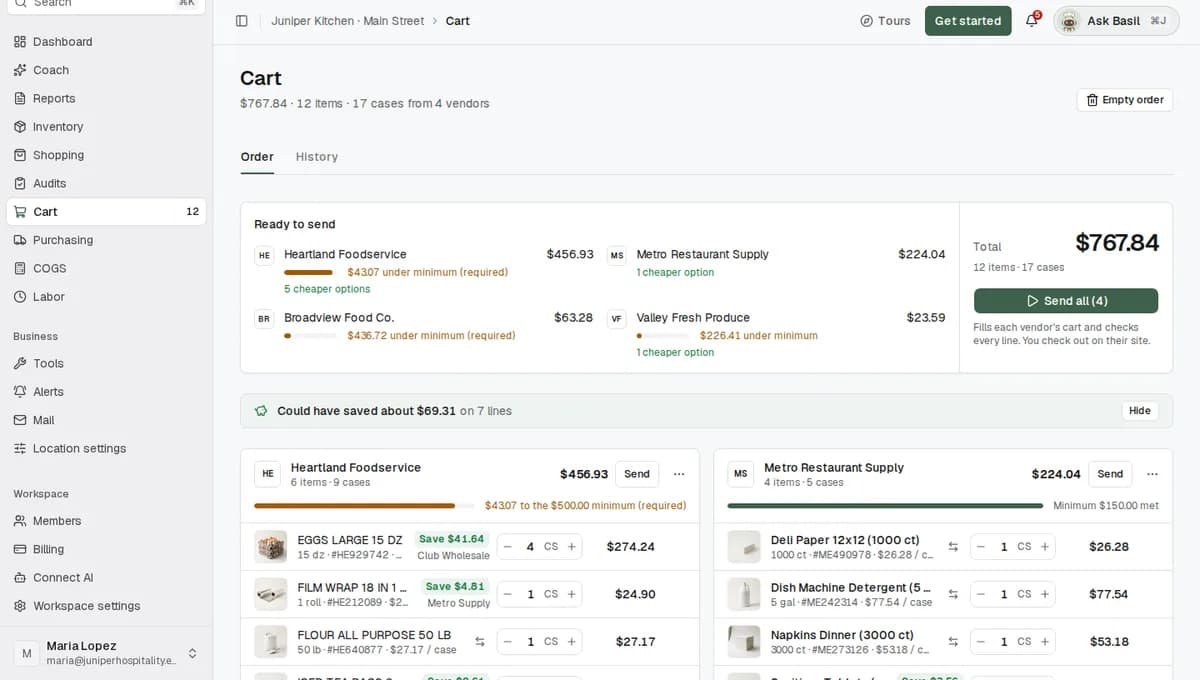
Click Cart in the sidebar. The number next to it is how many items are in the cart. The line under the page title gives the order at a glance, for example "$1,284.60 · 12 items · 18 cases from 3 vendors". Stay on the Order tab.
Each location has its own cart. If you run more than one location, check the location name at the top of the sidebar before you start.
2. Read the Ready to send summary
The Ready to send box sits on the right on a computer and at the top on a phone. It has one row per vendor with the subtotal and the one thing that needs your attention:
- Ready means there is nothing to fix.
- "$42.00 under minimum" means the order is below that vendor's minimum.
- "1 item out of stock" means the vendor's website shows an item as unavailable.
- "2 cheaper options" means another of your vendors sells a close match for less.
Click a row to jump to that vendor's card. The order total and the Send all button are at the bottom of the box.
3. Check each vendor's order
Next to the summary (below it on a phone) there is one card per vendor, biggest order first. Each line shows the product, its pack size, the SKU and the price per case and per each.
- Change a quantity with the CS and EA boxes.
- Remove a line with the X at the end of the row. It appears when you point at the row.
- A line with an Out of stock chip is one the vendor's website shows as unavailable. You can swap it to another vendor in step 5.
Changing quantities sends nothing. The order stays in RestaurantMate until someone presses Send. The prices are the last ones RestaurantMate saw, usually from the nightly price check, and the vendor's own cart shows the final price.
4. Check the minimums
Under each vendor's name, a thin bar shows how close the order is to that vendor's minimum. It reads "Minimum $250.00 met" once you're there. If you're short, it reads something like "$42.00 to the $250.00 minimum". The word "(required)" after it means the minimum was set to Block checkout in Location settings.
The cart shows minimums but does not stop you from sending below one. Look at the bars before you send.
No bar for a vendor? Open Location settings > Minimums, pick Dollar amount, Cases or Line items, and type the amount. It saves on its own.
5. Look at cheaper options
A green chip such as Save $14.28 under a line means another of your vendors sells a close match for less. The chip names that vendor. RestaurantMate only suggests a match when its price is under 30 days old, the product is in stock, and the saving is at least $1 and at least 2% of the line.
When the cart has savings like this, a green strip above the vendor cards shows about how much less the order would cost at today's prices.
Click a chip to open Compare vendors. It shows what you paid last time (You paid), what the line costs now (In cart at), and the closest products at your other vendors with their price, pack size and how closely they match.
- Swap in cart moves the quantity to the other vendor's product.
- Add to cart adds the other product and leaves your current line as it is.
- Not interested stops this suggestion from coming back. Click Undo if you didn't mean it.
If a suggestion is wrong, tell RestaurantMate why with Not a match, Not really cheaper, Wrong pack or Something else. If it's right, click Good suggestion.
6. Send the order
When the order looks right, click Send all (3) at the bottom of the summary. The number in brackets is how many vendors are in the cart. To send to one vendor only, click Send on that vendor's card.
If several vendors are in the cart and one of them would get a single item, RestaurantMate asks first with Some vendors are only getting one item. A one-item cart on a vendor's website is easy to forget when you check out later. Click Review cart to look again, or Send anyway.
7. Watch each vendor's progress
Each vendor card shows where its order is:
| The card says | What it means |
|---|---|
| Queued | Waiting for the RestaurantMate device to pick it up. |
| Adding to their cart | The device is signed in to the vendor's website and adding your items. |
| Their cart is not empty | The vendor's online cart already had items in it. Pick Clear & add to empty it first and then add this order, Add on top to keep what's there and add this order, or Skip to leave this vendor alone. |
| Order sent | Every item was added to the vendor's cart. The order is not placed yet: you do that on the vendor's website in step 9. RestaurantMate read the vendor's cart back and checked each line. If it couldn't check them all, the card says "Worth a glance before you order." |
| Added, with gaps | Some items went in and some didn't. The card lists each item that didn't, with the reason, such as "Currently out of stock". |
| Could not add this order | Nothing was added. Click Try this vendor again. |
| No automatic checkout | This vendor has no connected website cart. You order it by hand. |
While this runs, the rows in the summary change too, for example to Needs an answer or Sent, with items missing. A line under the Send all button keeps count, such as "Sending, 2 of 4 done" and then "3 sent · 1 with gaps · 1 failed". The results stay on the page until you click Dismiss.
The device can work on more than one vendor at once. With many vendors in the order, some wait their turn. How long each one takes depends on the vendor's website and your restaurant's internet connection.
8. Sort out items a vendor wouldn't take
If a vendor refused an item, a box appears above the vendor cards.
- "One item was fixed for you" means the vendor had renumbered the product. RestaurantMate found the new SKU and the order went in with it.
- "One item still needs a vendor" lists items that weren't added. For each one, RestaurantMate shows which of your other vendors carry it. Click Move 2 here to move it with the same quantity, or Use this SKU to take a suggested replacement product. You can also search a vendor for a different product.
9. Check out on each vendor's website
When a card says Order sent, click the Open Heartland cart link (it uses the vendor's name). The vendor's website opens on its cart page. Sign in if it asks, and you'll see the items RestaurantMate added. Check the final prices and the delivery date there, then place the order as you normally would.
Do this for each vendor in the order.
What happens next
For vendors that share order status, RestaurantMate looks in the vendor's order history about 30 minutes after the send. It finds the order you placed and tracks it in Purchasing from placed to delivered. Every other purchase is tracked from the invoice on, so it appears in Purchasing when the vendor's invoice or receipt arrives. See Track an order from placed to delivered.
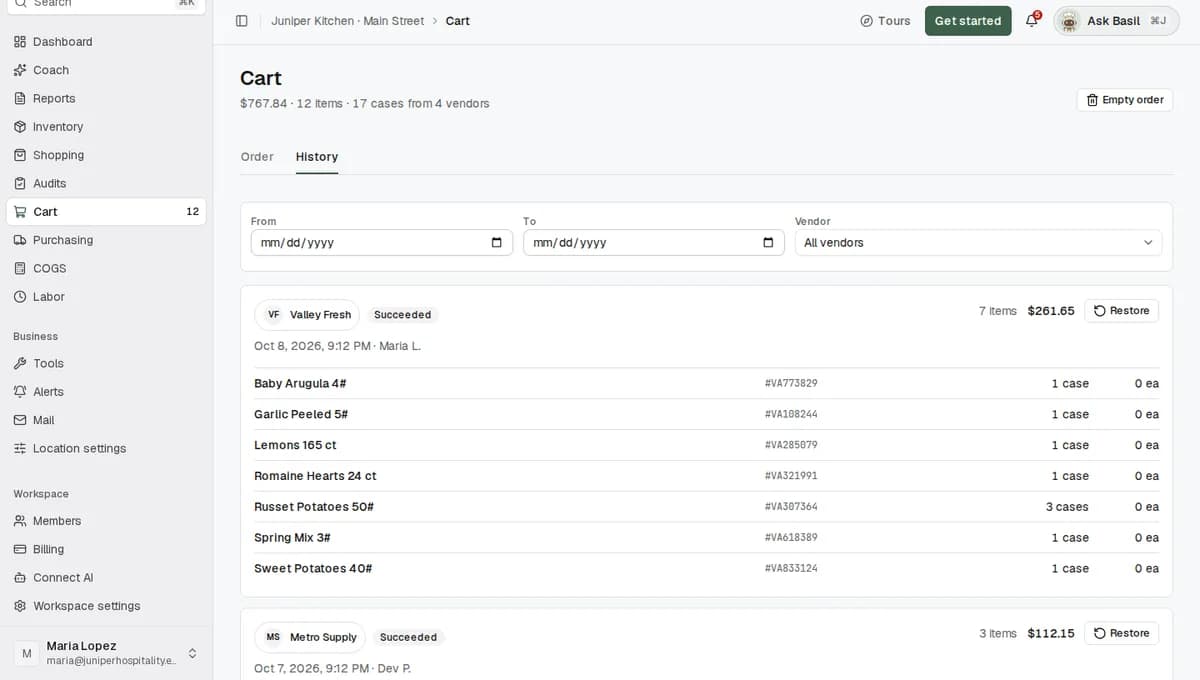
Every send is also saved on the cart's History tab, with how many items went to each vendor, the value and how it went: Succeeded, Partly sent, Failed, Cancelled or Pending. You can filter the list by date and vendor.
Tips
To repeat last week's order, open the History tab, find that send and click Restore. It copies those items back into the cart and skips anything that is missing or out of stock, with a note like "Restored 12 items; skipped 2." Restoring sends nothing.
If nobody at your restaurant adds items on your vendors' websites directly, you can stop the Their cart is not empty question. Go to Location settings > Location and set Vendor cart conflict to Replace it with the RMate cart (RMate is short for RestaurantMate). This needs Full access to Location settings.
RestaurantMate doesn't know your vendors' order cutoff times. Send early enough to check out on each website before the cutoff.
If your role includes the in-app agent, you can ask it about the cart. Click Ask Basil in the top bar and try "Is there anything cheaper for what is in my cart?" or "Am I over the vendor minimums?" Basil can add items to the cart. It fills a vendor's cart only when you ask, and first shows a card with the exact lines and total for you to Approve or skip with Not now.
Troubleshooting
The Send buttons are grey. Your role doesn't have Full access to Ordering. Hover over the button to see the reason, then ask a workspace owner to change your role under Members.
A vendor card says "No automatic checkout". That vendor has no connected website cart. This is usual for vendors you order from by email, by phone or on paper. Order from them the way you do today. To keep the order with your other purchases, record it under Purchasing > Add > Or record an order by hand.
A vendor card says "Could not add this order". The device couldn't finish on the vendor's website, for example because the site was down or the device was offline. Click Try this vendor again. If it keeps failing, contact the RestaurantMate team.
The price on the vendor's website is different from the cart. The cart shows the last price RestaurantMate saw. The vendor's cart has the final price, so check it before you place the order.
An item didn't go to Club Wholesale, and it isn't in the "needs a vendor" box. Some club store items are sold in the store only. RestaurantMate leaves those off the list so you can pick them up in the store as usual.
I emptied the cart, but the vendor's website cart still has items. The RestaurantMate cart and each vendor's online cart are separate. Empty order at the top of the page clears only the RestaurantMate cart. To clear a vendor's website cart, open the ... menu on that vendor's card, choose Empty this vendor's order…, and pick the vendor's website under Which cart should be emptied? Emptying either cart can't be undone. Vendors with nothing in this order are listed at the bottom of the page, with a button to empty each one's website cart.
Common questions
Does RestaurantMate place the order for me? No. When you press Send, RestaurantMate fills each vendor's online cart and checks every line. You open the vendor's cart and place the order. Building the cart sends nothing, and nothing goes to a vendor until someone with Full access to Ordering presses Send.
Can my kitchen manager build the order and I approve it? Yes. Give them a role with Edit access to Ordering, and keep Full access for yourself or your buyer. They fill the cart. You review it and press Send. See Give each person only the pages they need.
Will the cart stop me from sending under a vendor's minimum? Not today. The cart shows each minimum and how much is left, and adds "(required)" if you set the minimum to Block checkout. Check the bars before you send.
What if an item is out of stock? The vendor's card shows an Out of stock chip before you send. If the vendor still refuses an item during the send, RestaurantMate lists it and shows which of your other vendors carry it, so you can move it with one click.
What if my vendor's website cart already has items in it? RestaurantMate asks whether to clear it first, add your order on top, or skip that vendor. You can set it to always replace the vendor's cart in Location settings.