
Fill one cart from all your vendors. Walk your lists after a count to buy what is short, or search for a product and see it at every vendor side by side.
There are three ways to put items in the cart. All three fill the same cart for your location.
| Way | Where to find it | Use it for |
|---|---|---|
| Shopping run | Shopping in the sidebar | Your regular order. You walk your lists after a count, and short items come first. |
| Product search | Search in the sidebar, or Cmd+K | Something new, or a quick check of who sells an item and for how much. |
| Item card | Inventory in the sidebar | One item you already buy. See Compare prices across your vendors. |
Adding items to the cart does not order anything. The cart stays in RestaurantMate until someone with the right access sends it to your vendors' online carts.
Words used in this article
- Audit: what RestaurantMate calls an inventory count.
- Par: the amount you want on the shelf. You order up to it.
- On hand: what the last count found.
- Short: the last count found less than the par.
- CS and EA: case and each. Some vendors sell an item only by the case. Others also sell single units.
- SKU: a vendor's product number for one product in one pack size.
- Website vendor: a vendor you connected with your own login to their ordering website. RestaurantMate can search that website for you. Vendors you order from by email, phone or paper have no website to search.
Before you start
- Your access. To shop and add to the cart you need Edit access to Ordering (the role editor shows it as Ordering › Edit). Owners have it, and so do the built-in Admin, Location manager and Buyer roles. The Counts & purchasing and Inventory counter roles do not. If a button is greyed out, hover over it to see which access is missing. See Give each person only the pages and locations they need.
- Sending is a separate step. Sending the cart to your vendors needs Full access to Ordering. Your kitchen manager can fill the cart and you can send it.
- Connected vendors. Website vendors give you the most to shop from, because RestaurantMate can search their catalogs. See Connect a vendor that has a website.
- Lists and pars. A shopping run walks the lists on your Inventory page. An item without a par is never marked short. See Set up your order guide: lists, sub-lists and pars.
- A recent count (optional). With a count, the run knows what is short. Without one you can still shop every list. See Do a count shelf by shelf on your phone.
Part 1: Shop after a count (a shopping run)
In this example, the team at Juniper Kitchen · Main Street counted the Kitchen and Bar lists this morning. The Kitchen count found 6 items below par. The Bar count found 3.
1. Open Shopping
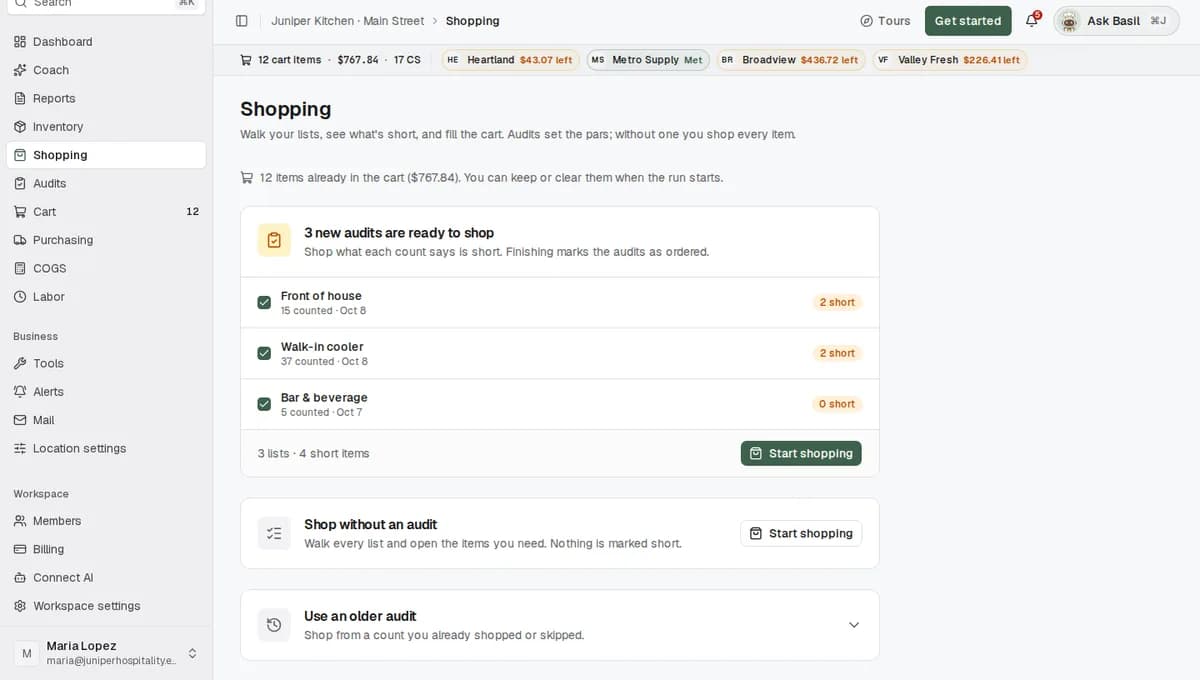
Click Shopping in the sidebar. The page says "Walk your lists, see what's short, and fill the cart."
You can also start from two other pages:
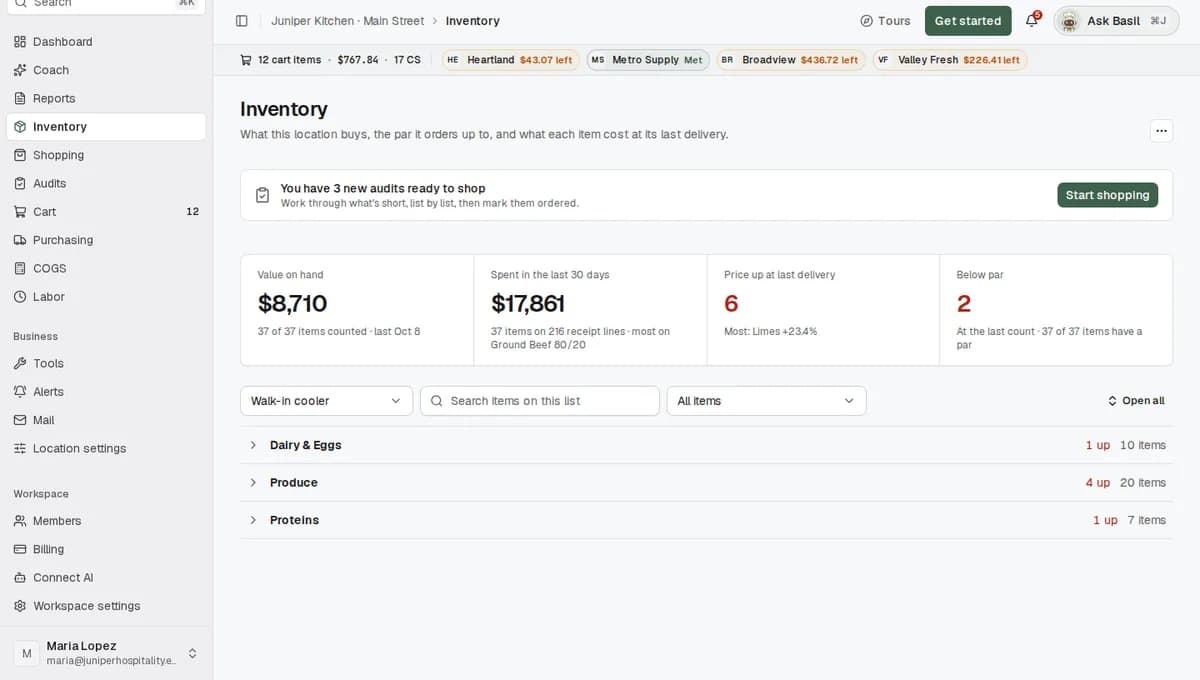
- On Inventory, a banner tells you when new audits are ready to shop. Press Start shopping.
- On Audits, past counts are grouped by day. Press Shop next to a day.
2. Choose what to shop from
The Shopping page gives you up to three choices:
- New audits. A card lists each new count by list name and date. An amber badge shows how many items are short. Tick the counts you want and press Start shopping. The footer adds them up, for example "2 lists · 9 short items".
- Shop without an audit. This walks every list with nothing marked short. Press Start shopping on this card.
- Use an older audit. Pick a count you already shopped or skipped, then press Shop this audit.
If you paused a run earlier, a card at the top says "You paused a shopping run". Press Resume to pick up where you stopped. Press the X to throw the paused run away.
If you have only one list, or no counts at all, the run starts by itself.
3. Keep or clear the cart
If the cart already has items, RestaurantMate asks before you start. Press Keep cart & continue to add to what is there. Press Clear cart to start fresh.
4. Pick a list
Under "Where do you want to start?" each list has its own button. A list with a fresh count shows how many items are short. A list without one says "No audit yet". In this example, press Kitchen.
5. Add what is short
The list opens as a table with the columns Item, On hand, Par, Last delivered and Decision. Sub-lists such as Produce, Proteins and Dairy sit in a bar across the top, so you can jump between them.
Short items come first. They carry an amber mark in the Decision column, such as Short 2 cs, and their vendor columns are already open. Each vendor column shows that vendor's product with its case price and its price per unit. That way a 25 lb case and a 20 lb case can be compared on the same terms.
To add an item, go to the vendor column you want. Then do one of these:
- Type the number of cases (CS) or each units (EA) and press Add to cart.
- Press the quick-add button with the lightning icon. It shows a suggested amount, such as 2 CS, worked out from how short you are and how much you usually buy.
The row then says In cart.
For example, Roma tomatoes have a par of 4 cases and the count found 2. The row says Short 2 cs. Valley Fresh Produce sells a 25 lb case for $28.40, which is $1.14 / lb, and the column is marked Best price. Heartland Foodservice sells a 25 lb case for $31.90, which is $1.28 / lb. You press 2 CS in the Valley Fresh Produce column.
Items that are not short stay closed. Press Order on a row to open its vendor columns anyway.
The Short only box at the top hides items the count says are stocked. The shortage check is not always right, so untick it before you leave a list and look over the rest.
A small counter at the top shows how many of the short items are in the cart, for example "3/4".
6. Fix things as you go (optional)
- The par is wrong. Click the number in the Par column. In Edit par, enter the amount and the unit, then press Save. The shortage and the suggested amount update right away.
- The count used a different unit. Say staff counted bags of onions but the par is in cases. Click the number in the On hand column, enter how many bags make a case, then press Save. This is saved on the product. Every location that counts it uses the same number, and the AI will not change it.
- A counter asked for a list change. While counting, staff can ask to add an item to a list or take one off. Their requests show next to the sub-list. For an addition, press Approve & add or Reject. For a removal, press Approve removal or Keep item.
- You need one item fast. Use the Search items box at the top. On a computer, press the / key to jump to it. It searches every list in the run. If nothing matches, you can add the item to a list from there.
Changing a par or a unit needs Edit access to Inventory.
7. Move to the next list
The bar at the bottom of the screen has the list pager. Use the arrows or the list menu to move to the next list.
Need to stop? Press Pause & exit in the banner at the top of the run. Your spot is saved. The Shopping and Inventory pages then offer to resume it. The paused run lives in the browser you used, so it will not show on another phone or computer.
8. End the run
Press End shopping in the bottom bar. The dialog tells you that anything already in your cart stays there.
- If you shopped from counts, press End & mark done. Those counts are marked as ordered.
- If you shopped without a count, press End shopping.
- To go back to the list, press Keep shopping.
When Shopping complete appears, press Go to cart to review the order.
Part 2: Search for a product at every vendor
In this example, the chef at Juniper Kitchen wants to price a different fryer oil.
1. Open search
Click Search at the top of the sidebar, or press Cmd+K on a Mac (Ctrl+K on Windows). Under "Search in", pick Products to search only products. Everything also finds products.
2. Type the product
Type a product name or a SKU, for example "fryer oil". Press Enter, or pick the line Search products for fryer oil. Type at least 2 characters.
3. Read the results
The results show one lane per vendor, side by side. Each lane lists the products RestaurantMate already knows from that vendor. They come from your past searches, invoices, price sheets and the vendor's order guides. Each product shows its price, its pack size, its price per unit and whether it is in stock.
- Use the pills at the top to jump to a lane. All vendors comes first, then one pill per vendor.
- Press Load more at the bottom of a lane to see more products.
- A lane that says "No stored SKUs match." has nothing on file for those words yet.
To add a product, set the number of cases or each units on it. It goes straight into the cart.
4. Search the vendor's website for more
At the end of a website vendor's lane, press Search more at followed by the vendor's name, for example Search more at Heartland. The RestaurantMate device in your restaurant signs in to that vendor's website with your login and searches the vendor's full catalog. The results appear under a heading such as "Heartland catalog" and show current prices.
The device signs in as you, so you see your own account's prices. The search runs over your restaurant's internet connection. Expect it to take up to a minute, and longer on a slow connection. If the vendor has nothing you have not already seen, the lane says "Nothing new in this vendor's catalog."
5. Add a new product
Results from a vendor's website are not saved in RestaurantMate until you use one. Each result has an Add to cart button and a link button.
The first time you use a product, RestaurantMate asks Which item is this? Pick the item from your inventory that the product belongs to. Then press Add to cart (or Link SKU if you only want to link it). Every vendor product sits under one of your items, so its orders, prices and deliveries all land in one place.
For example, you pick your item "Fryer oil" and press Add to cart. The product goes into the cart under Heartland Foodservice and becomes a Heartland option on your Fryer oil item.
Once a product is linked, RestaurantMate refreshes its price overnight along with your other products.
Search one vendor from an item
On Inventory and in a shopping run, a vendor column with nothing linked yet shows a button such as Search Heartland for this. It opens search for that one vendor, with a pill such as "Heartland only" at the top. If nothing on file matches, the website search starts by itself. To search all your vendors instead, press the X on the pill.
Sometimes you start a search from one of your items and add a product that is linked somewhere else, or not linked at all. RestaurantMate then asks Link this SKU to followed by the item name. Press Link it to keep the product on that item. If the product was linked to a different item, the button says Move it here. Press Not now to leave it as it is.
Why most items already show vendor options
You do not have to search for the items on your lists. For every item on your lists, RestaurantMate searches each website vendor in the background, a few items at a time. An AI checks each result and keeps only products that are the same item. Products you received on an invoice are linked as well.
While this runs for a new item, its card says "Searching your vendors". A vendor column can also say:
- "No confident match yet". The AI did not find a product it was sure about. The vendor may still carry it, so search their catalog yourself.
- "Vendor search failed". Press the refresh button on the item to try again.
If 3 hours pass with nothing found, the card says "Still nothing after 3 hours".
What happens next
- Everything you add goes into one cart for the location, grouped by vendor. On a computer, the bar at the top of each page shows the cart total and how close you are to each vendor's order minimum.
- Nothing has gone to a vendor yet. Someone with Full access to Ordering opens Cart and presses Send all (N), or Send on one vendor. RestaurantMate fills each vendor's online cart and checks every line. You then review and check out. See Review your cart and send it to your vendors.
- In the cart, a line can show a green chip such as Save $14.28 when another of your vendors sells the same thing for less.
- Counts you finished with End & mark done are marked as ordered. You can still shop them again from Use an older audit.
Tips
- Count first, then shop. Short items come first and the suggested amounts are filled in for you.
- Set a par on every item you order each week. An item without a par is never marked short.
- Small team? Go to Location settings > Location and set Audit workflow to Count + order. Items below par then show their vendors right in the count screen, so the person counting can add them to the cart. Done saves the count and opens the cart. Changing this setting needs Full access to Location settings.
- Search for a new product once. After you link it, its price is refreshed overnight and it shows on the item's card, so you won't need to search for it again.
- Running the same website search twice in a short time shows the recent results again. RestaurantMate does not ask the vendor's website a second time.
Troubleshooting
Add to cart or Search more at is greyed out. Your role does not have Edit access to Ordering. Hover over the button to see what is missing, then ask an owner to change your access.
There is no Search more at button in a vendor's lane. That vendor has no website connection. Vendors you order from by email, phone or paper have no catalog to search. Their lane shows what RestaurantMate knows from their invoices and price sheets.
The website search is slow or fails. The search runs on the RestaurantMate device over your restaurant's internet, so a slow connection makes it slower. The device does one job at a time for each vendor login. If an order is being sent to that same vendor, your search waits for it. If the device is off or offline, the search fails. Check the device is on and connected, then try again. See The RestaurantMate device: what it does and where it goes.
Nothing matched my search. Your vendors may call the product something else. Try other words, such as "canola oil" instead of "fryer oil", or press Search more at on a website vendor's lane.
An item I know is low is not marked short. Check that the item has a par. If the count and the par use different units, such as bags and cases, set how many bags make a case. On hand is only as current as the last count, so a recount may also help.
My paused run is gone. A paused run is saved in the browser that started it. Open Shopping on the same phone or computer.
Common questions
Do I have to search for every item? No. Your lists already show each vendor's options, because RestaurantMate searches for your items in the background. Use search for something new or to double-check a price.
Whose prices do I see in a website search? Your own account's prices at that vendor. The device searches while signed in with your login.
Can my staff shop? Yes, if their role has Edit access to Ordering. They can fill the cart. Sending it to your vendors needs Full access to Ordering. Owners have it, and so do the built-in Admin, Location manager and Buyer roles.
What does "short" mean? The last count found less than the par, the amount you want on the shelf. Short items come first in a run, with a suggested amount ready. Untick Short only to see every item.
Can I shop without counting first? Yes. On the Shopping page, press Start shopping on the Shop without an audit card. It walks every list and nothing is marked short.