
Put your rent, utility and repair bills on the Bills tab of Purchasing, and RestaurantMate keeps them out of your food cost.
Why bills get their own tab
Food cost is what the food and drink you sell costs you. Accountants call it COGS, short for cost of goods sold. RestaurantMate works it out from the receipts of the vendors who sell you food and supplies.
Rent, electricity and the refrigeration tech cost you money too, but none of it ends up on a plate. If a $1,240 electric bill were counted as a purchase, your food cost for that month would look $1,240 higher than it is.
So every vendor at a location is one of two kinds. A vendor here means any business you pay, including your landlord and the power company.
| What you pick | What the app says | Where their documents go |
|---|---|---|
| Food & supplies | "Counted in food cost and inventory" | The Purchases tab. Lines and prices feed food cost, price history and inventory (what's on your shelves). |
| Bills & services | "Utilities, rent, repairs, equipment…" | The Bills tab. Left out of food cost, prices, orders and inventory. |
Each bill gets one of these categories: Utilities, Rent, Repairs & maintenance, Equipment, Smallwares & supplies, Cleaning, Services, Technology, Marketing, Insurance & licenses or Other.
A vendor with no website who sells you food, like a farmer who writes receipts by hand, is Food & supplies. See Add a vendor you order from by email, phone or paper.
Before you start
Your access. A role gives each person View, Edit or Full access to each area of the app. Each level includes the one before it. Owners can do everything in this article.
| To do this | You need | Built-in roles that can |
|---|---|---|
| Look at the Bills tab | View on Purchasing | View only, Bookkeeper, Buyer, Counts & purchasing, Location manager, Admin |
| Upload bills and change a bill's category | Edit on Purchasing | Bookkeeper, Buyer, Counts & purchasing, Location manager, Admin |
| Add a new vendor, including from the upload window | Edit on Mail, or Full on Location settings | Location manager, Admin |
| Switch a vendor between food and bills | Full on Location settings and Edit on Purchasing | Location manager, Admin |
| Have bills emailed in | Edit on Mail | Location manager, Admin |
To change who can do what, see Give each person only the pages and locations they need.
The bill. A PDF or a phone photo (JPG, PNG, WebP or HEIC), up to 20 MB. You can upload up to 20 files at a time. For a paper bill, take a clear photo of the whole page.
Upload a bill
In this example, Juniper Kitchen · Main Street got its September electric bill from City Power & Light as a PDF. City Power & Light is already set up as a bills vendor.
Open Purchasing. Click Purchasing in the sidebar, then click Add at the top right. The Add documents window opens.
Add the file. Drop the bill on Drop files here or click to choose, or click there and pick the file. On a phone, this opens your photos and files.
Wait for the row to fill in. Under the file name the row shows Uploading, then Reading, then a one-line summary of what was read: the vendor, date, bill number and total.
Check the row.
- Type should say Bill. If it says Receipt or Price sheet, change it to Bill.
- Vendor should be the company on the bill.
- Category is filled in from the bill. Change it if it's wrong.
Click Submit. The button shows how many files are ready, such as Submit 1. If every file you added was a bill, the page switches to the Bills tab.
You can mix bills, receipts and price sheets in one batch. Each file goes to its own tab. For the rest of the upload window, see Upload a stack of receipts, invoices or bills at once.
When the bill is from a vendor you haven't added yet
If the name on the bill doesn't match any of your vendors, the Vendor cell shows New: and the name as printed, such as New: Ace Hood Cleaning.
- Click the New: button. A small panel says "This vendor is not at the location yet. We add it when you submit."
- Check the Name.
- Under What do you buy from them?, pick Bills & services.
- Pick a Usual category, such as Cleaning.
- Click Submit as usual. RestaurantMate adds the vendor and the bill together.
If the vendor already exists, click Pick an existing vendor instead in the same panel.
Switch an existing vendor to Bills & services
Do this when a vendor's bills keep landing on the Purchases tab. In this example, Metro Refrigeration Repair was added as Food & supplies, so its repair bill showed up as a purchase.
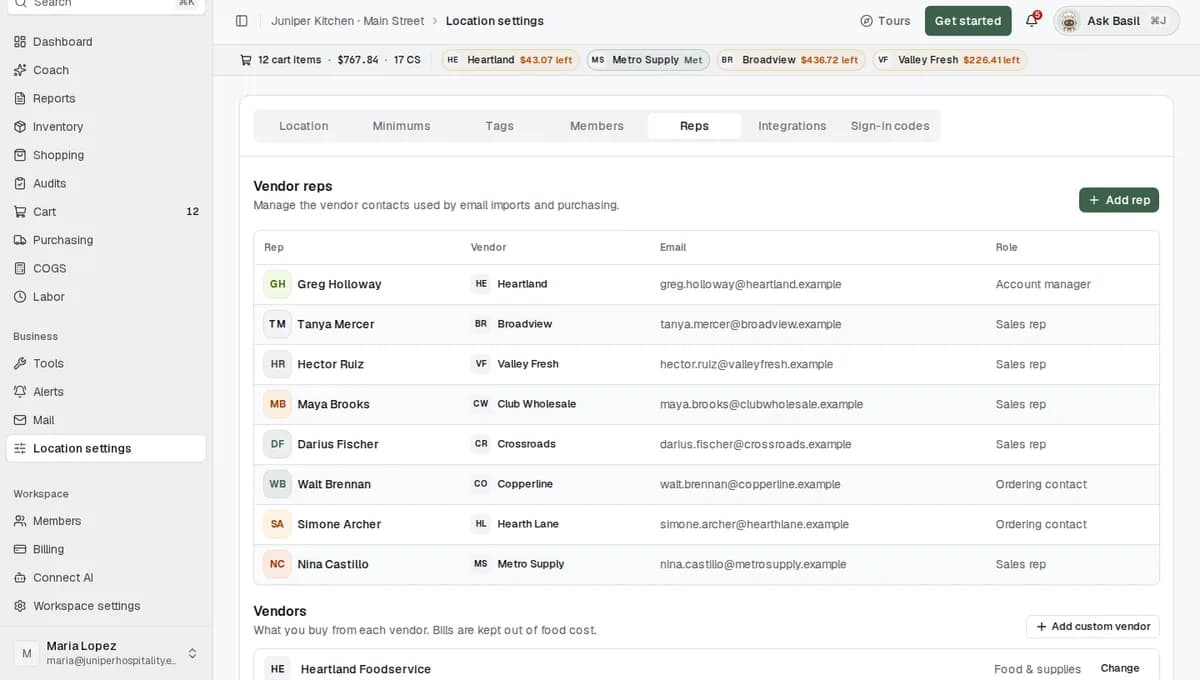
- Click Location settings in the sidebar (in the Business group), then click the Reps tab.
- Scroll down to Vendors. It says "What you buy from each vendor. Bills are kept out of food cost." The Buys column shows Food & supplies or Bills · followed by the category.
- Click Change next to Metro Refrigeration Repair.
- Under What do you buy from them?, pick Bills & services.
- Under Category for their bills, pick Repairs & maintenance.
- Click Save. You'll see "Saved. Uploads for this vendor now go to Bills."
The change applies to uploads from now on. To switch a vendor back, pick Food & supplies and click Save. You'll see "Saved. Uploads for this vendor now count as purchases."
Have bills emailed in
If a company emails you its bills as PDF attachments, RestaurantMate can pick them up from your RestaurantMate inbox or from a Gmail or Outlook inbox you've connected. You'll see the RestaurantMate inbox called "RMate inbox" in the app. RMate is short for RestaurantMate.
RestaurantMate only imports email from senders you list. If you haven't set up a mailbox yet, start with Set up your RestaurantMate inbox or connect Gmail or Outlook.
- Click Mail in the sidebar, then Auto-import senders, then Add sender.
- Under Mailbox, pick the inbox the bills arrive in.
- Under Documents, pick All.
- Under Rep, pick the person or desk that sends the bill. A rep is a contact at a vendor. If they aren't listed, click Add rep:
- Vendor: pick the company. If it's new, type its name and pick Add custom vendor. In the Add custom vendor window, pick Bills & services, pick a Category for their bills and click Add vendor.
- Fill in Name, Email and Role. For a billing desk, pick the role AR / billing.
- Click Add rep.
- Vendor and Sender email fill in from the rep. Click Add sender. You'll see "Email sender added."
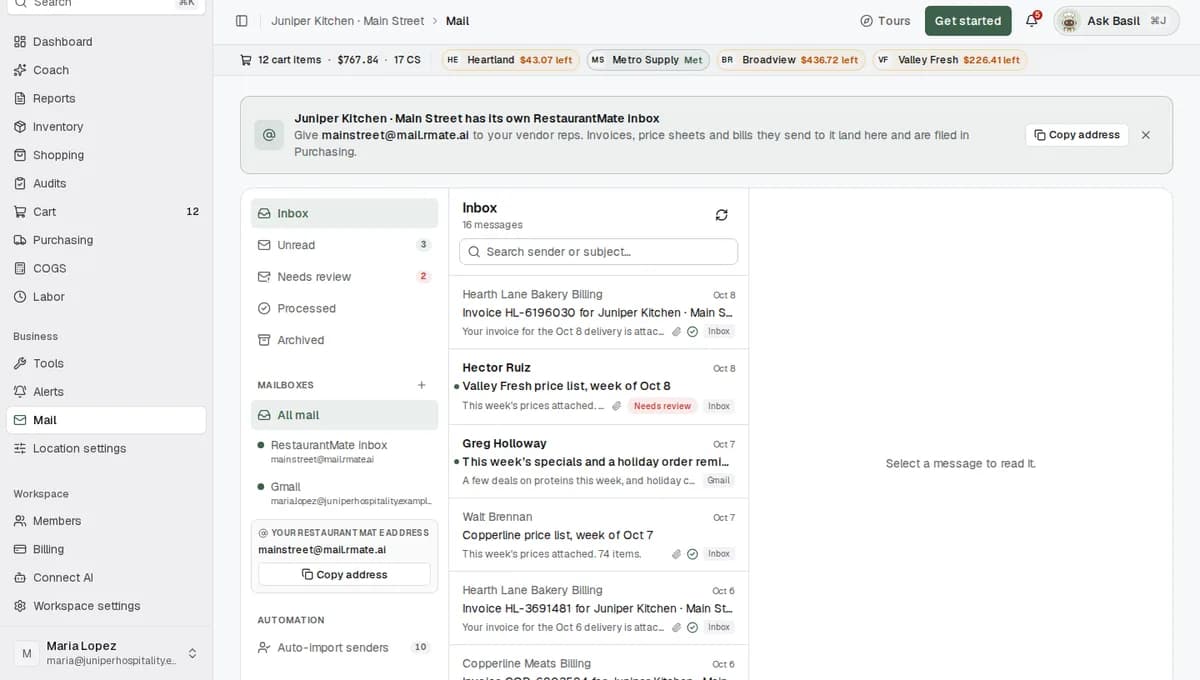
From then on, PDF bills from that address are filed as bills on their own. Bills sent to the RestaurantMate inbox arrive within a minute. A connected Gmail or Outlook inbox is checked every one to two hours.
Read the Bills tab
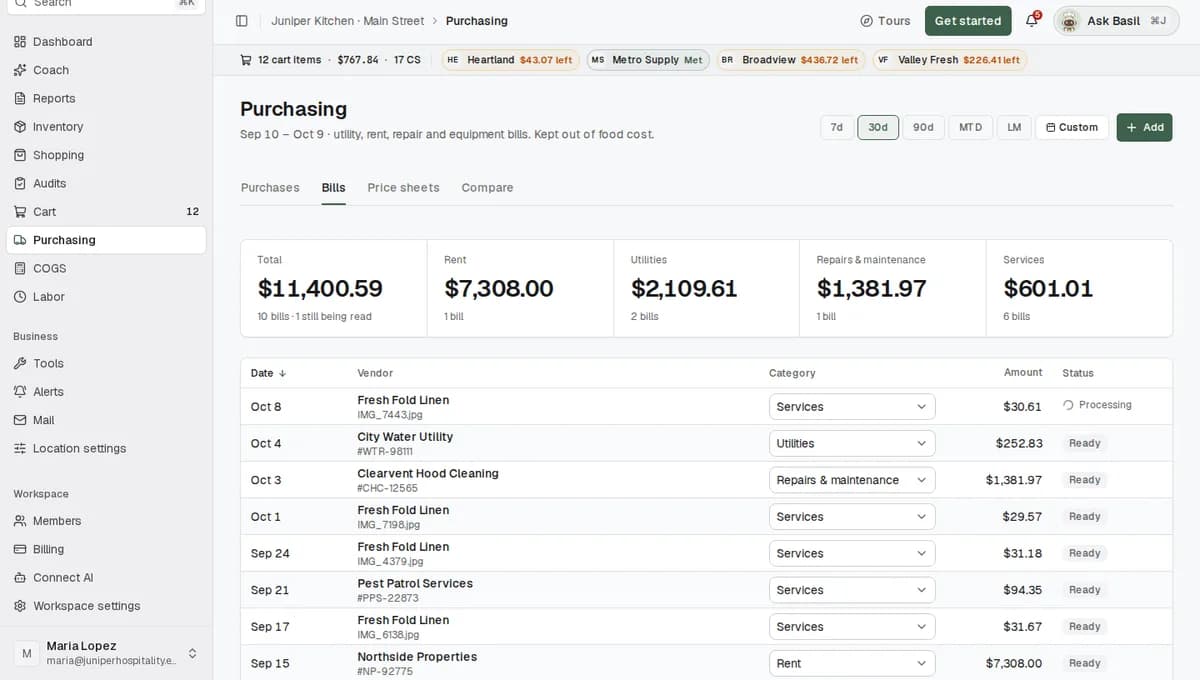
- Click Purchasing in the sidebar, then the Bills tab. The line under the title reads "utility, rent, repair and equipment bills. Kept out of food cost."
- Pick a date range at the top: 7d (last 7 days), 30d, 90d, MTD (this month so far), LM (last month), or your own dates. The page opens on 30d.
- Read the tiles. Total is everything in the range, with the number of bills under it. The next tiles show your biggest categories. The rest are added up in one more tile, such as "3 more categories".
- Read the table. Each bill shows Date, Vendor, Category, Amount and Status.
Change a bill's category
The Category column is a dropdown. Pick a new category and it saves right away.
Say Metro Refrigeration Repair's usual category is Repairs & maintenance, and this month they sold you a new ice machine. Open that bill's Category and pick Equipment. Their other bills stay under Repairs & maintenance.
Open the original bill
Under each vendor name is a link to the file you uploaded or that was emailed in. It shows the bill number, such as #88213, or the file name. Click it to open the original.
What happens after you add a bill
RestaurantMate's AI reads the bill: the vendor, bill number, bill date, due date, service period (the dates the bill covers), account number, subtotal, tax, total, a suggested category and each charge line. The Status shows Processing with a spinner while this happens, then Ready.
A category you pick yourself always wins. If you didn't pick one, the bill takes the vendor's usual category. If the vendor has none, it takes the category the AI suggested.
The bill isn't counted in food cost, price comparisons, orders or inventory. Its charge lines aren't matched to your items.
A bill counts on its bill date, in your location's time zone. If it has no date, it counts on the day it was added. So a September bill you upload on October 3 shows under LM and not under MTD.
Totals only include bills that are Ready. While some are still being read, the Total tile says so, for example "12 bills · 2 still being read".
When a Bills & services vendor sends you an invoice by email, it is filed as a bill.
What bills don't do yet
- Bills aren't on the dashboard, in the weekly report or in a P&L (profit and loss statement).
- The due date is read and saved, but RestaurantMate doesn't send due-date reminders.
- There is no paid or unpaid status for bills. Food purchases have a Paid mark; bills have no marks.
- On the Bills tab you can change the category only. There is no screen yet to edit a bill's date or amount.
- One upload is either a receipt or a bill. You can't split a receipt into food lines and a bill.
Tips
- Set up your bills vendors first. With the built-in roles, only owners, Admins and Location managers can add vendors. Once the vendors exist, a Bookkeeper or Buyer can upload bills and pick them from the list.
- Catch up on old bills in one go. Drop up to 20 at a time. If a bill is already in RestaurantMate (same vendor and number), its row starts unticked and says so, for example "Already uploaded (Sep 3). Tick it to add it again."
- Use the PDF when you have one. If a bill can't be read, try the PDF or a clearer photo.
- Check a month before you send numbers to your bookkeeper. Pick LM on the Bills tab. Every bill should say Ready.
Troubleshooting
A bill landed on the Purchases tab instead of Bills. That vendor is set up as Food & supplies. Switch it to Bills & services in Location settings > Reps > Vendors (see the steps above). The change applies to new uploads. For a bill that's already on the Purchases tab, contact the RestaurantMate team.
I set a row's Type to Bill and now it says "Pick a vendor." A bill needs a Bills & services vendor, so the food vendor on that row was cleared. Pick a bills vendor, or add a new one with Bills & services selected. If it's the wrong type after all, change the row back.
The upload says I can't add new vendors. Your role can upload but can't create vendors. Pick an existing vendor, or ask an owner, Admin or Location manager to add it.
A bill says "Couldn't read". Hover over the badge to see why. Upload a clearer copy of the bill, ideally the PDF. If it still can't be read, contact the RestaurantMate team.
A bill is missing from the total. Check its Status. Bills that are still Processing aren't in the total yet. Then check the date range. A bill counts on its bill date, so an older bill can sit outside 7d or 30d. Pick 90d, LM or your own dates.
An emailed bill never showed up. Check that the sender's address is listed under Mail > Auto-import senders for that vendor. RestaurantMate only imports email from listed senders. Email sent to your RestaurantMate inbox from anyone else waits in Mail > Needs review. Email import only reads PDF attachments. If the bill came as a link or as text in the email, save it as a PDF and upload it with Add. A connected Gmail or Outlook inbox can take up to two hours.
The empty Bills tab says "Upload a bill with Add → Upload a bill", but I don't see that option. Click Add. The same Add documents window takes bills, receipts and price sheets.
The Add button is greyed out. You have View access to Purchasing, which lets you look but not upload. Hover over the button to see what's missing, and ask an owner to change your role.
Common questions
How much did I spend on repairs this quarter? Open the Bills tab and pick your own dates for the quarter. The Repairs & maintenance tile shows the total. If repairs doesn't have its own tile, it's counted in the "more categories" tile. The table lists each bill with its category.
Will RestaurantMate remind me when a bill is due, or track what I've paid? Not yet. RestaurantMate reads and saves the due date, but it doesn't send reminders, and bills have no paid or unpaid status.
Do bills show up in my weekly report or on my dashboard? Not yet. Today bills live on the Bills tab of Purchasing.
A Club Wholesale receipt has food and cleaning supplies on it. Can I split it? No. One upload is either a receipt or a bill. A receipt from a Food & supplies vendor is filed as a purchase with all its lines.
I picked the wrong kind for a vendor. How do I fix it? Go to Location settings > Reps > Vendors, click Change and pick the other kind. New uploads from that vendor follow the new setting.