
Tell RestaurantMate in your own words what to watch for, and it emails you when that happens.
An alert is an email RestaurantMate sends when something you care about happens at one of your locations. It can watch for price changes, delivery fees, items delivered short or substituted, and items below par after a count. It can also watch recipe costs, food cost and labor against your targets, overtime hours in a day's labor, and vendor logins that stop working.
You write the alert as a sentence, like "Tell me when a recipe that uses eggs costs more than $5 a plate". RestaurantMate turns it into an alert and tests it on your last 30 days before you turn it on.
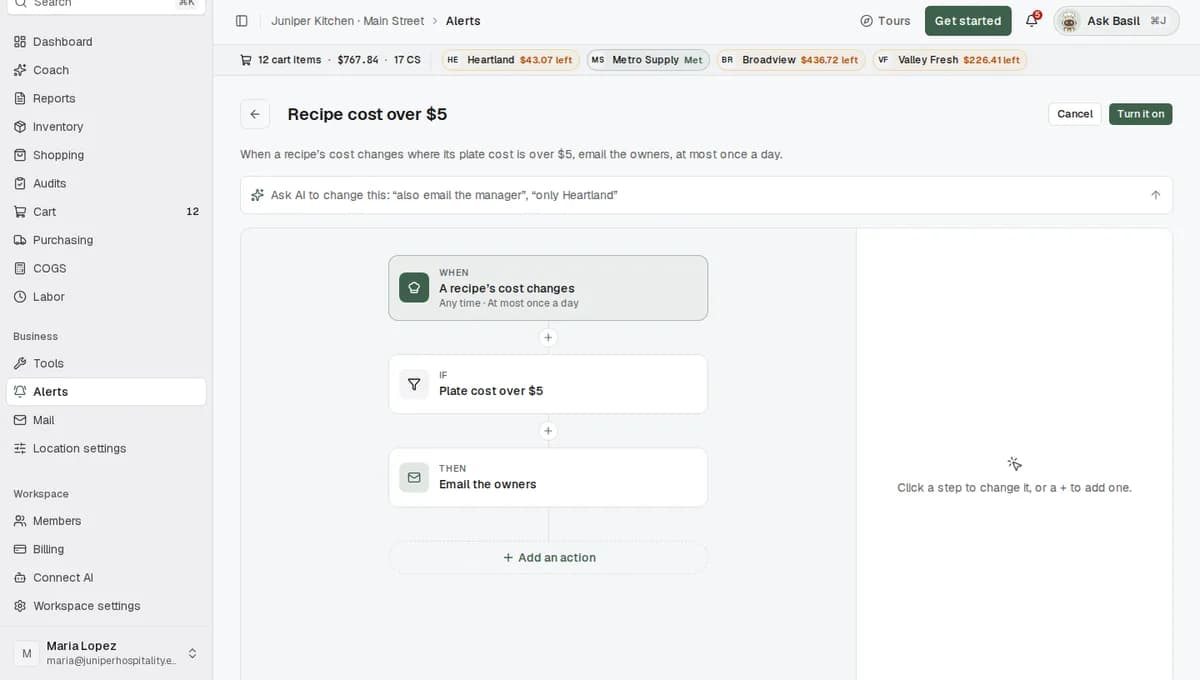
Every alert has three parts. The editor shows each part as a box:
| Box | What it does | Example |
|---|---|---|
| WHEN | What RestaurantMate watches. This is called the trigger. | A delivery receipt arrives |
| IF | The test it has to pass. This is called a condition. You can add more than one. | The delivery fee is over $15 |
| THEN | Who gets the email. | The owners |
Before you start
Check your role. To create or change an alert, you need Full access to Alerts. Owners always have it, and so do the built-in Admin and Location manager roles. People without it can't create alerts. If they can open the Alerts page, they can still mute an alert for themselves. An owner changes roles under Members.
Pick the location. Alerts belong to one location. If you run more than one, switch to the right one first. An alert made at Juniper Kitchen · Main Street doesn't watch Juniper Kitchen · Riverside.
Make sure the data is there. An alert can only watch what RestaurantMate already has. Price and delivery alerts work from your vendor invoices and prices. A labor alert needs your labor connected (7shifts or Homebase today). A sales alert needs your POS sales connected (Toast and SpotOn today).
To create alerts in the chat, your role also needs access to the AI agent. Owners have it. So does the built-in Admin role.
A few words this page uses:
- Par is the amount you want on the shelf. "Below par" means a count found less than that.
- Plate cost is what the ingredients in one serving cost you, at the prices you paid.
- Food cost % is your food cost as a share of sales. Labor % is your labor cost as a share of sales.
- Short means you ordered something and it didn't come. Substituted means the vendor sent a different product in its place.
- SKU is the vendor's product number.
Steps
1. Open Alerts
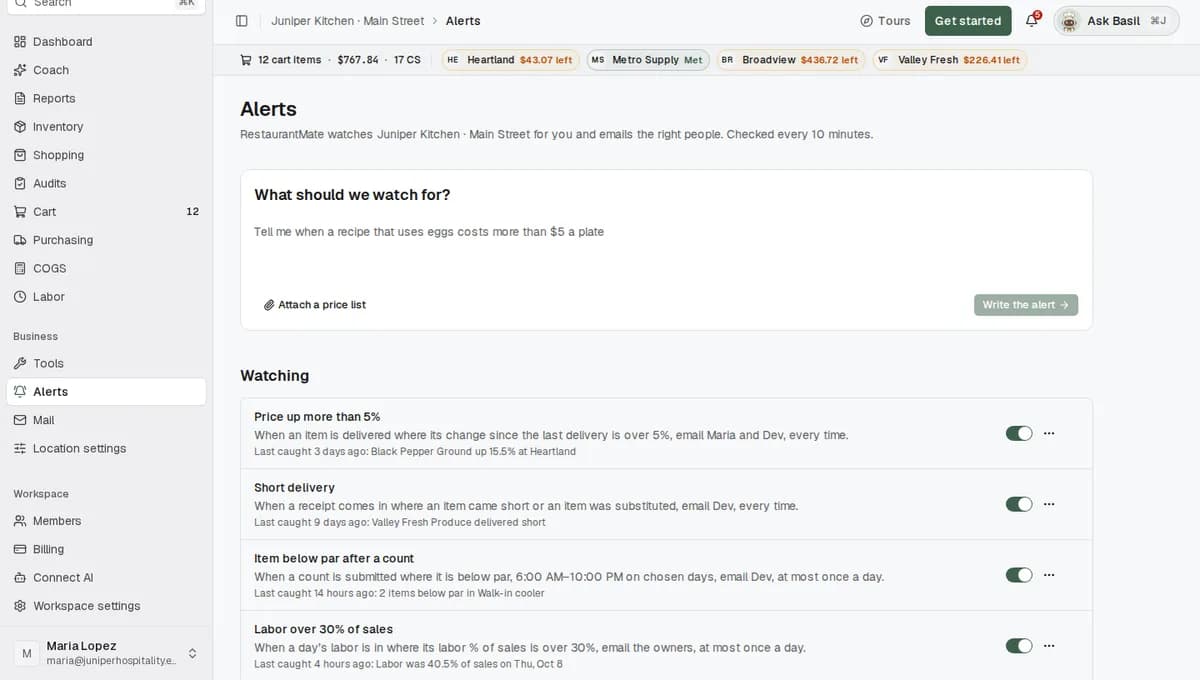
In the sidebar, under Business, click Alerts. The page reads "RestaurantMate watches Juniper Kitchen · Main Street for you and emails the right people. Checked every 10 minutes."
The page has four parts, from top to bottom:
- What should we watch for? is the box where you write a new alert.
- Watching lists the alerts you already have.
- Start from one of these has ready-made alerts you can change.
- Recent catches shows the latest things your alerts found.
2. Say what to watch for
Click in the What should we watch for? box. Type what you want to know, the way you would tell your manager. Name the vendor, item, recipe or number you mean.
Some sentences that work:
- "Tell me when a recipe that uses eggs costs more than $5 a plate"
- "Email the owners when labor goes over 30% of sales"
- "Let me know when Heartland Foodservice charges a delivery fee over $15"
- "Tell me when a count finds an item below par"
Click Write the alert, or press ⌘+Enter (Ctrl+Enter on Windows). While RestaurantMate builds it, you'll see "Writing it and checking the last 30 days…".
3. Answer any question
If a word could mean more than one thing, RestaurantMate asks you before it goes on. For example: "Which item do you mean by “chicken”?", with each of your chicken items as a button. Click the one you mean. It never guesses. Click Never mind to drop the alert.
The same kind of question can show up later in the editor, as a box marked NEEDS YOUR PICK.
4. Check the alert
The editor opens with the boxes filled in. They appear one at a time.
At the top is the alert's name. Click it to change it. A new alert without a name shows "Name this alert".
Under the name, one sentence says the whole alert in plain words. A delivery fee alert reads like this: "When a receipt comes in where the delivery fee is over $15, email the owners, at most once a day." If the sentence doesn't say what you meant, change the alert before you turn it on.
Below the sentence are the boxes. The WHEN box is dark green. For the eggs alert they read:
- WHEN: A recipe's cost changes
- IF: Uses Eggs
- IF: Plate cost over $5
- THEN: Email me
You can move around the canvas and zoom in or out. The boxes stay where they are. On a phone, the boxes show as a list.
5. Change a step if you need to
Click any box. Its settings open on the right. On a phone they slide up from the bottom.
The WHEN box. Under What should we watch?, pick a tile: Deliveries, Prices, Recipe costs, Counts & par, Audits, Labor, Sales, Food cost, Vendor logins or Custom query. Some tiles then ask Which one? For example, you can watch a whole delivery receipt (its total, its fees, the lines delivered short or substituted) or each item on it (its price and how much that changed since the last delivery). The table under What an alert can watch lists every choice.
The WHEN box also sets the timing:
- When to email: Any time, or Only on certain days and hours. For the second, pick the days and the From and To times.
- How often at most: a limit on how many emails this alert sends. Anything caught in between waits and comes in the next email.
An IF box. Pick what to check, then how to compare it: Over, Under, At least or At most a number. For a change, use Went up by or Went down by, then set By more than a dollar amount or a percent. For lists, use Is one of or Is not one of, for example one of your vendors. For recipes, Uses or Does not use an ingredient. Contains checks for words.
The THEN box. Under Email, choose who gets it:
- Me
- The owners
- Everyone at Juniper Kitchen · Main Street: everyone whose role can see this data
- People or roles I choose: pick names under People or roles under Roles
Add a step. Click the + on the line between two boxes to add a condition, a group or another email. Add an action at the bottom adds another email.
A group joins conditions together. Click it and choose All of them are true or Any one is true. For example, a group set to Any one is true can email you when the delivery fee is over $15 or the fuel surcharge is over $10.
Or ask in words. Type the change into the Ask AI to change this bar, for example "also email the manager" or "only Valley Fresh Produce".
6. Test it on the last 30 days
Under the canvas, a bar reads Test it on the last 30 days. Click Test it. RestaurantMate runs the alert on your last 30 days and shows what it would have caught, for example "Would have caught 2 in 30 days · 2 emails".
Click the bar to see each catch. For the eggs alert, one catch shows a recipe whose plate cost went from $4.20 to $5.13.
If you change a step after testing, the result is marked "changed since". Click Test again.
If it would have emailed you 40 times in a month, tighten the condition or set How often at most. If it would have caught nothing, see Troubleshooting.
7. Turn it on
Check the name, then click Turn it on. You go back to the Alerts page, and the alert is in the Watching list with its switch on. Until something matches, it shows "Nothing caught yet".
If Turn it on is greyed out, hover over it to see the first thing to fix.
Other ways to start an alert
Start from a ready-made alert
Under Start from one of these, click a tile. The editor opens with the boxes filled in, and you go on from step 4. The tiles are:
- Delivery fee over $15
- Price up more than 5%
- Recipe cost over $5
- Item below par after a count
- Audit submitted
- Labor over 30% of sales
- Food cost over 32%
- Vendor login broken
- Short delivery
- Paid over an agreed price
Start from scratch opens an empty editor. Click the WHEN box first. Until you do, the sentence reads "Choose what to watch to start."
Watch the prices you agreed with a vendor
Say Prairie Meats sent you a price sheet with the prices you agreed on. You can get an email whenever a delivery costs more than those prices.
- In the What should we watch for? box, click Attach a price list and pick the file. A spreadsheet (CSV or XLSX), a PDF or a photo works, under 5 MB. A photo works too, but its lines are flagged for you to check.
- Type "Tell me if we pay more than these prices" and click Write the alert.
- In the editor, the IF box holds the agreed prices, each matched to one of your products. A line RestaurantMate couldn't match says "Not matched to a product yet". Click Which product is this?, search by name or SKU, and press Enter.
- Click Test it, then Turn it on.
Ask your agent in the chat
Open the in-app chat (the agent is called Basil in these examples). Type what you want, for example "Email me and the manager when the delivery fee is over $15".
The agent shows the alert as WHEN, IF and THEN steps, marked "Draft alert, not on yet", with its 30-day test. A card then asks for your OK. Click Create alert to turn it on, or Not now.
You can also say "Pause the delivery fee alert". If you ask to turn a paused alert back on, the agent asks you first.
Manage your alerts
All of this happens in the Watching list on the Alerts page.
- Pause an alert. Turn its switch off. The row shows "Paused". Turn the switch on to start it again.
- Change an alert. Click the row. Make your changes in the editor, then click Save.
- Stop it for yourself only. Click … on the row, then Stop sending me this. Everyone else still gets it, and the row shows "muted for you". Send me this again undoes it. Every alert email also has a link to stop it.
- Delete an alert. Open it and click the bin icon. Click Delete it to confirm, or Keep it to go back.
What an alert can watch
| Pick this | It checks | You can test |
|---|---|---|
| A delivery receipt arrives | Each new invoice or receipt | Vendor, total, fees (delivery fee, fuel surcharge, service charge, shipping), lines delivered short, substituted lines, invoice number |
| An item is delivered | Each line on a new invoice | Item, vendor, price per case or per unit, change since the last delivery, quantity, line total, SKU |
| The price checker sees a price | Prices RestaurantMate checks overnight | Item, vendor, price per pack or per unit, change since the last check |
| An audit is submitted | Each count someone submits | Who counted, the list, items counted, items below par |
| An item is counted | Each item in a submitted count | Item, counted on hand, par, below par, how far short of par |
| A recipe's cost | Your recipe costs | Recipe, ingredients it uses, plate cost, food cost %, menu price, batch cost |
| An ingredient's cost in a recipe | One ingredient in your recipes | Ingredient, recipe, cost per plate, unit cost |
| A day's labor | Each finished day | Labor %, labor target, labor cost, sales, hours, overtime hours |
| A day's sales | Each finished day | Sales, change on last week, orders, average check |
| A week's food cost | Each week's report | Food cost %, sales, labor % |
| A vendor login | Your vendor connections | Vendor, needs a new sign-in |
| Custom query | Any of the data above | For someone who writes database queries (SQL). It can only read data. |
What happens next
- RestaurantMate checks every 10 minutes. Alerts aren't instant. An email can arrive a few minutes after the thing happens.
- Some alerts email once for each new thing. A new receipt, a delivered item, a count or a submitted audit each gets checked once.
- Some alerts watch how things stand. A recipe's cost or a vendor login emails you when the condition becomes true. It can email again only after the condition has gone back to false.
- Turning an alert on doesn't email you about the past. If a recipe was already over $5 a plate, you won't get an email the moment you turn the alert on.
- Emails come from "RestaurantMate Alerts" at alerts.rmate.ai.
- Each person only gets alerts about data their role can see. Choosing everyone at the location never sends a price alert to someone with the Inventory counter role, because that role can't see prices.
- Nothing is dropped. When you set days and hours or How often at most, catches in between are saved and sent together in the next email.
- AI only writes the alert. It turns your words into the WHEN, IF and THEN boxes using the names of your own vendors, items, recipes and people. The checks themselves are plain math on your own numbers: your invoices, recipe costs, labor and sales.
Recent catches shows what each alert found and whether it was emailed. Use Show catches from to see one alert at a time.
| Status | What it means |
|---|---|
| Sent | Emailed. The line says who got it. |
| Sending | On its way. |
| Waiting | Caught and not sent yet. With days and hours or a limit set, it goes out in the next email. |
| Not sent | The email didn't go out. |
| Nobody to send to | Nobody on the alert's email list has a role that can see this data. |
Tips
- The quickest start is a tile under Start from one of these. Change the number to fit your restaurant.
- Use the names you see in RestaurantMate for vendors, items and recipes. Then nothing needs a pick.
- Price alerts can fire often. Set How often at most so they come together in one email.
- Narrow an alert from the Ask AI to change this bar, for example "only Valley Fresh Produce".
- To hear about running low, use Item below par after a count. It emails after someone submits a count.
- Run the 30-day test after every change. It shows how many emails to expect before anyone gets one.
Troubleshooting
I don't see Alerts in the sidebar. By default, the Alerts page shows only for roles that can create alerts. Ask an owner. Owners can add the page to a role under Members, on the Roles tab.
I see my alerts, but not the What should we watch for? box. Your role can see alerts but can't create them. You can still mute an alert for yourself. Ask an owner for Full access to Alerts.
Turn it on is greyed out. Hover over the button to see what's missing. It's often a box marked NEEDS YOUR PICK, or a step that hasn't been set yet.
The test says "Would have caught nothing in 30 days". That can be right. It may not have happened in the last 30 days. Check the number in the IF box and the vendor or item it names. Also check that the data is in RestaurantMate. A labor alert has nothing to check until your labor is connected.
I turned an alert on and haven't had an email. Look at Recent catches first. If nothing is there, nothing new has matched since you turned it on. Give it 10 minutes after something happens. Check that the row doesn't say "Paused" or "muted for you", and check your spam folder for "RestaurantMate Alerts".
Someone on my team didn't get an alert. Their role probably can't see that data. A price alert never goes to someone who can't see prices. Change their role under Members, or pick a different person.
I want an alert when a vendor is out of stock. RestaurantMate can't see a vendor's stock. The closest alerts are Short delivery and substituted lines on a delivery receipt, which tell you the vendor didn't send what you ordered. To hear when you are running low, use Item below par after a count.
Common questions
Does AI decide when to email me? No. AI helps write the alert. Deciding whether it matches is plain math on your own data, checked every 10 minutes.
Will it flood my inbox? It emails only when something new matches. You can set the days and hours it emails and a limit on how often. Anyone can mute an alert for themselves.
Can I get alerts by text message or in Slack? Not today. Alerts come by email.
Can it tell me when someone goes into overtime? Labor alerts look at a day's labor after the day ends, using the overtime hours for the whole location. To see who is close to 40 hours this week, open the Labor page.
Can ChatGPT or Claude create alerts for me? Not through Connect AI. Only a person in RestaurantMate, or the agent in the in-app chat, can create an alert.