
The agent is a chat panel built into RestaurantMate. Ask it about your food cost, prices and deliveries, or tell it to fix a recipe or build an order.
It works with your own permissions, so it can only see and change what you can. Every change it makes shows up as a card with an Undo button. Anything that spends money or goes to a vendor waits for your OK first.
The examples use the demo workspace Juniper Hospitality and the location Juniper Kitchen · Main Street. The demo agent is named Basil. You choose your own agent's name.
Before you start
- You need access to the AI agent. Owners and co-owners always have it. The built-in Admin role has it at its locations. An owner can give it to any other role in Members, under Roles, in the AI agent area. If you don't have access, the panel says "Ask a workspace owner for access to the AI agent at this location." See Roles and page access.
- Be on a location page. The agent is on every page inside a location. It is not on workspace pages such as Members or Billing, and it is not there while a location is still on the welcome setup screen.
- Some data helps. The agent answers from what RestaurantMate has. For food cost questions, your recipes need to be set up. See Recipes and food cost.
Open the agent and name it
Open the panel. At the top of any location page, click Ask the agent. Once your agent has a name, the button reads Ask followed by that name. You can also press Ctrl+J (⌘J on a Mac). On a phone, tap the floating Ask button. It opens full screen.
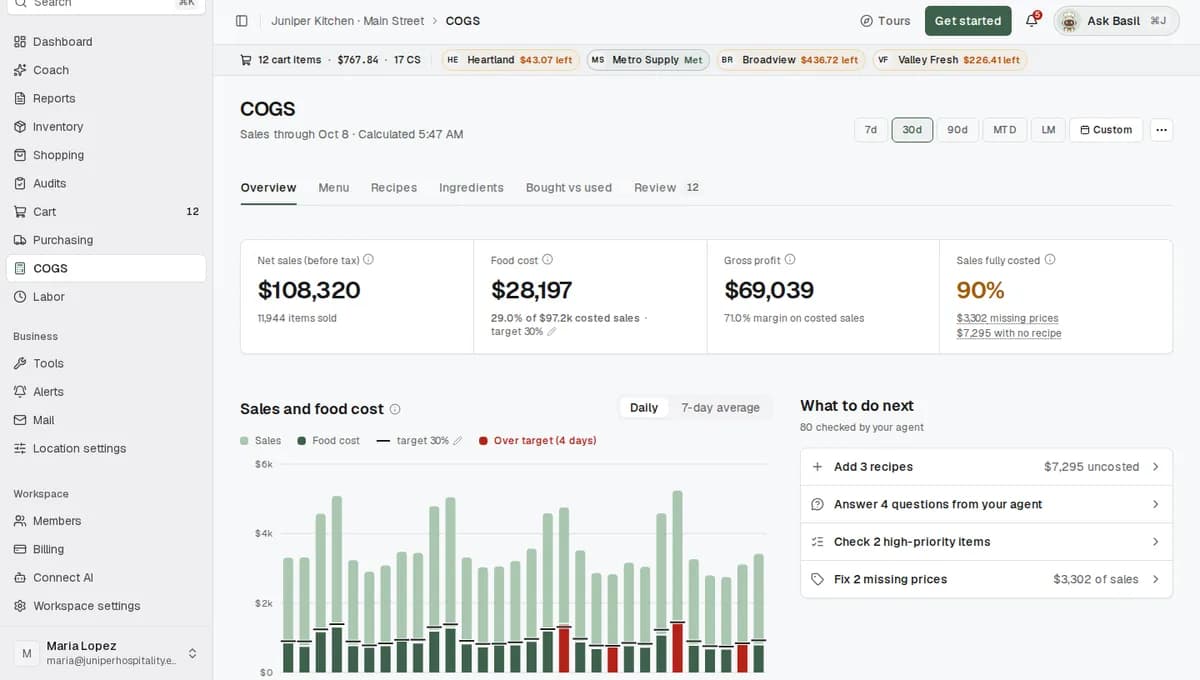
Read the introduction. The first time, a short dialog lists what the agent does. It answers questions about food cost, purchasing and inventory. It fixes recipes, and every change can be undone. It builds carts, and asks you before it sends an order or spends money. It works with your own permissions. It remembers what you tell it.
Give it a name. Tap a suggested name or type your own, then pick an avatar. Click Not now to skip this for the moment. If you have more than one location, you can choose Use the same agent as your other location. When you finish, you'll see "Say hello to" and your agent's name.
Ask a question
Start from a suggestion or type your own. An empty panel shows four starter questions picked for the page you are on. On the food cost page they include "Why is food cost where it is?" and "Which recipes cost the most per plate?". On the cart page they include "Is there anything cheaper for what is in my cart?" and "Am I over the vendor minimums?"
Let it read the page. By default the box includes an Include this page chip. It sends the page you are on, its filters and date range, and what is on screen, so you can ask "why is this so high?" without explaining which page you mean. To leave the page out, remove the chip.
Read the answer. The reply appears as it is written. The agent shows steps in plain words such as "Reading the Burger recipe". Products, recipes, savings and receipts show up as cards you can click. Source links at the end show where each fact came from. It only states facts it got from your data or its notes.
Rate it if you like. Use the thumbs up or thumbs down on an answer. A thumbs down with a reason becomes a note the agent remembers.
Show the agent what you are looking at
You have three ways to point at something.
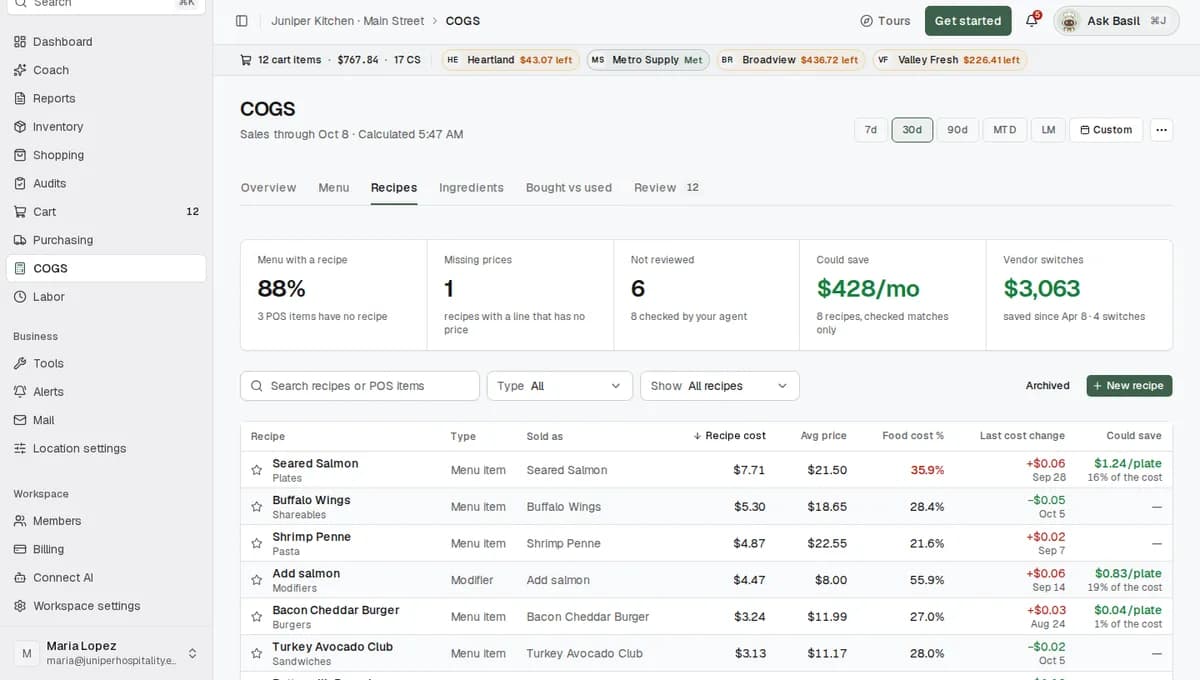
- Ask about this. Many rows and dialogs have an Ask about this button: recipes, receipts, savings rows, inventory items and Coach cards (savings suggestions). It opens the panel with that record attached and a starter question, such as "Check this recipe and fix anything that looks wrong".
- Attach a screenshot. In the box, open the Attach menu and choose Screenshot of this page or Select part of the page.
- Attach a file. Choose Photo, PDF or spreadsheet to send a picture of a handwritten recipe or a price sheet. Images can be up to 5 MB.
Have the agent fix something
Say what to change. For example, type "Make the beef 6 oz" while a burger recipe is open. The agent can change recipe lines and amounts, set prices by hand, fix unit conversions, change pars (the amount you want on hand) and update inventory items.
Read the change card. A card appears in plain words, such as "Changed beef in Build Your Own Burger from 5 oz to 6 oz". It has two buttons.
- Undo puts the change back.
- Show me scrolls the page to the row that changed. The row tints green so you can find it.
Check the new food cost. The agent recomputes the plate cost after a change. Ask "What is the food cost now?" to see it.
Build a cart
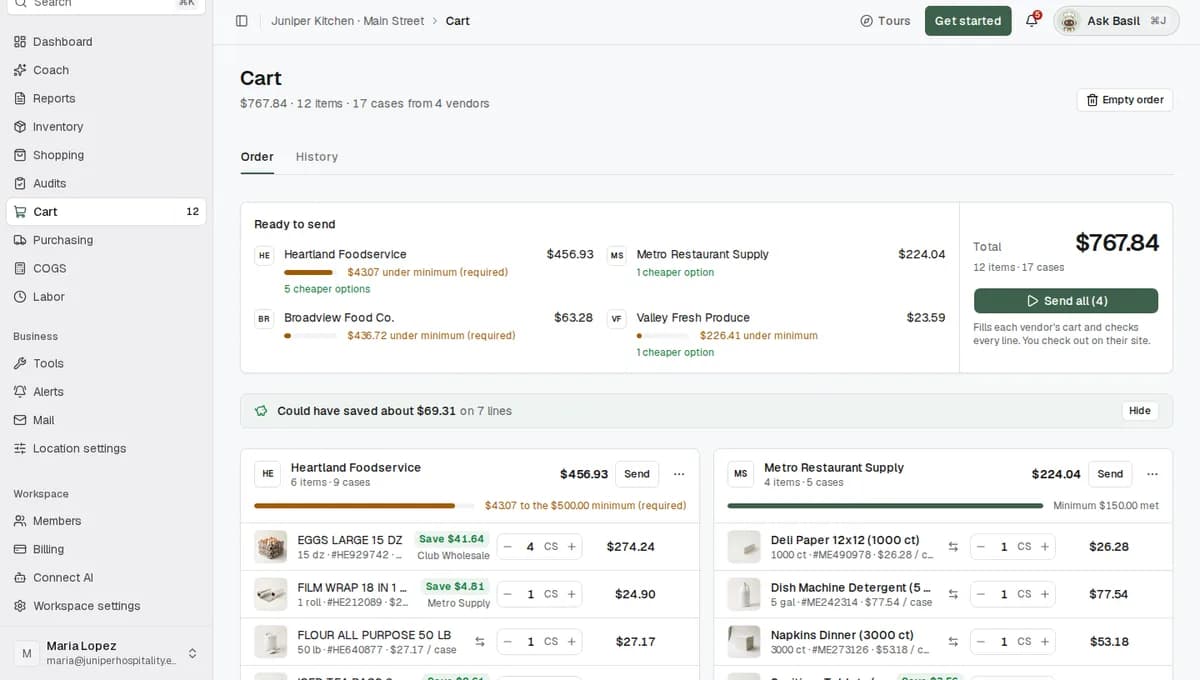
Ask for what you need. For example, "Add the cheapest fryer oil to my cart." The agent searches your connected vendors, compares the price per unit, and shows product cards with an Add to cart button.
Review the cart. The agent fills each vendor's online cart. You look it over and check out yourself.
Approve before anything goes to a vendor. If you ask it to send the cart on, a card appears: "Needs your OK" with a label such as Spends money or Goes to a vendor. It reads like "Send the Valley Fresh Produce order?" and lists the exact lines and total. Click Approve to go ahead or Not now to stop. The card expires after 5 minutes.
What happens next
- Changes take effect straight away. Reading and small, reversible fixes apply right away and show a card with Undo.
- Risky changes wait. Anything that spends money, goes to a vendor, deletes data or is a sensitive change waits for your Approve. The card is built from the real request, not from the agent's own words.
- Everything is logged. Open the ... menu in the panel and choose Undo this conversation to put back every change the agent made in that chat. Orders already sent to a vendor are not recalled.
- It remembers. The agent keeps notes for each location: what you tell it, your answers to its questions, and your thumbs-down reasons. It uses them next time. See the next section.
- Chats keep running if you close the tab. Only Stop cancels a reply. If a reply finishes while you are away, it shows as unread.
- Long jobs go to the background. A job like fixing many recipes is queued and handled by a background agent for the location. It shares the same notes as the chat.
See and edit what your agent knows
- In the panel, open the ... menu and choose the "what your agent knows" entry (it shows your agent's name).
- The page lists notes by kind. Search them, or filter by Active, Pinned and Past.
- Click Add a note to teach it something, for example "We close the kitchen at 10 on Sundays". Edit a note any time.
- Click Pin on a note to make the agent always read it.
- Click the delete button and confirm Forget this note? to remove it. A deleted note is gone.
- The Handbook is a summary of your location: concept, vendors and why you use them, house recipes and portions, preferences and terms. Click Build the handbook, or Rebuild after big changes.
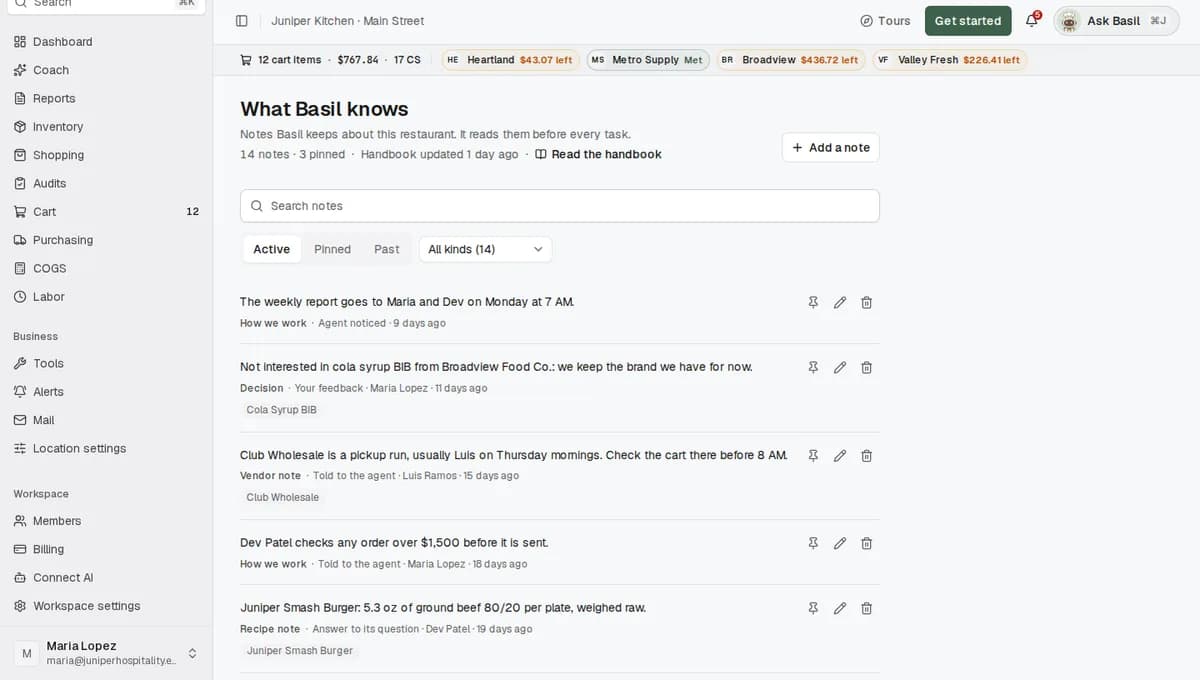
A new location starts with no notes. The page says the agent learns from your answers, your "Not interested" reasons and what you tell it in chat.
Tips
- Be specific about the thing. "Make the beef in Build Your Own Burger 6 oz" works better than "fix the burger."
- Use Ask about this on the row. It attaches the record, so you don't have to describe it.
- Tell it things once. Say "remember that we only buy chicken from Prairie Meats". It keeps the note for that location.
- Check the first few changes. Click Show me on a card to see exactly what moved before you carry on.
- Start a new chat for a new topic. Use New chat. Past chats brings back earlier ones. In the ... menu you can Rename chat or Archive chat.
- Widen the panel. On a computer you can drag it wider to read long answers.
- Prefer your own AI app? You can connect ChatGPT or Claude instead. See Connect ChatGPT or Claude.
Troubleshooting
I don't see the Ask button. You may not have AI agent access at this location. Ask an owner to turn on AI agent for your role. Also check that you are on a location page. The button is not on Members or Billing, and not while a location is still on the welcome setup screen.
It says "You've used today's chat budget. It resets tomorrow." Each person and each location has a daily limit, and a heavy day can reach it. Try again tomorrow.
It asked me a question with buttons and changed nothing. Your request was unclear, so the agent asked before writing anything. Pick an answer, or rephrase.
The Approve card disappeared. Confirm cards expire after 5 minutes. Ask again to get a new one.
Undo isn't offered on a recipe change. If a person already reviewed that recipe, the agent can change it but cannot undo it. Edit the recipe yourself to put it back.
The agent can't see labor or other reports. It only shows what your role is allowed to see. Labor needs labor access, and some reports are owner-only.
An answer looks wrong. Click Show me or open the source links at the end of the answer to check the data. Give the answer a thumbs down and say why. That reason is saved as a note.
FAQ
Is the agent on for me? Yes, if you are an owner. Click Ask at the top of any location page, or press Ctrl+J (⌘J on a Mac).
Can it break something? Every change it makes appears as a card with Undo, and Undo this conversation reverses all of them. Anything that spends money or goes to a vendor waits for your Approve. Orders already sent to a vendor cannot be recalled.
Can my staff use it? Owners and the Admin role can by default. You can give it to any role in Members, under Roles. It always works with that person's own permissions, never more.
What does it remember? What you tell it and your answers to its questions, kept separately for each location. You can see, edit, pin and delete every note on the page for what your agent knows.
Can I show it what I'm looking at? Yes. Attach a screenshot of the page or part of it, or click Ask about this on a recipe, receipt or savings card.