
Add RestaurantMate to ChatGPT or Claude, then ask that app about your sales, labor, purchasing and food cost.
If you already work in ChatGPT or Claude, you can connect it to your RestaurantMate data. The AI reads your numbers straight from RestaurantMate, so you don't have to export a spreadsheet first. It works with your own permissions, and every change it makes is logged with an undo.
The connection uses MCP, short for Model Context Protocol. MCP is a standard way for AI apps like ChatGPT and Claude to connect to other software. You don't need to know how it works: you copy one address into your AI app and sign in.
You'll see "RMate" in a few places during setup. It is short for RestaurantMate.
The examples use the demo workspace Juniper Hospitality. It has two locations, Juniper Kitchen · Main Street and Juniper Kitchen · Riverside.
Before you start
- You need to be a workspace owner. Only owners see the Connect AI page, and only an owner can approve a connection. Managers and staff can use the agent built into RestaurantMate instead, if their role includes AI agent. See Use the in-app agent.
- An account in ChatGPT or Claude. Set it up on a computer, in the web app or the desktop app. In ChatGPT you need to turn on Developer mode to add a custom connector. A custom connector is an outside service you add to the AI app yourself.
- Your RestaurantMate login. During setup, the AI app opens a RestaurantMate sign-in page in your browser. You never paste a password or an API key (a secret code that apps use to sign in to each other).
- Sales and labor connected, if you want to ask about them. The AI can only answer from data RestaurantMate has. Sales come from your POS (Toast and SpotOn today, and we add your POS on request). Labor comes from 7shifts or Homebase. See Connect your POS sales.
Connect your AI app
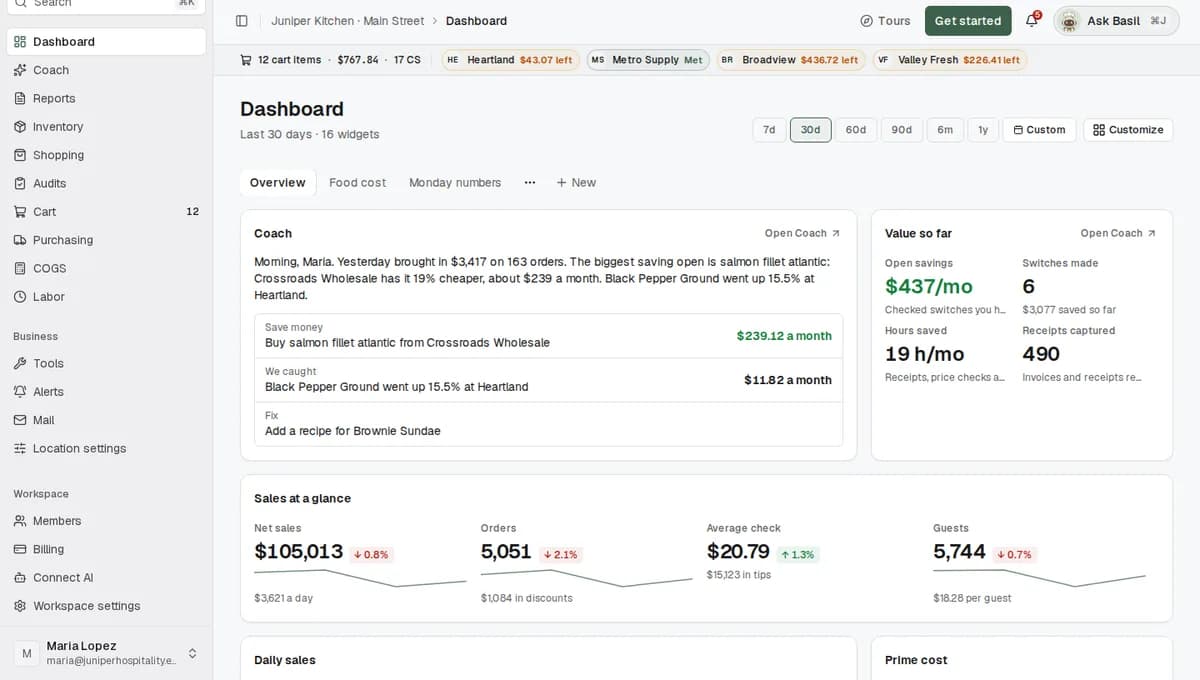
Open Connect AI. In the sidebar, go to the Workspace group at the bottom and click Connect AI.
Pick your AI app. Under Connect your AI app, click Claude or ChatGPT. The steps for that app appear under the tiles. The other tiles are Claude Code, Cursor and Codex, which are tools for programmers, and Something else, for any other app that supports MCP.
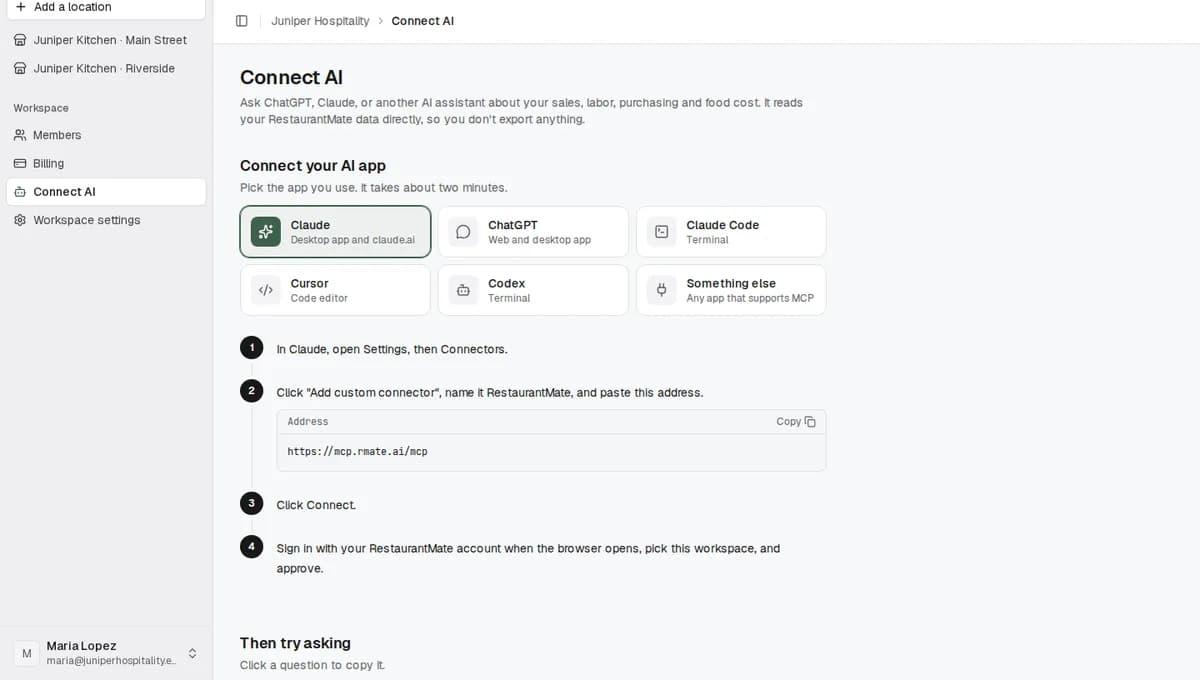
Copy the address. Click the copy button next to
[mcp.rmate.ai/mcp](https://mcp.rmate.ai/mcp`). This is the address your AI app uses to reach RestaurantMate.Add RestaurantMate in your AI app. Open ChatGPT or Claude and follow the steps for your app.
In Claude (claude.ai or the desktop app):
- Open Settings, then Connectors.
- Click Add custom connector. Name it RMate and paste the address.
- Click Connect.
In ChatGPT (web or desktop app):
- Open Settings, then Apps & Connectors. Under Advanced settings, turn on Developer mode.
- Click Create. Name it RMate and paste the address as the MCP server URL.
- Leave authentication set to OAuth. OAuth is the standard "sign in with" method, so you sign in on RestaurantMate's own page and the AI app never sees your password.
ChatGPT and Claude rename their menus from time to time. If a label doesn't match what you see, check the steps on the Connect AI page or that app's own help pages.
Sign in to RestaurantMate. Your browser opens a RestaurantMate page. If you aren't signed in yet, sign in with the email you use for RestaurantMate. The page that opens is titled Connect followed by your app's name, such as Connect Claude. It lists what the app is asking for and the site it will send you back to.
Choose the workspace. Under Restaurant workspace, pick the workspace to connect. The AI only ever sees data from this workspace. A workspace holds all your locations, so for Juniper Hospitality one connection covers both Main Street and Riverside.
Choose the access level. Under AI access level, pick one:
- Read-only analytics, marked Recommended. This is for questions about sales, labor, inventory and food cost. Pick it if you only want answers.
- Analytics and confirmed actions. Pick this if you also want the AI to make changes when you ask, such as entering a count or changing a price.
You can change the level later without connecting again.
Click Connect. The button carries your app's name, such as Connect Claude. RestaurantMate sends you back to your AI app. If you change your mind, click Deny and nothing is connected.
Ask your first question. Back on the Connect AI page, the Then try asking section has four questions to start with. Click one to copy it, then paste it into a new chat in your AI app.
What happens next
RMate now shows as connected in your AI app. Start a new chat and ask in plain words. When the answer depends on the location, say which one:
- "How did sales last week at Juniper Kitchen · Riverside compare to the week before?"
- "Which vendor prices went up the most this month at Main Street?"
- "What did we pay Valley Fresh Produce and Heartland Foodservice for romaine this month?"
To answer, the AI first reads RestaurantMate's own reports for each location. These cover sales, labor, purchasing, food cost and food usage. For questions the reports don't cover, it can look things up in your data itself. Those lookups can only read.
It works with your permissions. The AI sees what you see in RestaurantMate, in the one workspace you picked. If a location is locked because its free trial ended without a payment method, that location drops out of what the AI can see until a payment method is added.
Changes, if you allowed them. With Analytics and confirmed actions, the AI makes the changes you ask for through the same system the RestaurantMate app uses, with your permissions. Each change goes through straight away. RestaurantMate logs every change with the record as it was before and after. If a change isn't what you wanted, ask the AI to undo it. It can undo one change, or everything it changed in one reply.
Recipes stay unreviewed. Recipes and modifier rules the AI adds or edits are saved as not reviewed, so you can check them in RestaurantMate. A modifier rule says what a POS add-on, such as "add bacon", does to a recipe.
Orders. RestaurantMate tells your AI never to send a cart to your vendors unless you ask it to in that chat. Sending a cart fills each vendor's online cart. You still review it and check out yourself.
What it can't do. A connected AI can't create alerts, change labor settings or read vendor sign-in codes. Do those in RestaurantMate. You can also ask the in-app agent to create an alert.
It shares your notes. Each location keeps notes on what you've told your in-app agent, on the What your agent knows page. Your connected AI reads the same notes and can add to them.
Change the access level or disconnect
- On the Connect AI page, open More, then Is it safe?, and click Manage connections. The Connected AI clients page opens. The same page is linked at the bottom of the approval screen.
- Each connected app shows its workspace and its level: "Read-only RMate analytics" or "Analytics and owner-confirmed actions".
- Click Enable confirmed actions to let it make changes, or Disable actions to set it back to read-only.
- Click Revoke access to disconnect the app. Its access to your restaurant data stops right away.
Tips
- Start with read-only. Use Read-only analytics for the first week or two. When you want the AI to change things, switch to Enable confirmed actions on the Connected AI clients page. You don't have to connect again.
- Name the location. Juniper Hospitality has two locations, so "at Riverside" in the question gets a cleaner answer than leaving it out.
- Ask it to show its work. Ask which report or numbers an answer came from. That makes a surprising number easy to check in RestaurantMate.
- Ask what it changed. After a chat where it made changes, ask "What did you change?" before you close it. Anything you don't want, ask it to undo.
Troubleshooting
I don't see Connect AI in the sidebar. The page is for workspace owners only. If you're a manager, ask an owner to connect, or use the in-app agent if your role includes AI agent.
The approval page says "You are not an owner of any restaurant workspace, so there is nothing to connect." You signed in with an account that isn't an owner. Ask a workspace owner to connect the app, or sign in with the owner's account.
ChatGPT has no Developer mode, or Claude has no Add custom connector. These settings belong to ChatGPT and Claude, and RestaurantMate can't turn them on for you. ChatGPT needs Developer mode for custom connectors. Check that app's help pages, or ask whoever manages your company account in that app.
"RMate could not complete this authorization. Restart the connection from your AI client." Remove the RMate connector in your AI app, add it again with the address from the Connect AI page, and sign in again.
The AI says it can't see one of my locations. Check that you connected the right workspace. Then check Billing: a location whose free trial ended without a payment method is locked, and the AI can't see it until you add one. See Free trial and billing.
The AI says it isn't allowed to make a change. If you connected with Read-only analytics, click Enable confirmed actions on the Connected AI clients page. Some changes can't be made from a connected AI at all, such as alerts, labor settings and sign-in codes. Make those in RestaurantMate.
It stopped working after it was fine. Open Connected AI clients. If the app isn't listed, its access was revoked. Connect it again from step 1.
Common questions
Do I need this if I already use the in-app agent? No. The in-app agent is built into RestaurantMate and is on for every owner. Connect your own AI if you already work in ChatGPT or Claude and want your restaurant data there too.
Can ChatGPT or Claude change my data? Only if you picked Analytics and confirmed actions. It then changes only what you ask for, with your own permissions. Every change is logged and can be undone. You can switch it back to read-only at any time on the Connected AI clients page.
Can it send a cart to my vendors? Only if you ask it to in the chat. RestaurantMate tells connected AIs never to send a cart otherwise. Sending a cart fills your vendors' online carts, and you review each one and check out yourself.
Can my managers connect their own ChatGPT? Not today. Only an owner can approve a connection. Managers can use the in-app agent if their role includes AI agent, and it works with their own permissions. See Give each person only the pages they need.
Where does my data go? Your AI app signs in with your RestaurantMate login and reads only the workspace you picked. What it reads becomes part of your chat in ChatGPT or Claude, so that app's own privacy settings apply to it. To stop it reading, click Revoke access.