
Every week, RestaurantMate makes a report for each of your locations and emails it, with the full report attached as a PDF.
The report covers the last full week, Monday to Sunday. It puts your sales, food cost and labor next to the week before. It also lists the savings your Coach has checked, price changes on what you buy and three things to do next week. Every past report stays on the Reports page.
By default the email goes out Monday at 7 AM, location time. An owner or manager can change the day and hour, switch sections off, tell the report what to focus on in plain words and choose who gets it.
Before you start
Check your role. Owners can always open Reports. So can people whose role shows the location's Dashboard. Of the built-in roles, that's Admin, Location manager, Bookkeeper and View only. Buyer, Counts & purchasing and Inventory counter don't see Reports unless an owner adds the page to their role under Members.
Check who can change the report. To open Report settings or make a report again, you need to be an owner or have Full access to Location settings at that location. The built-in Admin and Location manager roles have it. A custom role that includes the AI agent can change the report too. See Give each person only the pages they need.
Connect your sales and labor. Sales, orders and average check come from your POS (point of sale, the system your registers run on). Labor % needs a connected labor system. Without them, those numbers show a dash. Food cost % shows only when your recipes cover at least 80% of the week's sales. See Connect your POS sales and Connect labor.
A few words this article uses:
- Food cost %: what the ingredients in the dishes you sold cost, as a share of sales.
- Average check: the average amount of one order.
- Purchases as % of sales: what you spent with vendors that week, as a share of sales.
- Labor %: what you paid staff, as a share of sales.
- Switch: buying an item from a cheaper vendor than the one you used before.
- Open savings: how much a month you would save by making the switches the Coach has checked and you haven't made yet. The list of reports calls it To save / mo.
- Your agent: the AI assistant that works in the background for each location. It writes the notes and the three actions in the report. It never sets a number.
- Location time: the time zone of the restaurant. Each location has its own.
Read your report
1. Open Reports
In the sidebar, click Reports. It sits just under Coach.
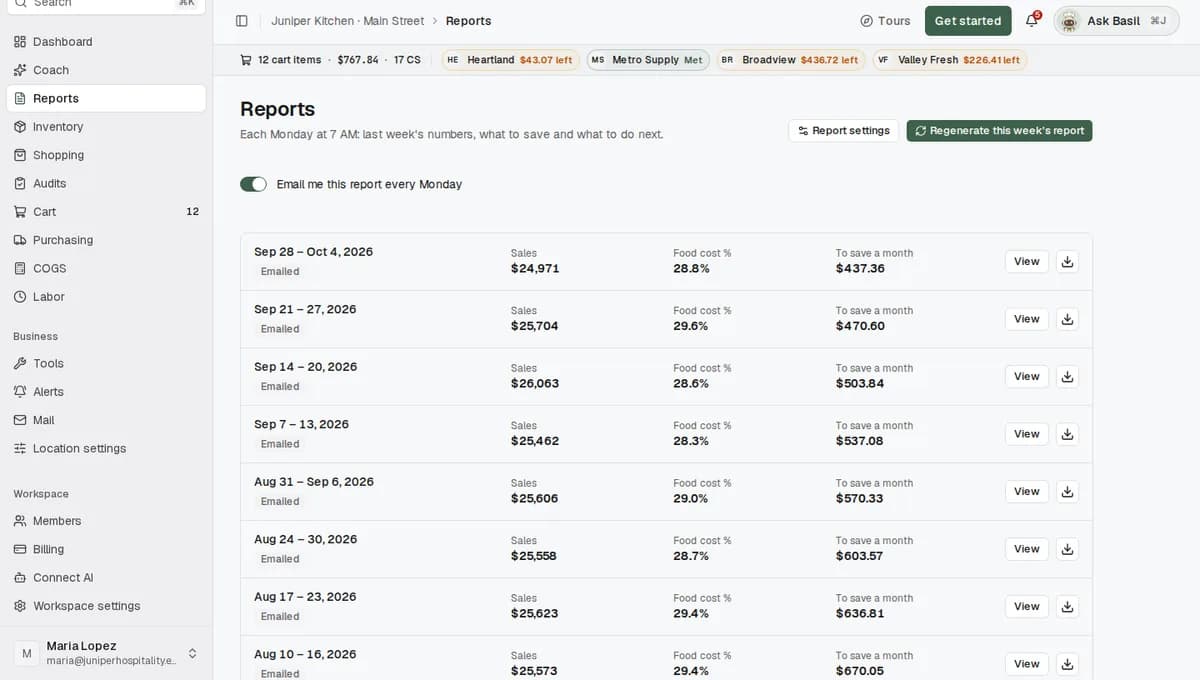
The line under the title says when the report goes out, for example "Each Monday at 7 AM: last week's numbers, what to save and what to do next." It changes when you change the day or hour.
Each row is one week, newest first. A row shows:
- The week's dates, for example "Sep 28 – Oct 4, 2026".
- A badge. Emailed means the report was made and sent. Ready means it was made but not emailed. Not made means something went wrong (see Troubleshooting).
- Three numbers: Sales, Food cost % and To save / mo.
- View, and a download button for the PDF.
For example, the newest row at Juniper Kitchen · Main Street reads Emailed, Sales $38,420, Food cost % 29.8% and To save / mo $780.
If you just started, the page says "Your first weekly report arrives Monday." It names the day set in Report settings.
2. Open a week
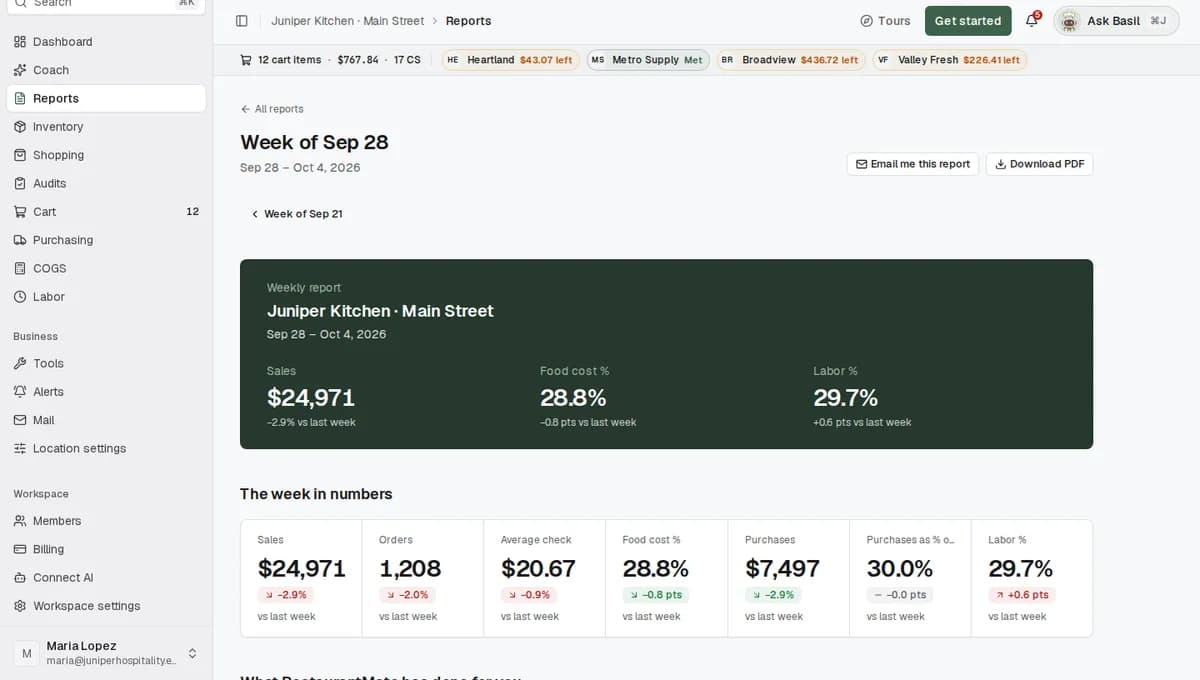
Click the week's dates or View. The report opens with a band at the top. It shows the location, the week and three big numbers, each with its change from the week before (for example "+4.2% vs last week").
The sections come next. This is the default order. You can change it in step 7.
| Section | What it shows |
|---|---|
| This week in numbers | Sales, Orders, Average check, Food cost %, Purchases, Purchases as % of sales and Labor %, each compared with the week before. |
| What RestaurantMate did | Open savings, Switches made, Price changes caught, Receipts captured and Hours back a month. |
| Next week's 3 actions | Three things to do next week, numbered. |
| Notes from your agent | Your agent's summary of the week and its coaching notes. |
| Top checked savings | Up to 10 cheaper options the Coach has checked, with both products side by side and what each saves a month. Prices are as of that week. |
| Switches made | Items you moved to a cheaper vendor that stayed moved. |
| Price moves | What your vendors charged per unit, the week before and that week. |
| Out of stock: replacements | Items you could not get, and what could stand in. |
| Fixes and questions | Data the agent could not fix alone, and questions only you can answer. |
| Deals and events around you | Deals and local events the agent found on the web. Check the source before you act. |
Some headings on the report page are shorter, such as Top savings and Around you. The names above are the ones you'll see in Report settings.
To move between weeks, use the week links under the title, such as Week of Sep 21. All reports above the title takes you back to the list.
3. Say what was useful
Under each suggestion you'll see "Useful?" with a thumbs-up (Useful) and a thumbs-down (Not useful). Click one. A "Why? (optional)" box opens. Type a reason if you like, then click Send. The line changes to "Thanks. You said:" followed by your answer.
The Coach reads this. It stops suggesting what you turned down.
For example, under Top savings Juniper Kitchen sees a switch for Roma tomatoes from Valley Fresh Produce to Heartland Foodservice. The kitchen manager clicks Not useful and types "Heartland's tomatoes arrive too green for our salads." That switch won't be pitched again.
From Top savings you can also put the cheaper item in your cart. That needs Edit access to Ordering.
4. Download the PDF or email it to yourself
On a report, click Download PDF to save it, or Email me this report to send it to your own email address. On the list, the download button at the end of each row does the same as Download PDF.
The PDF is made from the same numbers as the page, so the two always match. It's only available to people whose role can see sales, labor and purchasing.
5. Turn your own email on or off
At the top of the Reports page, use the switch Email me this report every Monday. It changes only your own copy. Everyone else keeps getting theirs.
The switch says Monday even when your location's report goes out on another day. Your copy arrives on the day set in Report settings.
The email has the same link at the bottom: "Turn the weekly email off on the Reports page."
Choose what the report covers
Steps 6 to 12 need an owner or someone with Full access to Location settings (see Before you start).
6. Open Report settings
At the top of the Reports page, click Report settings. A panel opens on the right: "What this location's weekly report covers, when it is emailed and who gets it."
Settings belong to one location. If you run Juniper Kitchen · Main Street and Juniper Kitchen · Riverside, set each one up from its own Reports page.
7. Tell the report what to focus on
Type into Report instructions in your own words, up to 2,000 characters. The box shows an example: "Focus on beer cost and keg yields. Skip catering. Compare our two taprooms."
Here is what your instructions change:
- Sections you mention move up. This week in numbers always stays first.
- Sections you say to skip move to the end.
- Rows that name the things you mention come first, for example the items in Price moves.
- Headline numbers you mention lead the email.
- Your agent reads the instructions and writes its notes with them in mind.
The instructions never change a number.
For example, Juniper Kitchen types: "Focus on egg, avocado and chicken prices. Lead with labor. Skip deals and events." Price moves now comes right after the numbers, with eggs, avocados and chicken at the top. Labor % leads the email's headline numbers. Deals and events around you moves to the end.
8. Switch sections on or off
Under Sections, each of the 10 sections has a switch. A section you switch off is left out of the report page, the PDF and the email.
Skipping a section in your instructions only moves it to the end. To drop it completely, switch it off here.
9. Pick when it's emailed
Under Email:
- Leave Email the report each week on. With it off, the report is still made each week and kept on the Reports page. Nobody gets an email.
- Pick a Day, Monday to Saturday.
- Pick a Time. Any hour works.
The note under the fields gives your location's time zone, for example "Location time (America/Chicago)." Whatever day you pick, the report covers the last full Monday to Sunday week. Sunday isn't offered, because a Sunday report would cover the week before last.
10. Choose who gets it
Under Who gets it, pick one:
- Everyone who can open this location's dashboard. This is the default. A line shows how many people get it now, for example "4 of 6 people get it now."
- Only the people I choose. A list of the location's members appears. Tick the people who should get it.
Next to some names you may see "turned the email off" (that person switched off their own copy) or "some sections hidden". Anyone whose role can't see sales, labor or purchasing gets a shorter version. It leaves out those numbers and your agent's notes and actions, and it has no PDF.
Only members of this location are listed. To add someone, an owner first invites them to the location under Members.
11. Save, then preview
Click Save. You'll see "Report settings saved."
Preview and Regenerate this week's report stay greyed out while you have unsaved changes. The panel says "Save first to preview or regenerate with these settings."
Then click Preview. It shows this week's report with your saved settings:
- Subject: the email's subject line, for example "Juniper Kitchen · Main Street — week of Sep 28: $780 a month to save".
- Goes to: everyone who would get it.
- Sections: the sections in their new order.
- The email itself, and an Open the PDF button.
Nothing is saved or sent from the preview.
12. Make this week's report again (optional)
Click Regenerate this week's report. It's in the Report settings panel and at the top of the Reports page. "This week's report" means the newest one, which covers the last full Monday to Sunday week.
The button reads "Making the report…" while it works. Then you'll see "This week's report was made again." and the new report opens. It uses your saved settings and the latest data.
Do this after you fix something the report missed, such as invoices that came in late or recipes you just added. Regenerating doesn't send the email. To get the new version in your inbox, open the report and click Email me this report.
What happens next
- Every hour, RestaurantMate checks each location. Once your location's time passes the day and hour you picked, it makes last week's report if it isn't there yet. Then it emails it, once.
- Nobody gets the same week twice. Each person's email is recorded before it's sent. If a send fails, it's tried again, up to 3 times.
- The email has the location and week as its heading, the three headline numbers, "3 things to do next week" and an Open the report button. When there's nothing pressing, it says "Nothing urgent this week. Keep sending receipts." People who can see everything get the PDF attached. Everyone else gets "Open the report to see the rest of the week."
- The numbers come from your data. Sales, purchases, savings and price changes are worked out from your invoices, sales and counts. Sales are before tax. Our AI writes the notes and the three actions. Any dollar amount it writes has to match a number in the report, or it's taken out.
- Switches made counts only switches that stuck. You bought the item at least twice from the cheaper vendor, and not from the old vendor in the 30 days after. A price under half the old one is treated as a pack mix-up, not a saving.
- Hours back a month is an estimate. It covers the last 30 days: 3 minutes for each receipt and 1 minute for every 10 invoice lines that nobody had to type in.
- A location locked for billing gets no report and no email until a payment method is added.
Tips
- Name the actual items you care about in Report instructions, like "brisket" or "avocados". Rows that name them move to the top.
- To drop a section, switch it off under Sections. Writing "skip" only moves it to the end.
- Pick a day and hour when you'll read it. If your managers meet Tuesday at 10, a Tuesday 9 AM report works well.
- A thumbs-down with a short reason does more than ignoring a suggestion. The Coach stops suggesting what you turned down.
- Past reports stay on the Reports page. The week links on each report make it quick to compare one week with the next.
Troubleshooting
I didn't get this week's email. On the Reports page, check that Email me this report every Monday is on. Then ask whoever manages the report to check Report settings: Email the report each week must be on, and under Who gets it you must be included. If the row on the list says Ready instead of Emailed, the report was made but not sent. You can still open it or click Email me this report. Also check your spam folder.
The email came without a PDF. Your role can't see sales, labor or purchasing at this location, so you get the shorter version. An owner can change your role under Members.
Food cost % shows a dash. Food cost % only shows when recipes cover at least 80% of the week's sales. Add the recipes for your bigger sellers, then click Regenerate this week's report. See Read your food cost per plate.
Sales or Labor % shows a dash. Sales come from a connected POS and Labor % from a connected labor system. See Connect your POS sales and Connect labor.
A week says Not made. The report says "This week's report could not be made. An owner can make it again from the reports list." Click Regenerate this week's report on the Reports page.
Preview and Regenerate are greyed out. You have unsaved changes. Click Save first.
I don't see Report settings. Your role can read reports but can't change them. Ask an owner.
Someone I want to add isn't in the list. Only members of the location are listed. An owner invites them to the location under Members, then they appear here.
The notes from your agent are missing. The notes and the three actions come from your location's agent. If they never show, your location's agent may not be set up yet. Ask the RestaurantMate team.
Common questions
When does the report arrive, and which week does it cover? Monday at 7 AM location time, unless you change it. It always covers the last full week, Monday to Sunday. Change the day and hour under Report settings, in the Email section.
Can my manager get the report without seeing labor costs? Yes. Give them a role that can't see Labor & wages. They get a version without labor numbers and without the PDF.
Are the numbers made up by AI? No. Every number comes from your invoices, sales and counts. The AI writes the notes and the three actions. Any dollar amount in its text has to match a number in the report, or it's removed.
If I regenerate the report, does everyone get the email again? No. Regenerating makes the report again without sending it, and nobody gets the same week's email twice. Use Email me this report to send the new version to yourself.
Can each of my locations have different settings? Yes. Each location has its own. Juniper Kitchen · Riverside can go out Tuesday at 6 AM to its manager, Carmen Ruiz, while Main Street goes out Monday at 7 AM to everyone who can open its dashboard.