
Open Coach to see which items another of your vendors sells for less, and which prices moved on what you buy.
Every night RestaurantMate compares what you paid on your invoices over the last 90 days with what your other vendors charge for the same item. Prices are compared on the same unit, such as per pound or per each. Your location's agent then checks each match to make sure the two products really are the same item. The Coach shows you what it found. You decide what to do with each one.
Each location has its own Coach page.
Words used in this article
- Switch: buying an item from another of your vendors because it costs less there.
- Unit price: the price for one pound, one ounce, one gallon or one each, worked out from the vendor's pack. See Compare prices across your vendors.
- SKU: one vendor's product, with its own product number.
- Your location's agent: an AI assistant that works in the background for one location. It checks savings matches, writes a short note each day and asks you about anything in your data it can't settle alone.
- Match score: how sure the agent is that two products are the same item, shown as a percentage such as "92% match".
RestaurantMate works out every number on the Coach from your invoices and your vendors' prices. If the agent writes a dollar amount in a note, that amount has to match one of those numbers, or it is taken out.
Before you start
Who can see the Coach
Owners see the Coach. So do people with the Admin, Location manager or View only role. Other built-in roles, such as Buyer, Bookkeeper and Inventory counter, don't have it in their sidebar.
An owner can add the Coach to any role. Open Members, go to the Roles tab, pick the role and tick Coach under Pages they see. The role needs View access to at least one of Inventory, Sales, Labor & wages or Food cost & recipes. See Give each person only the pages they need.
What each part needs
- Savings and price moves need View access to Inventory. Without it, the Money on the table section shows a note saying which access is missing.
- Adding an item to the cart needs Edit or Full access to Ordering. The View only role can read the Coach but can't add to the cart.
What data it needs
The Coach works from your purchases. It needs invoices or receipts from the last 90 days, and at least two connected vendors that sell some of the same items. A location that is new to the Coach can take up to a day to get its first notes. The daily note comes from the location's agent, which our team sets up with the location. If the note never appears, ask the RestaurantMate team.
Steps
1. Open the Coach
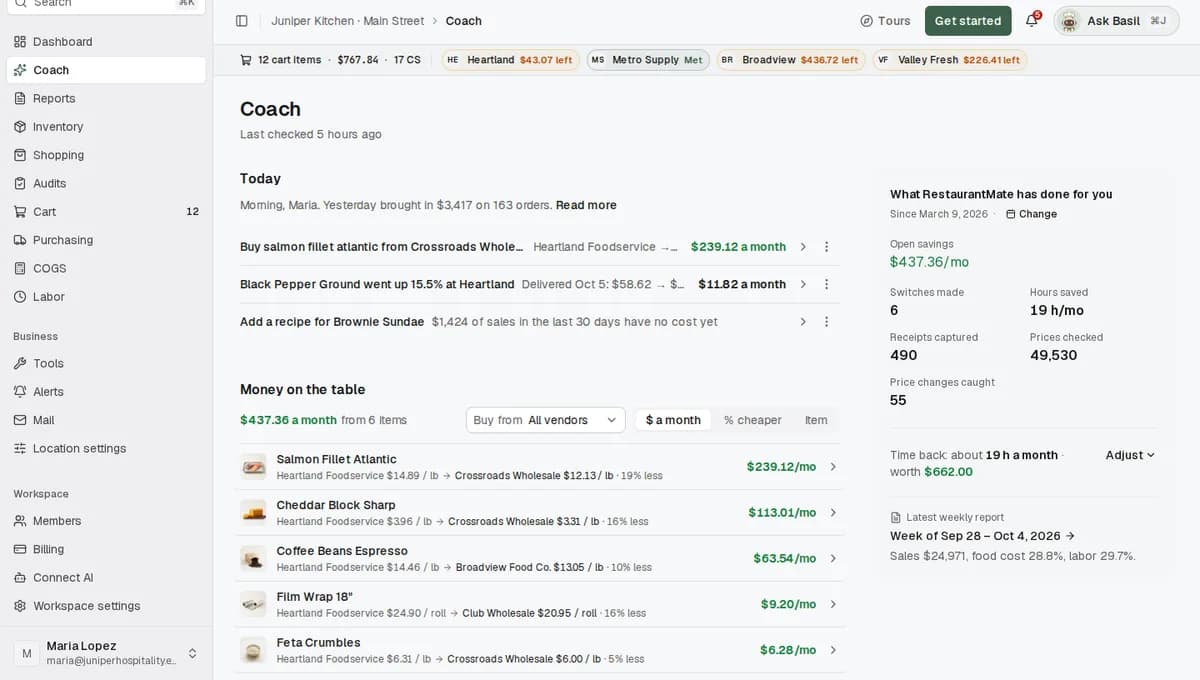
Click Coach in the sidebar. It sits just under Dashboard. The line under the page title says when the agent last looked, for example "Last checked 3 hours ago".
On a computer the page has two columns. The left column has the sections you act on. The right column shows what RestaurantMate has done for this location. On a phone or a narrow window, the right column moves below the left one.
2. Read Today
Today is the agent's note for the day, two or three lines long. Click Read more to see the rest and Show less to fold it back.
Under the note are up to three rows. These are the things worth doing first. Each row has a small label, such as "Save money", "We caught", "Fix" or "Question for you", then a title and, for savings, a dollar amount. Click a row to open it.
If the note isn't there yet, the section says "No note for today yet." The rest of the page still works.
3. Look at Money on the table
Money on the table is the list of cheaper options the agent has checked. The line at the top adds them up, for example "$1,240 a month across 18 items".
Each row shows the item, the vendor you buy it from now, the cheaper vendor with its unit price, and how much you would save a month. At Juniper Kitchen · Main Street, the top row is boneless chicken thighs. The kitchen buys them from Heartland Foodservice. Club Wholesale sells the same item for $2.37 / lb, which would save about $86 a month.
To narrow the list, use the Buy from filter. It lists the cheaper vendors, so picking Club Wholesale shows every item that costs less there. To change the order, use the sort menu:
- $ a month puts the biggest monthly saving first.
- % cheaper puts the biggest price gap first.
- Item sorts by item name.
4. Open a row to compare the two products
Click a row. A panel opens on the right with both products side by side. The line under the item name sums it up, for example "Save $86 a month · 18% less per lb · you buy about 165 lb a month".
- The What you buy now and Cheaper option cards each show the vendor, product name, SKU, pack and brand, pack price and unit price.
- The strip under the cards shows the difference per unit, how much you buy a month, what the switch saves a month, and the date the price was seen.
- Why it is the same item gives the agent's reason, with the match score and the date it checked, for example "92% match · checked Oct 7".
If the agent found more than one cheaper option for the item, you can switch between them at the top of the panel.
5. Add it to the cart, or say no
At the bottom of the panel you have three choices.
Add to cart. Set the number of packs with the minus and plus buttons. It starts at 1. Then click Add to cart. The cheaper item goes into your cart. If the item you buy now is already in your cart, the button reads Swap instead. Swap takes the current item out of the cart and puts the cheaper one in.
Not interested. This hides the suggestion. A small box says "We won't suggest this again." and offers Undo. You can also pick a reason:
- Not the same product
- We keep this brand
- Wrong pack or size
- Quality isn't good enough
- Don't want this vendor
- Something else (type a short note)
The reason is optional. The agent reads it and stops suggesting what you turned down. For example, Juniper Kitchen buys its ground beef from Prairie Meats on purpose, so the owner picks Don't want this vendor when the Coach suggests Club Wholesale.
Done. Use this when you already made the switch or dealt with it some other way.
To go through the list one item at a time, use Previous and Next at the bottom of the panel.
6. Look at what is still being checked (optional)
Under the list, Still being checked starts closed. It shows how many items are waiting and what they would save a month if they hold up. These items are cheaper on price, but the agent hasn't confirmed yet that they are the same item. So far the match is based only on names, packs and brands.
Click Still being checked to open it, then open any row to compare the two products yourself.
7. Check Price watch
Price watch lists items you buy whose price moved by 5% or more. For example, the 25 lb case of Roma tomatoes from Valley Fresh Produce went from $28.50 to $31.90, which is up 12%.
Click a row to see the details. When you have dealt with it, open the … menu on the row and choose Done. Choose Dismiss to clear it without acting. When nothing has moved, the section says "No price moves to look at right now."
8. Answer Needs you
Needs you is where the agent asks questions it can't settle alone and lists data that needs fixing. Click an answer button to reply. Some questions have an Open recipe or Open rule link that takes you straight to what the agent is asking about.
The line under the heading, such as "Your agent checked 212 items", opens the review list on the COGS page. When there is nothing to answer, the section says "Nothing needs you right now."
9. Look at the other sections
These sections appear only when they have something in them. Each shows three rows at first, with a Show all button for the rest.
- Same item, other location: the same vendor product costs less at another of your locations. For example, Juniper Kitchen · Main Street pays $41.20 for a 35 lb jug of fryer oil from Heartland Foodservice, and Juniper Kitchen · Riverside pays $38.75. The Coach suggests you ask your rep for the lower price. It only compares locations you have access to.
- Replacements: other options when a vendor marks an item you buy as out of stock or discontinued.
- Around you: local deals and events the agent found on the web. It looks for these on Mondays. The details say "Found on the web. Check the source before you act."
- This week: the agent's summary of the week.
10. See what RestaurantMate has done for you
The right column adds up the work RestaurantMate has done at this location. It counts from the day you started, shown as "Since you started". If you can change this location's settings, click that line to count from a different date.
- Open savings: checked switches you haven't made yet, per month.
- Switches made: click it to see each switch, with the old vendor, the new vendor, the last receipt from the old vendor and the first receipt from the new one.
- Hours saved: receipts, price checks and orders you didn't do by hand, in hours a month. This is an estimate.
- Receipts captured: invoices and receipts read and filed.
- Prices checked: vendor prices compared with what you pay.
- Price changes caught: price moves flagged on your items.
Under the numbers, the Time back line estimates the hours a month RestaurantMate saves you and what that time is worth. Click Adjust to set your own minutes on four sliders: "Keying in one receipt by hand", "One vendor login and order", "Checking one price" and "An hour of manager time". They start from this location's real counts of receipts, invoice lines and vendors. Your slider settings are saved for you only. Click Reset to go back to the starting values.
The card at the bottom opens the latest weekly report, for example "Week of Sep 28 – Oct 4".
What happens next
Items you add wait in the cart. Nothing goes to a vendor until someone with Full access to Ordering reviews the cart and sends it. RestaurantMate then fills each vendor's online cart and checks every line, so you can review and check out. See Review your cart and send it to your vendors.
RestaurantMate watches for the switch on your invoices. A switch counts as made once at least two deliveries of the item come from the new vendor and none come from the old vendor in the 30 days after. It then moves to Switches made, with what it has saved so far. Only one switch per item is counted in any 90 days. If the new price is less than half the old one, RestaurantMate treats it as a pack mix-up and doesn't count it.
The savings are worked out again every night. RestaurantMate compares your last 90 days of purchases with your vendors' latest prices. The agent checks the new matches. A product it judges to be a different item never appears in Money on the table.
The weekly report collects it all. Each Monday morning (7 AM location time unless an owner changed it), the location's weekly report lists the top checked savings, price moves and what RestaurantMate did that week. It arrives by email with a PDF attached. See Your weekly report.
Tips
Start with Today. It lists the three things worth doing first, so you can skip the rest of the page on a busy day.
Sort Money on the table by % cheaper now and then. A big price gap on an item you buy in small amounts sits low in the default sort, and it may still be worth asking about.
Before you build an order for one vendor, pick that vendor in Buy from. You see every item that costs less there and can add them to the cart one after another.
Give a reason when you click Not interested. "We keep this brand" tells the agent more than a plain no, and it shapes what it suggests next.
For Same item, other location, call or email your rep and mention the lower price your other location pays.
If your role includes the in-app agent, click Ask about this at the top of the compare panel. It opens the agent with that item attached. Try "Explain the biggest saving in plain words" or "Which of these should I do first?"
To get an email when a price on something you buy jumps, set up an alert. See Create an alert in plain language.
Troubleshooting
Today says "Your agent is getting to know this location. The first notes arrive within a day." The location is new to the Coach. Check back tomorrow. If you still see this message after a day, contact the RestaurantMate team.
Money on the table says "No checked savings right now. The agent looks again every day." There may be no cheaper option today. This also happens when only one of your vendors sells the items you buy, or when there are few invoices from the last 90 days. Open Still being checked to see options the agent hasn't confirmed yet.
The Add to cart button is grey. Hover over it to see why. Your role may not have Edit or Full access to Ordering. Ask an owner to change it under Members. The panel can also say "No vendor SKU, so it cannot be ordered from here." or "Out of stock at this vendor."
A suggestion isn't the same product. Click Not interested and choose Not the same product. The agent reads your answer and won't suggest it again.
A switch I made isn't under Switches made. It needs at least two deliveries from the new vendor and none from the old vendor in the 30 days after. Depending on how often you order the item, this can take a few weeks.
I can't find Coach in my sidebar. Your role doesn't include the page. Ask an owner to add Coach to your role under Pages they see.
The page says "The Coach could not load." Reload the page. If it keeps happening, contact the RestaurantMate team.
Common questions
Are the savings real? They are based on your own prices: what you paid on your recent invoices, and what another of your vendors charges for the same item, compared per pound or per each. The agent checks each match before it appears in Money on the table. The amount is what the switch would have saved at those prices. It isn't a promise of future prices.
Does the Coach switch vendors or place orders for me? No. You choose. Add to cart puts the cheaper item in your cart, and the cart is sent only when someone with Full access to Ordering sends it.
How often does the Coach update? Savings are worked out every night, and the agent checks new matches and writes a new note each day. The line under the page title shows when it last checked.
Is the Hours saved number exact? No. It is an estimate based on this location's real counts of receipts, invoice lines and vendors, and the minutes on the Time back sliders. Set the sliders to your own times to make it closer to how your restaurant works.
Can my staff see the Coach? Only if their role includes it. By default that means owners and the Admin, Location manager and View only roles. Job roles such as Buyer, Bookkeeper and Inventory counter don't see it unless an owner adds the page to their role.