
Open Purchasing to see where each order stands, from the day it's placed to the day its invoice comes in.
Every purchase from every vendor ends up in one list on the Purchases tab. That includes orders RestaurantMate finds on your vendors' websites, orders you sent from the cart, invoices and receipts, and orders you type in yourself. For vendors that share order status on their website, you can follow the order before the truck arrives. Every other purchase shows up when its invoice does.
Before you start
Check your role. Anyone whose role can view Purchasing can follow orders. To change a status, add a note, attach an invoice or record an order, you need Edit access to Purchasing. Owners always have it. The View only role can look but can't change anything, and the Inventory counter role doesn't see Purchasing at all. An owner sets each person's role under Members.
Know which vendors share order status. RestaurantMate can show an order before delivery for vendors you've connected with your own login. The vendor also has to show your order history on its website. Some don't, and some only show orders after they're invoiced. For vendors you order from by email, by phone or in the store, nothing appears until the invoice or receipt arrives. You can record those orders yourself so they show up sooner (step 8).
A few words this page uses:
- A purchase is one order together with its invoice or invoices.
- A receipt is any vendor document: an invoice (the vendor's bill for a delivery), a store receipt or a handwritten delivery slip.
- Short means you ordered something and it didn't come. Substituted means the vendor sent a different product in its place.
- CS is a case. SKU is the vendor's product number.
Steps
1. Open the Purchases tab
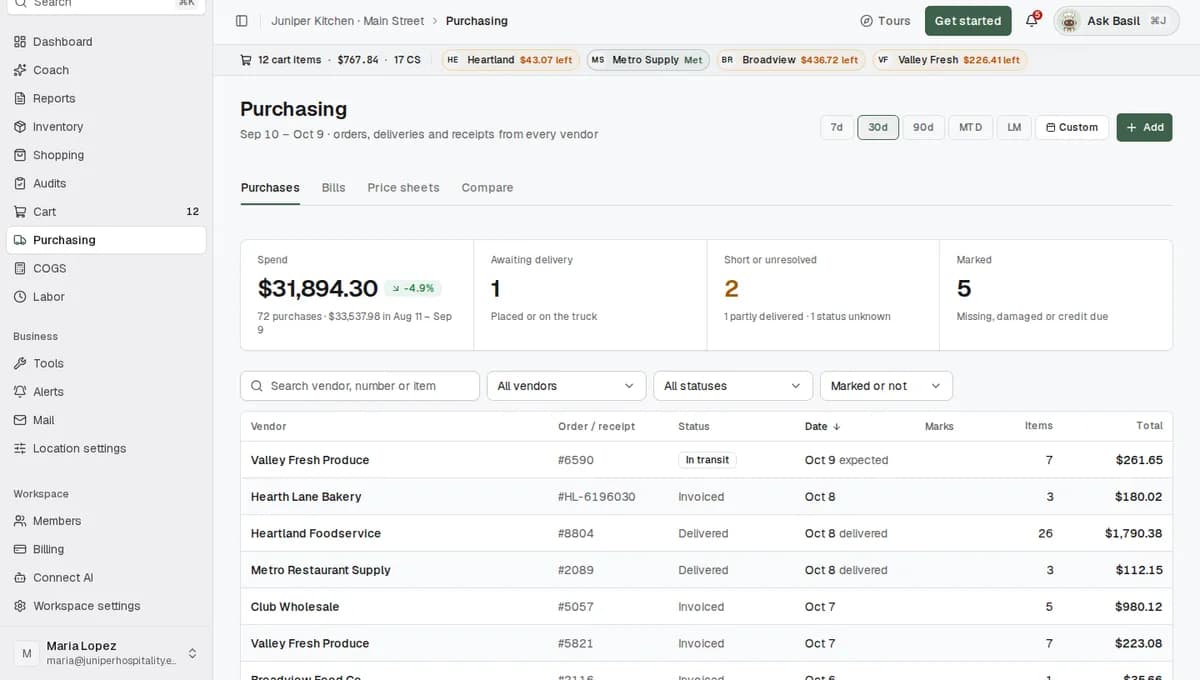
In the sidebar, click Purchasing. The page opens on the Purchases tab.
The chips at the top set the date range: 7d, 30d (the default), 90d, MTD (month to date) and LM (last month). You can also pick your own dates. If you can't find an order, widen the range first.
2. See what's still on the way
Click the Awaiting delivery tile. Its hint reads "Placed or on the truck". The table now lists only orders that are placed, confirmed, being picked, shipped or in transit. Click the tile again to see every purchase.
Other ways to narrow the list:
- Open the status menu (it starts on All statuses) and pick Awaiting delivery or any single status.
- Open the vendor menu (it starts on All vendors) to see one vendor.
- Type a vendor, an order number or an item into the search box.
The Date column shows the latest thing that happened to each purchase, such as "Oct 9 expected" or "Oct 6 placed".
3. Open the order
Click a row. The purchase opens with the vendor's name and its status at the top. The line under the name shows the order number and its dates.
To check the next purchase without closing this one, use the arrows in the top corner or the arrow keys on your keyboard.
4. Read the status steps
On the right, under Status, five steps show how far the order has come: Placed, Confirmed, Shipped, Delivered and Invoiced. Each finished step has a check mark and its date.
One sentence under the steps tells you where the status came from:
| What it says | What it means |
|---|---|
| "The vendor reported “Out for delivery”. Last checked Oct 8." | RestaurantMate read this from the vendor's website on Oct 8. |
| "Set by the vendor's receipt #…, dated …" | The invoice set the status. |
| "No receipt yet, so this is where the order itself stands." | The invoice hasn't arrived. The status is what the order shows so far. |
| "Set by hand." | Someone on your team changed the status. |
For example, the Tuesday order Juniper Kitchen placed with Heartland Foodservice shows Placed on Oct 6 and Shipped on Oct 8. Delivered is still open, so the kitchen knows to expect the truck.
5. Check what's coming
Before the invoice arrives, the left side shows Ordered lines. That's what the vendor has on the order. When the vendor reports them, each line also shows what shipped and any substitutions. The invoice's lines replace this list when the invoice arrives.
If the vendor gave a tracking link, a Track shipment button appears at the top of the purchase. Open Details on the right to see:
- Expected: the delivery date the vendor gave, or the one you typed in.
- Tracking and ETA (the vendor's estimated arrival time), when the vendor provides them.
- Last checked: when RestaurantMate last read this order on the vendor's website.
6. When the delivery arrives
Most of the time you don't have to do anything. When the vendor's invoice comes in, it attaches itself to the order and the status moves to Invoiced.
If the invoice shows something didn't come, the status becomes Partly delivered. The short line turns red in the Received column, for example "0 of 1 CS". At the top of the purchase, Short or substituted counts those lines and estimates their value at the price you paid.
To record the delivery before the invoice comes in, press Mark delivered under Actions. A status you set by hand stays in place, even after the invoice arrives. Press Clear manual status when you want the invoice to set it again.
To note a damaged case or a wrong item on one line, see Mark items short, damaged or wrong.
7. When something doesn't arrive
Use the Actions box on the right. If you want to explain what happened, type it in the note box first. It reads "Add a note (saved with the next action)".
- Not received: marks the order with one of your location's tags (Missing, Disputed or Follow up, whichever you have first) and puts your note on the order's timeline. The status doesn't change, and the order stays open so you can follow up with the vendor.
- Invalid order: for an order placed by mistake or called off. The status is set to Cancelled and the order is marked, usually "Rejected".
- Save note only: appears once you type a note. It adds the note without changing anything else.
- Clear manual status: appears after someone sets a status by hand. It undoes that, so the vendor or the invoice sets the status again.
Every action and note is saved in History, at the bottom of the right side.
RestaurantMate doesn't contact the vendor or ask for a credit. Not received and marks are a record for your team.
8. Track a phone or paper order
Some orders never touch a website: a call to your meat supplier, a text to your produce rep, a handwritten slip. Type them in so they're tracked with everything else.
- On the Purchasing page, click Add.
- Click Or record an order by hand. The Record an order window opens.
- Pick the Vendor, then fill in Placed on and Expected delivery.
- Type the vendor's Order number if you have one. It's optional, but it helps the invoice find this order later.
- Add each item with Item, SKU, Qty, Unit and Unit price. Click Add item for another line.
- Add a Note if you like, then click Record order.
You'll see "Order recorded." and the order joins the list. Recording an order sends nothing to the vendor.
When the invoice arrives, it attaches itself if the order number matches. If it doesn't, open the order and click Attach receipt in the Receipt section to pick it.
What each status means
These are the words you'll see in the Status column and at the top of each purchase.
| Status | What it means |
|---|---|
| Draft | Started but not sent to the vendor. |
| Placed | Sent to the vendor. No confirmation yet. |
| Confirmed | The vendor accepted the order. |
| Processing | The vendor is picking the order. |
| Shipped | Left the vendor. |
| In transit | On the truck. |
| Partly delivered | Some of the order arrived; something was short. |
| Delivered | Everything ordered arrived. |
| Invoiced | Delivered and the invoice is in. |
| Cancelled | Called off. Nothing is coming. |
| Failed | The order could not be placed. |
| Unknown | Not enough evidence to tell. |
Vendors rarely report Invoiced themselves. It almost always comes from the invoice.
What happens next
- Order checks. For vendors that share order status, RestaurantMate reads your order history on their website about every 4 hours, looking back 14 days. The RestaurantMate device in your restaurant does this, signing in with your login from your own internet connection.
- After you send from the cart. You send an order from the RestaurantMate cart and check out on the vendor's website. About 30 minutes later, RestaurantMate looks for that order and links it to what you sent.
- Invoices. Invoices from vendor websites are pulled once a day. Invoices your vendors email to your RestaurantMate inbox, from senders you've listed, arrive as soon as they're sent. A connected Gmail or Outlook is checked every 1 to 2 hours. Paper slips come in when someone uploads a photo.
- Reading the invoice. RestaurantMate reads every line of the invoice: name, pack, quantity and price. Each line is matched to your items, which updates the last price you paid in your order guide and in your food cost.
- Which status wins. A status set by hand comes first, then what the vendor reports, then what the invoice shows. An invoice that proves the order was delivered overrides an older status from the vendor. A delivered order never goes back to Placed. Delivered and invoiced dates come from the invoice date, not from the day RestaurantMate read it.
Tips
- Check Awaiting delivery before your trucks are due, so whoever receives the order knows what's coming and from whom.
- When you record an order by hand, type the vendor's order number. The invoice can then attach itself without anyone picking it.
- The Short or unresolved tile gathers every purchase that was partly delivered, has an unknown status or failed. It's a quick list to work through each week.
- Open the original receipt at the top of a purchase shows the vendor's own PDF or photo. Download saves the receipt as a PDF, CSV, JSON or Markdown file, or saves the whole purchase.
- On a phone, the list of purchases shows as cards you can tap.
Troubleshooting
An order I placed isn't in the list. Widen the date range first. If the vendor doesn't share order status, the order appears when its invoice arrives. Record it by hand (step 8) if you want to see it sooner. If the vendor does share status, give it time: orders are read about every 4 hours. Purchases made in the store have no order to find, so the receipt creates the purchase.
The status hasn't changed in days. Open Details and look at Last checked. If that date is old, the vendor login may have stopped working. Order checks for that vendor pause until the login is fixed. See When a vendor login stops working. Some vendors only show orders after they're invoiced, so nothing moves until the invoice comes in.
It says Invoiced, but the vendor's website says Confirmed. The invoice proves the order was delivered, so RestaurantMate goes with the invoice. The sentence under the steps shows both, for example: "The vendor reported “Confirmed”; the receipt shows it was invoiced."
It says Partly delivered, but everything came. A line counts as short when it was ordered but the invoice shows nothing shipped and nothing charged. Open the purchase and find the red line in Received. If the item really did arrive, press Mark delivered and add a note saying so.
The invoice is attached to the wrong order. In the Receipt section, click the detach button next to it ("Detach: this receipt belongs to a different purchase"). Then open the right order and use Attach receipt.
The buttons are greyed out. Your role can view Purchasing but not change it. Hover over a button to see what's missing, then ask an owner for Edit access to Purchasing.
Common questions
Does every vendor show where my order is before it arrives? No. Only vendors that share order status on their website, once you've connected them with your login. For every other vendor, the status updates when the invoice arrives, or when you set it yourself.
Will RestaurantMate tell my vendor that something is missing? No. Not received and marks are records for your team. You or your bookkeeper follow up with the vendor. To see everything still open, click the Marked tile or use the marks filter.
Does RestaurantMate know my delivery days and order cutoffs? Not today. Expected dates, tracking links and ETAs come from the vendor when the vendor gives them, or from what you typed when you recorded the order.
I sent an order from the RestaurantMate cart. Where do I see it? In the same list. For vendors that share order status, RestaurantMate finds the order on the vendor's website about 30 minutes after you send it and follows it from there. For other vendors, the order shows Placed until the invoice comes in.