
The RestaurantMate device is a small computer that connects to your restaurant's internet and signs in to your vendors' websites for you using your own logins. A network cable to your router is best. If a cable can't reach, it can use your Wi-Fi instead.
Most of its work happens at night. It checks the price of every item you buy at each vendor that has a website. During the day it picks up new invoices and fills a vendor's website cart when you send an order. Vendor websites block logins that come from cloud servers. So the device signs in from your restaurant's own internet connection, the way your manager does today. Reading invoices, doing the price math and building your reports all happen on RestaurantMate's servers.
In a few places in the app, such as the cart, the device is called "the mini PC". It is the same thing.
Before you start
- Who arranges the device: the workspace owner, together with our team. It does not have to be set up during your setup call.
- Who can plug it in: anyone at the restaurant who can reach the internet router.
- Who can add or update a vendor login later: owners, and anyone whose role has Full access to Location settings. The built-in Admin and Location manager roles have it.
- Who can send an order through the device: owners, and anyone whose role has Full access to Ordering. The built-in Admin, Location manager and Buyer roles have it.
What you need at the restaurant:
- Best: a free network port on your router. The router is the box your internet comes through. A network port (also called an Ethernet port) is the square socket where a network cable clicks in.
- If a cable can't reach: your Wi-Fi network. Tell us and we set the device up to use it. A cable is more reliable, so we strongly recommend it when possible.
- A power outlet near the router that stays on overnight.
The device has a $300 refundable deposit. We charge it within your first month, when we ship the device. One device covers up to two locations.
Step 1. Arrange the device with our team
We arrange shipping with you, usually around your setup call, and charge the deposit when we ship the device. You don't need the device for the call. To book the call, open Your setup and choose Pick a time on the Book your setup call card.
We ship the device ready to use. There is nothing to install on it, and it runs without a screen or keyboard.
Step 2. Give us your vendor logins
The device signs in to each vendor's website with the login you already use. You give us those logins once, on the Welcome to RestaurantMate screen for your location:
- In the Vendors card, choose Add vendor, type the vendor's name and choose Add vendor.
- Under How do you order?, choose Website or app.
- Type the vendor's Website, then choose Add login.
- Enter the Username or email and Password you use for that vendor. Put anything else the vendor asks for at sign-in, such as an account number, in Login notes.
- Choose Save. The vendor's row now shows Login saved.
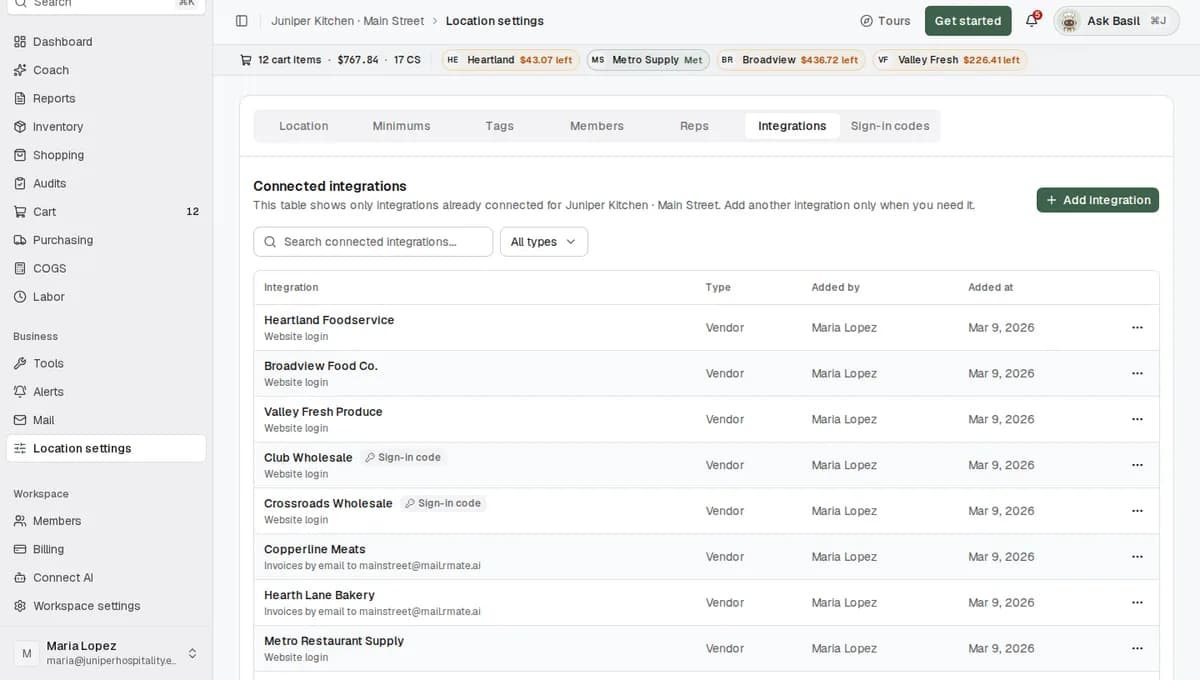
For example, Maria Lopez, who owns Juniper Kitchen · Main Street, adds Heartland Foodservice, Valley Fresh Produce and Club Wholesale this way. Her bread vendor, Hearth Lane Bakery, only emails invoices, so she picks Email for it instead. Email vendors don't use the device. Their invoices come in through your RestaurantMate inbox.
Your logins are stored privately and used only to sign in to that vendor. After you save a login, it is never shown again.
Want to add a website vendor after your location is live? Go to Location settings > Integrations and choose Add integration. Pick the vendor, fill in its login and choose Connect. If your vendor isn't in the list yet, tell us. We build the connection for you, usually within days.
Step 3. Plug it in next to your router
When the device arrives:
- Put it next to your internet router. That is often in the office or a back room.
- Connect it to the router with a network cable. A network cable (also called an Ethernet cable) has a clip on each end, like a wide phone plug. If a cable can't reach, tell us and we set it up on your Wi-Fi instead.
- Plug it into power.
The first-time setup (connecting your vendors and bringing in your history) takes 2 to 4 days. We let you know when your data is ready.
It starts on its own and keeps itself up to date. There is nothing to sign in to on the device.
Step 4. Check last night's prices the next morning
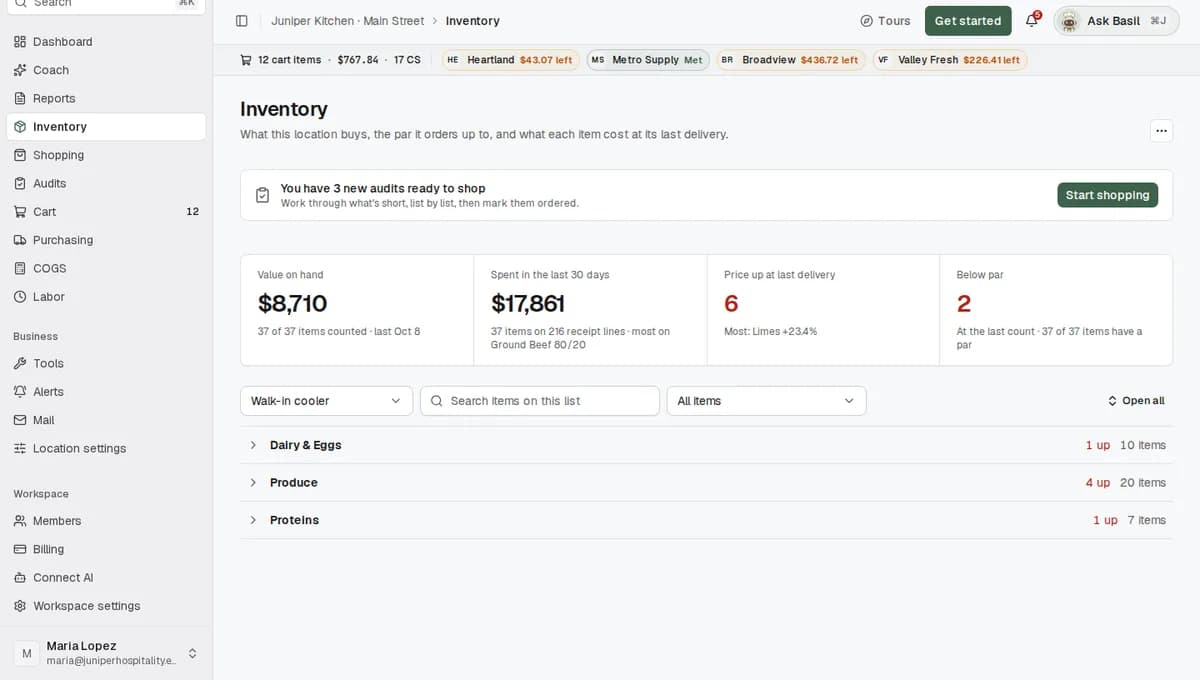
After the device's first night, open Inventory and click any item. The Vendors and prices panel opens under it and lists every vendor that carries the item. Each website vendor's price shows the date it was last updated. After a night of work, that date should be last night or today.
At Juniper Kitchen · Main Street, for example, open Tomatoes 5x6 (a 25 lb case). The panel shows the case at Valley Fresh Produce and at Heartland Foodservice, each with its price per lb, both checked last night.
Step 5. Watch it fill a vendor cart
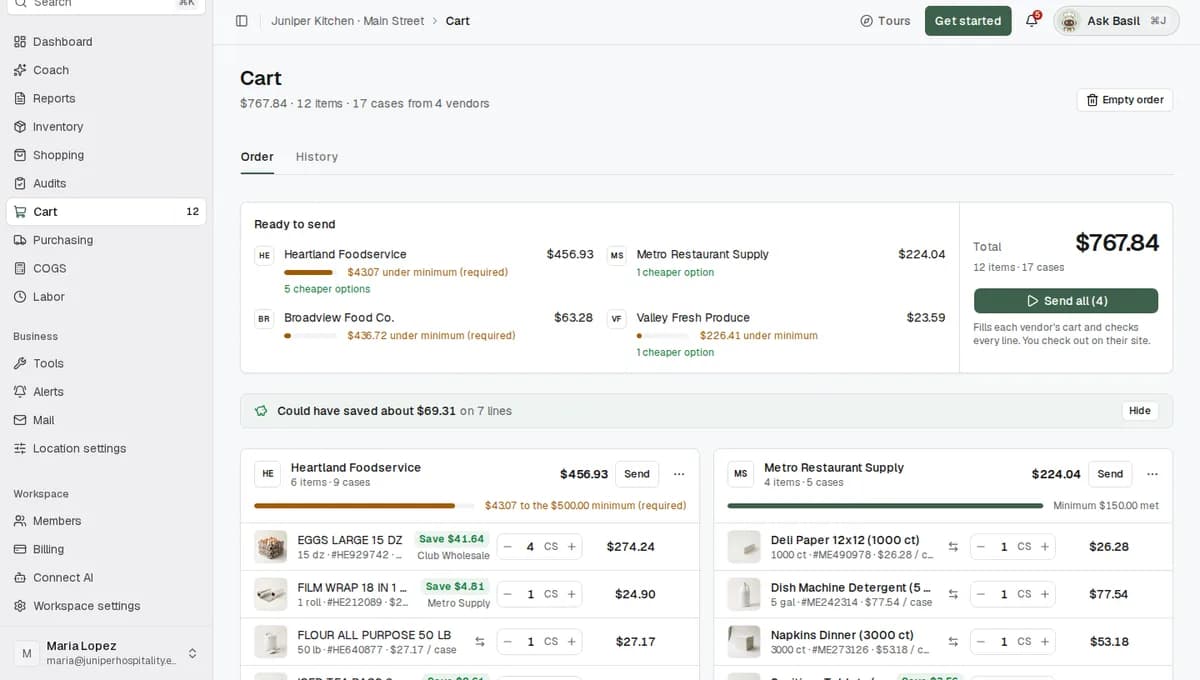
Open Cart. Someone with Full access to Ordering presses Send on a vendor's card, or Send all for every vendor. The device then signs in to each vendor's website and adds your order to that vendor's own cart. Each vendor card shows its progress:
- Queued: "Waiting for the mini PC to pick this up."
- Adding to their cart: the device is signed in and adding your items. The first time, you may see "Opening Heartland on the mini PC…".
- Order sent: "5 items added and checked." The device read the vendor's cart back and checked every line against your order.
Then choose Open Heartland cart to go to the vendor's website, review the cart and check out there. About 30 minutes later, RestaurantMate looks for the new order on the vendor's site and starts tracking it.
What happens next
Once your vendors are connected and the device is plugged in, it runs on this schedule. All times are your restaurant's local time, and each job starts at a slightly different minute every day.
| When | What the device does |
|---|---|
| Right after a vendor is connected | Downloads up to 180 days of that vendor's invoices and the order guides you saved on their website (your lists of items you usually order). |
| Every night, between 12:05 am and 5:30 am | Signs in to each website vendor and checks the price of every product linked to your items. |
| Every night, between 1 am and 7 am | Checks that each login still works. It signs in, runs three test searches, checks that invoices can be read, then adds one test item to the vendor's cart and removes it again. It only removes the item it added. |
| Once a day, between 6 am and 11 pm | Looks for new invoices and downloads them. RestaurantMate then reads them. |
| About every 4 hours | Reads the order history at vendors that share order status, so those orders are tracked from placed to delivered. |
| All day, a few items at a time | Searches your website vendors for the items you buy. Our AI keeps only results that are the same product. |
| When you ask | Runs a live search when you choose Search more at a vendor, fills vendor carts when you press Send or Send all, and empties a vendor's website cart when you ask it to. |
By morning, your Inventory, item cards and cart show last night's prices. The device only works with vendors you have connected, and it only fills a vendor's cart after someone presses Send.
Tips
- Keep the device on day and night. If it shares a power strip, use one that nobody switches off at closing.
- Put it somewhere it won't get knocked or unplugged during cleaning.
- If you change a vendor password, update it in RestaurantMate the same day: Location settings > Integrations, open the vendor's row menu and choose Update connection. Until then, nightly prices and invoices for that vendor are paused.
- If a vendor asks for a code from an authenticator app (a phone app that shows a new 6-digit code every 30 seconds), add it under Location settings > Sign-in codes > Add a code.
- Opening a second location? Tell us. One device covers up to two locations.
Troubleshooting
A vendor card stays on "Waiting for the mini PC to pick this up."
The device may be off, offline or busy with another job. It works on about two vendor websites at a time, so a big send to many vendors goes through them in turn. Check that the device has power and that its cable is plugged into the router (or, on Wi-Fi, that your Wi-Fi is working). If the send fails, the card shows Could not add this order with "Nothing was added. You can try again." Choose Try this vendor again.
Prices from one vendor are several days old
That vendor's login has probably stopped working, for example after a password change or a new security step on the vendor's site. RestaurantMate then pauses the nightly prices, invoice checks and order checks for that login, and our team follows up with you. To fix it yourself, go to Location settings > Integrations, open the vendor's row menu and choose Update connection. Saving the new login starts the nightly work again.
A vendor asked for a verification code
If the vendor uses an authenticator app, add the code under Location settings > Sign-in codes. Where that vendor's connection supports it, the device gets a fresh code at the moment the vendor's sign-in page asks for one. For other vendors, our team will help you set it up.
If you see "Heartland asked for a verification code. Sign in to Heartland once by hand, then reconnect.", sign in on the vendor's website yourself once, then update the connection under Location settings > Integrations.
A live search takes a long time
Search more at a vendor runs on the device, over your restaurant's internet. It usually takes tens of seconds, and longer on a slow connection.
An item says "Searching your vendors"
The device is still looking for that item at your website vendors. It searches a few items at a time, so right after you connect your vendors, a long list takes a while. Check back later in the day.
The power or internet went out
When power comes back, the device turns itself back on. Nightly prices, invoices and order checks wait and then catch up. If someone pressed Send while the device was offline, that vendor's card shows Could not add this order. Choose Try this vendor again once the device is back.
Common questions
Why do I need a device? Can't you do this from the cloud?
Vendor websites block logins that come from cloud servers. They expect a person signing in from a restaurant. The device signs in from your restaurant's own internet, in a normal web browser, with your logins, the way your manager would.
Does the device place orders on its own?
No. It fills a vendor's website cart only after someone with Full access to Ordering presses Send or Send all. It checks every line. Then you review the cart and check out on the vendor's site. Building the cart in RestaurantMate sends nothing to your vendors.
What does it cost?
A $300 refundable deposit, charged within your first month, when we ship the device. You get the deposit back when you return the device. One device covers up to two locations. RestaurantMate itself is free for your first 60 days, then $99 a month per location.
What can the device see?
It talks to RestaurantMate and to your vendors' websites. For each vendor account it keeps a separate browser profile, which is the saved "remember me" sign-in for that vendor. It does not keep a copy of your RestaurantMate data.
I have two locations. Do I need two devices?
No. One device covers up to two locations. If you have more locations, we send more devices. Each location's vendor logins get their own browser profile. Juniper Kitchen · Main Street and Juniper Kitchen · Riverside both buy from Heartland, and they never share a Heartland cart or sign-in.