
Open the purchase, click + in the Marks column next to the item, pick a mark such as Damaged, Short or Wrong item, add how many and a note, and click Apply tag.
What a mark is
A mark is a note on a delivery that says what went wrong. You can put one on a single item, such as two crushed cases of romaine. You can also put one on the whole purchase, such as a truck that never came.
Each mark keeps the problem, how many were affected, your note, who added it and when. Later you can filter your purchases to see every one that has a mark, so nothing is forgotten when you call your rep (your sales contact at the vendor) or check the bill.
A few words you'll see in this article:
- Purchase: one order with its invoice or receipt inside it. Every purchase is a row on the Purchases tab.
- Line: one row on the invoice, which is one item. "Romaine hearts 24 ct, 4 cases" is a line.
- CS: case. Vendor invoices count most items in cases.
- Credit: money the vendor takes off what you owe, usually for something that came damaged, short or wrong.
Some buttons say tag instead of mark, for example Apply tag and the Tags tab in settings. It is the same thing. A tag is the name of a mark, like Damaged.
Shorts on the vendor's invoice are flagged for you
You don't need to mark a short that the vendor's own invoice already shows. RestaurantMate reads every invoice line, including how many were ordered and how many were shipped.
- When fewer came than you ordered, the Received column shows it in red, for example 0 of 1 CS.
- When a line was left off the truck and the vendor didn't charge for it, the purchase status changes to Partly delivered, and the purchase is counted in the Short or unresolved tile at the top of the Purchases tab.
- When the vendor sent a different product and says so on the invoice, the line shows a Substituted badge and "Sent instead:" with the product that came.
- The Short or substituted box at the top of the purchase adds it up, for example "1 short, about $… at the price paid".
Marks are for what the paperwork doesn't show: a case that arrived crushed, a box the invoice lists but the driver never unloaded, or the wrong product billed as the right one. Only the person who checked the delivery knows about these.
Before you start
- Your access. To add, change or remove marks you need Edit access to Purchasing at this location. Owners have it, and so do the built-in Admin, Location manager, Counts & purchasing, Buyer and Bookkeeper roles. People with View access can see marks but can't add them. See Give each person only the pages and locations they need.
- The purchase is in RestaurantMate. Invoices from vendor websites come in once a day. Invoices your vendors email to your RestaurantMate inbox arrive when the email does. If you only have the paper invoice the driver left, take a photo and upload it with Add on the Purchasing page. See Upload a stack of receipts, invoices or bills at once.
Mark one item
In this example, Valley Fresh Produce delivered to Juniper Kitchen · Main Street on Oct 8. Two of the four cases of Romaine hearts 24 ct arrived crushed.
Open Purchasing. Click Purchasing in the sidebar. The Purchases tab opens first.
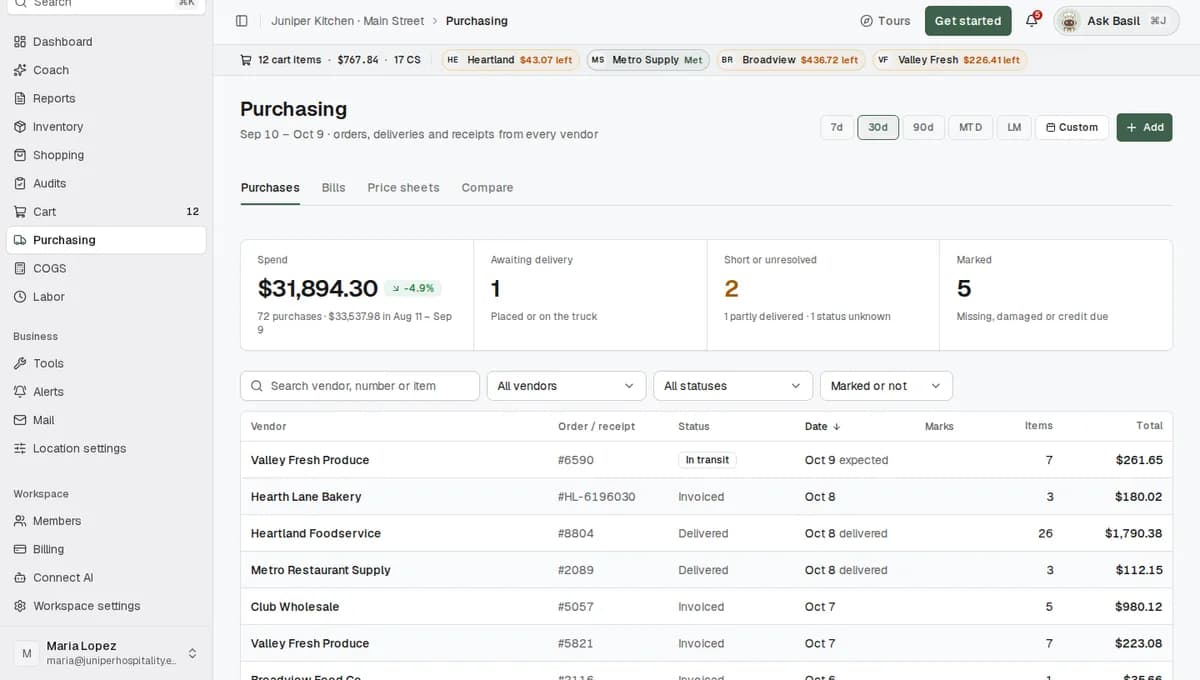
Open the purchase. Click the Valley Fresh Produce row from Oct 8. The purchase opens with its lines in the Lines section. To find a purchase fast, type the vendor, the invoice number or an item name in Search vendor, number or item.
Find the item and click +. The last column of the lines is Marks. Click the small + on the Romaine hearts 24 ct line.
Pick the mark. A short list opens with a search box, Find a tag.... Click Damaged. If you picked the wrong one, click Change and pick again.
Add how many and a note. Both are optional, and both help later. In How many affected (optional), type 2. In Note (optional), write what happened, for example "Two cases crushed on the truck. Driver signed the invoice."
Click Apply tag. You can also press Ctrl+Enter (Cmd+Enter on a Mac) in the note box. The mark appears on the line as Damaged ×2.
A line can have more than one mark. If the same line also came short, add Short to it as well.
Which mark to use
These are the item marks every location starts with. You can rename them or add your own (see Add your own marks).
| Mark | Use it when |
|---|---|
| Damaged | It arrived broken, crushed, leaking or spoiled. |
| Missing | It is on the invoice, but none of it came. |
| Short | Some came, but fewer than the invoice says. |
| Wrong item | A different product came, and the invoice still lists the one you ordered. |
| Substituted | The vendor swapped in a different product, and the invoice doesn't already say so. |
| Over delivered | More came than you ordered. |
| Price mismatch | The price on the invoice is not the price you expected. |
| Returned | You sent it back with the driver. |
| Other | Anything else. Say what in the note. |
Change or remove a mark
Click the mark on the line, for example Damaged ×2. A small panel shows who marked it and when, and the number and note. Change either one and click Save changes. To take the mark off, click the bin icon at the top of the panel.
If you pick the same mark again on the same line, RestaurantMate updates the one that's there. The button then reads Update tag.
Mark the whole purchase
Some problems belong to the whole delivery, not one item. Use a purchase mark for those.
- Open the purchase.
- Find Marks in the side panel. It is the panel beside the lines.
- Click Mark purchase. Once a purchase has a mark, the button reads Mark.
- Pick a mark: Accepted, Rejected, Disputed, Paid, Follow up or Other.
- Add a note if it helps, then click Apply tag.
For example, after the crushed romaine, the manager at Juniper Kitchen · Main Street marks the Valley Fresh Produce purchase Follow up with the note "Asked rep for a credit on 2 cs romaine."
When a delivery never came
Heartland Foodservice was due on Oct 9, and nothing showed up.
- Open the Heartland Foodservice purchase.
- In the side panel under Actions, type a note in the box Add a note (saved with the next action), for example "Truck never came. Rep says it ships Friday."
- Click Not received.
RestaurantMate marks the purchase Disputed and puts your note on the purchase's timeline (open History in the side panel to see it). The order stays open and its status doesn't change. If the delivery turns up later, the invoice updates it as usual.
The other buttons under Actions:
- Invalid order is for an order that was placed by mistake or will never come. It sets the status to Cancelled and marks the purchase Rejected.
- Mark delivered sets the status to delivered by hand. It only shows while the order is still open.
- Clear manual status shows after you set a status by hand. It hands the status back to the vendor's updates and the invoice.
- Save note only adds your note to the timeline without changing anything else.
For more on statuses, see Track an order from placed to delivered.
What happens next
The mark stays on the purchase with who added it, when, how many and the note.
On the Purchases tab, the Marks column shows the first mark on each purchase, with +1 (or more) when it has others. The Marked tile at the top counts every purchase in the date range that has a mark.
A mark is a record for you and your team. The totals, prices, food cost and status still come from the vendor's invoice. RestaurantMate does not contact the vendor or ask for a credit, so call or email your rep yourself.
When you download a receipt with Download at the top of the purchase (PDF, CSV, JSON or Markdown), the marks come with it, for example "Damaged ×2" and "Damaged: Two cases crushed on the truck." That's handy to send to your rep or your bookkeeper.
Find every purchase with a mark
- On the Purchases tab, click the Marked tile. The table shows only purchases with a mark.
- To see one kind of problem, open the Marks filter and pick it, for example Damaged or Disputed. Pick Any mark for all of them, or Marked or not to clear the filter.
- Change the date range (7d, 30d, 90d, MTD, LM or a custom range) to look further back. MTD means month to date and LM means last month.
Click the Marked tile again to turn the filter off.
Add your own marks
Each location has its own list of marks, and you can change it. The Marked tile's hint mentions credit due, but there is no Credit due mark until you add one.
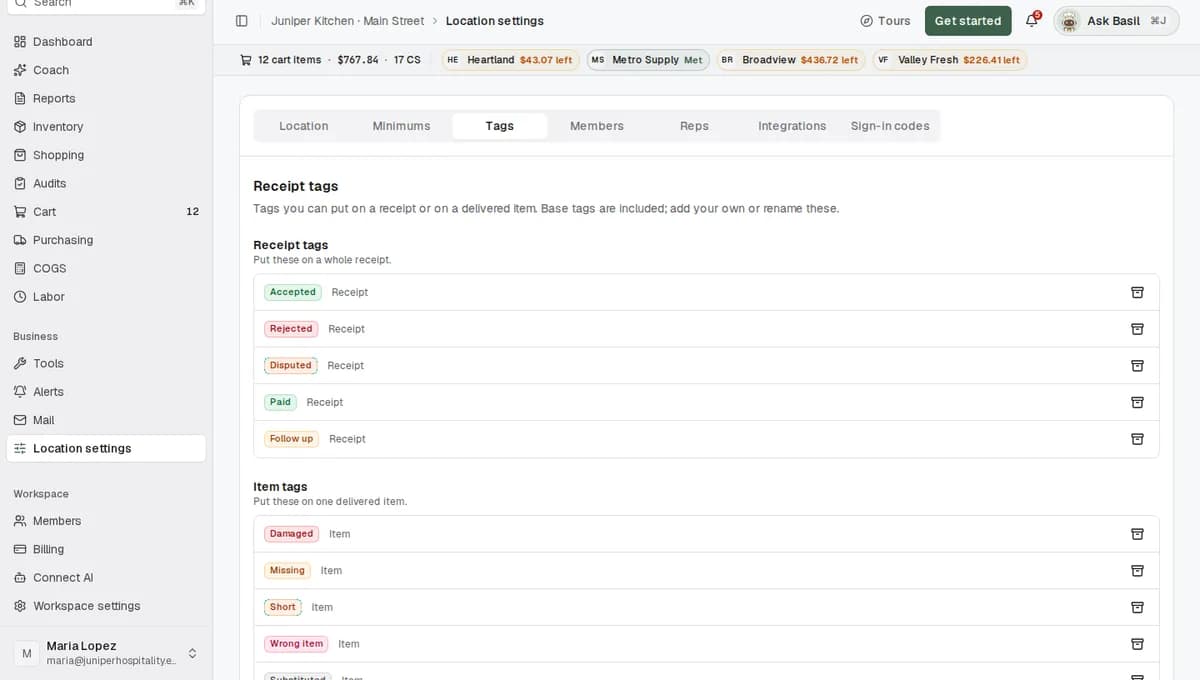
- Click Location settings in the sidebar, then the Tags tab.
- Find the list you want. Receipt tags go on a whole purchase ("Put these on a whole receipt."). Item tags go on one item ("Put these on one delivered item.").
- Click New receipt tag or New item tag.
- Type a name of up to 60 characters, for example "Credit due" or "Warm on arrival".
- Pick a colour, and choose where the mark can go: Receipt, Item or Both.
To rename a mark, type over its name. To remove one, click the bin icon on its row. A mark that's already on purchases is archived rather than deleted, and you'll find it under Archived at the bottom of the tab.
You need Full access to Location settings to change this list. Owners have it, and so do the built-in Admin and Location manager roles.
Tips
- Mark it while the driver is still there. Open the purchase on a phone at the back door and add the mark with a note. The time on the mark shows it was recorded at delivery.
- Always fill in How many affected. "Damaged ×2" is easier to turn into a credit than "Damaged".
- Put names and numbers in the note. "Driver Ray signed for 2 cs crushed" helps your rep find it fast.
- Track credits with two marks. Add a Credit due receipt mark. Put it on the purchase when you ask for the credit. When the vendor's credit memo (an invoice with a negative total) arrives, it shows on the Purchases tab with the status Credit. Then take the Credit due mark off.
- Give receiving staff the Counts & purchasing role. They see Audits and Purchasing, and they can mark deliveries. See Give each person only the pages and locations they need.
Troubleshooting
The + button is greyed out. You don't have Edit access to Purchasing at this location. Hover over the button to see what's missing, and ask an owner to change your access.
I don't see Purchasing in the sidebar. Your role doesn't include the Purchasing page. The Inventory counter role, for example, sees only Audits. Ask an owner to change your role.
The list says "No tags. Add some under Settings → Tags." This location has no item marks. Someone with Full access to Location settings can add them on the Tags tab.
The mark I want isn't in the list. Item marks and purchase marks are separate lists. Disputed, for example, is a purchase mark, so it shows under Mark purchase, not under + on a line. To use a mark in both places, set it to Both on the Tags tab.
I picked the same mark again and only one shows. That's on purpose. Picking the same mark on the same line updates the one that's there. To record two different problems on one line, use two different marks, such as Damaged and Short.
I marked an item Short, but the purchase still says Delivered. Marks don't change the status. The status comes from the vendor and the invoice. If the whole delivery never came, use Not received.
There's no Mark delivered button. It goes away once a purchase is Delivered or Invoiced.
The Marks column is missing from the Purchases table. The table remembers which columns you show, and phones show cards instead of columns. Turn the Marks column back on, or open the purchase to see its marks.
Common questions
Does RestaurantMate find shorts on its own? Yes, when the vendor's invoice shows them. If the invoice says fewer shipped than you ordered, the line shows it in red, for example "0 of 1 CS". Problems the invoice doesn't show, like a crushed case, need a mark from your team.
Will marking an item ask the vendor for a credit? No. A mark is your record of what happened, who saw it and when. You or your bookkeeper contact the vendor. Use the Marks filter to see what's still open.
Does a mark change what I paid or my food cost? No. Totals, prices and food cost come from the vendor's invoice. When the vendor sends a credit memo, it comes in like any other receipt, with the status Credit.
Will I get an email when someone adds a mark? Not today. You can get an email when an invoice comes in with items delivered short or substituted. Create an alert from the Short delivery preset. See Create an alert in plain words.
Can my bookkeeper see the marks? Yes. The built-in Bookkeeper role can open Purchasing, see every mark and add its own. Marks also come with any receipt you download.