
Connect 7shifts or Homebase, then open Labor to see what your team's hours cost next to what you sold.
The Labor page puts the hours and pay from your scheduling app beside the sales from your POS (your point-of-sale system). You can see labor as a share of sales for each day and each hour. It also shows who will go over 40 hours this week and which timecards are missing a clock-out or a break.
Words this page uses:
- Labor cost is the pay on your timecards for the dates you picked.
- Net sales is what your POS rang up for items sold, after discounts and before sales tax.
- Labor % (labor as a share of sales) is labor cost divided by net sales. If Juniper Kitchen paid $1,230 in labor on a day it sold $4,280, labor was 28.7% of sales.
- A timecard (or punch) is one clock-in and clock-out for one shift.
- Overtime is the hours a person works past 40 in one labor week. You can change the 40 in Labor settings.
- Sales per labor hour is net sales divided by the hours worked. It tells you how much you sold for each hour someone was on the clock.
Before you start
Who can do this
- To connect 7shifts or Homebase, you need to be an owner, or have a role with Full access to Location settings at that location. Ask an owner if you're not sure your role has it.
- To open the Labor page, your role needs View access to Labor & wages. The page shows wages, so the built-in View only role doesn't include it. Owners, Admin, Location manager and Bookkeeper can open it.
- To change Labor settings, you need View on Labor & wages and Full on Location settings.
If Labor isn't in your sidebar, your role doesn't include it. Ask an owner. See Give each person only the pages they need.
What to have ready
- For 7shifts: the email and password you use to sign in to 7shifts.
- For Homebase: your Homebase API key and Location ID. An API key is a long code that lets another app read your Homebase data without your password. The Location ID tells RestaurantMate which Homebase location to read. If you can't find them, our team helps you on your setup call.
- Your POS sales. Labor % and sales per labor hour need sales from your POS. Toast and SpotOn connect today, and we add your POS on request. See Connect your POS sales.
If your team clocks in on your POS
Some restaurants clock in on Toast or SpotOn instead of a scheduling app. Those timecards come in with your POS connection, and the Labor page fills from them.
If you clock in on your POS and also schedule in 7shifts, tell our team before you connect. We connect 7shifts as schedule-only, which means RestaurantMate reads the schedule from 7shifts and the punches from your POS. Reading punches from both would count every hour twice.
Our team usually connects labor with you on your setup call and checks the first sync. You can also do it yourself with the steps below.
Connect 7shifts or Homebase
In the sidebar, click Location settings and choose the Integrations tab. The Connected integrations table shows what this location is already connected to.
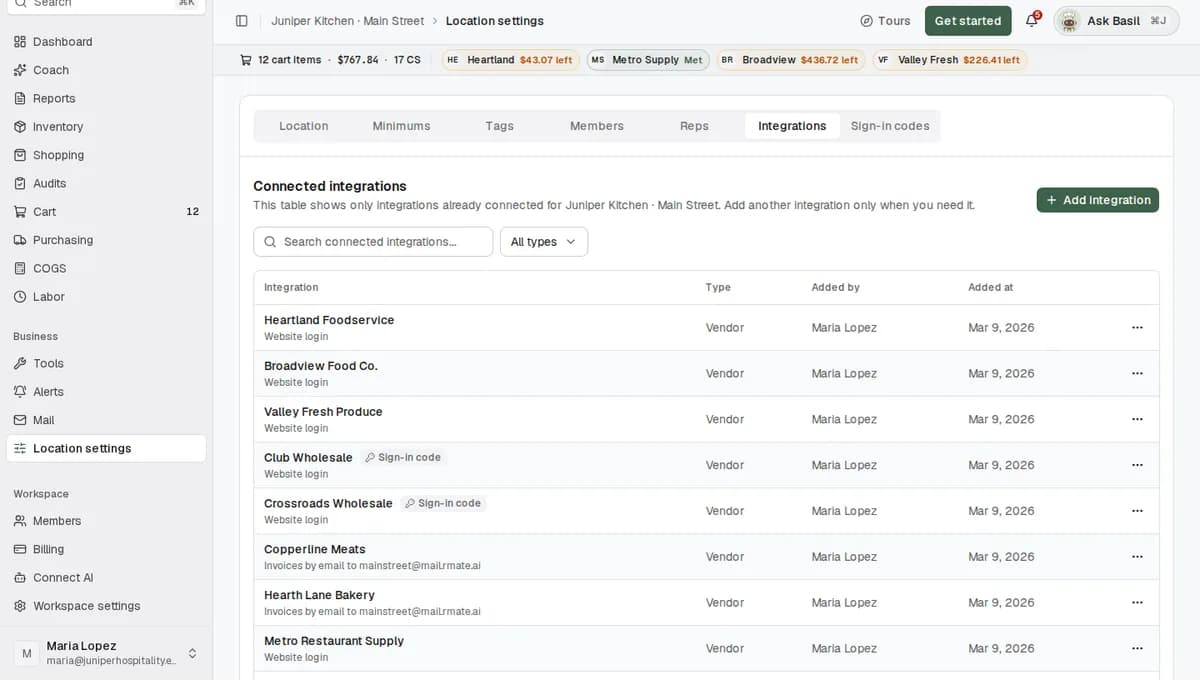
Click Add integration. Type "7shifts" or "Homebase" in Search integrations... and choose it.
Fill in the fields.
- For 7shifts, enter the Email and Password you sign in to 7shifts with.
- For Homebase, paste your API key and type your Location ID.
Click Connect. The message "Integrations updated." appears, and 7shifts or Homebase joins the Connected integrations table with the type Labor.
Your 7shifts password is stored privately and used only to sign in to 7shifts. It isn't shown again after you save it.
What happens next
When you connect, RestaurantMate brings in your past shifts and timecards, so the Labor page has history from the start. After that it syncs about three times a day, at random times between 5 am and 11 pm in your location's time zone. Each sync reads the last three days again, so a timecard a manager fixes the next morning is picked up.
How RestaurantMate reads your labor data depends on the app:
- 7shifts. The RestaurantMate device in your restaurant signs in to 7shifts with your login, in a normal web browser, the way you do. It copies your schedule, your staff list and their roles. If your team clocks in on 7shifts, it can copy their time punches too. Tell our team if you do, and we check that they come in correctly. See The device: what it does, where it goes, the deposit.
- Homebase. RestaurantMate reads your employees, shifts and timecards with pay using your API key.
The Labor page and its sync only read this data. They don't change shifts, timecards or pay in your scheduling app.
Your labor numbers also show up in other places:
- Dashboard widgets, such as Labor at a glance, Sales and labor % and Prime cost. Prime cost is food cost plus labor as a share of sales.
- Your weekly report, which shows labor % and how it changed from the week before. See Coach suggestions and your weekly report.
Read the Labor page
Open it and pick your dates
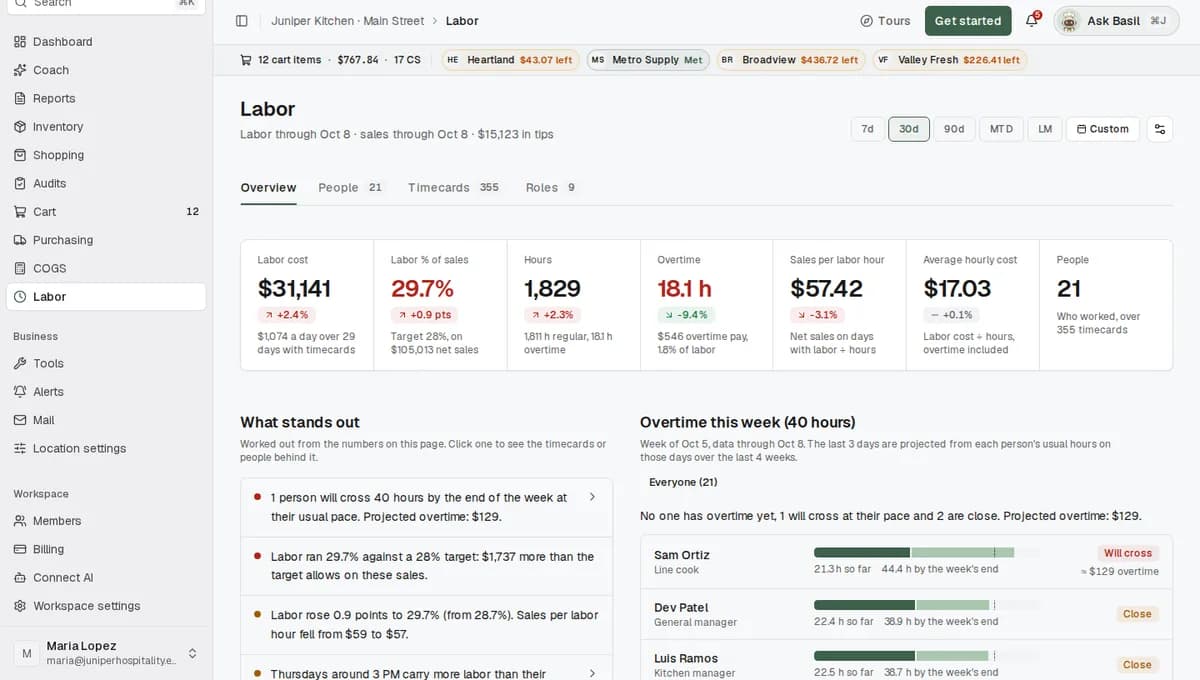
In the sidebar, click Labor. Pick a date range at the top: 7d, 30d, 90d, MTD (month to date), LM (last month) or Custom.
The line under the title tells you how current the numbers are, for example "Labor through Oct 8 · sales through Oct 8 · $6,940 in tips". If you use Toast, sales arrive as a nightly export, so "sales through" is usually yesterday. That is normal.
The page has four tabs: Overview, People, Timecards and Roles. When some timecards need a look, a chip next to the tabs says how many, for example "31 flagged timecards".
The numbers across the top
| Tile | What it shows |
|---|---|
| Labor cost | What you paid in the range, and the average per day with timecards. |
| Labor % of sales | Labor cost divided by net sales, next to your target. |
| Hours | Regular hours and overtime hours. |
| Overtime | Overtime pay, and its share of all labor. |
| Sales per labor hour | Net sales on days with labor, divided by hours. |
| Average hourly cost | Labor cost divided by hours, overtime included. |
| People | How many people worked, and over how many timecards. |
Click a tile to see the people or timecards behind it. Hours opens every timecard. Overtime shows the people with overtime.
What stands out
This list has short sentences worked out from the numbers on the page. RestaurantMate does the math on your timecards and sales. AI doesn't write these lines. At Juniper Kitchen you might see:
- "2 people already have overtime this week. 1 person will cross 40 hours by the end of the week at their usual pace. Projected overtime: $180."
- "14 timecards have no clock-out. Their hours aren't final."
- "3 days have sales but no timecards. Those days are left out of labor %."
Click a sentence to see the timecards or people behind it.
Overtime this week (40 hours)
This list shows everyone who worked this week, with the hours they have so far and the hours they're likely to reach by the end of the week. Each person gets one of four labels: In overtime, Will cross, Close or Under. When someone will cross 40 hours, it also shows roughly what the overtime will cost.
RestaurantMate projects the rest of the week from the schedule, when there is one. Without a schedule, it uses the hours that person usually works on the remaining days.
For example, Sam Ortiz, a line cook, shows "38 h so far", "44 h by the week's end", Will cross, "≈ $96 overtime". If you see that on a Wednesday, there's still time to change the rest of his week in your scheduling app.
Labor and sales
In this chart each bar is a day's net sales, and the dark part of the bar is what labor cost that day. Below the bars, a line shows labor % against your target. Switch between Daily and Weekly. A note tells you how many days went over target, for example "6 of 30 days over target". Click a day to see its timecards.
Staffing by hour
This grid has a row for each day of the week and a column for each hour you're open. Use Show to switch between Staffing, Labor hours and Sales. Some cells are marked Overstaffed or Short-staffed for the sales in that hour. Cells marked "Labor, little or no sales (prep, close)" are prep and closing hours, which is expected. Click a cell to see who was on the clock.
Further down the Overview tab you'll find Overtime by week, Labor by kind of work and, when you have a schedule, Scheduled and worked. That last one shows late clock-ins and shifts nobody scheduled.
People
The People tab lists everyone who worked in the range. Use Show to narrow it to With overtime, Near overtime this week or With flagged timecards, or pick a Role. The columns are Name, Hours, OT hours, Pay, $/hour, Shifts, Avg shift, Tips, Sales/hour, Late, Flags, and a small chart of each week's hours against 40.
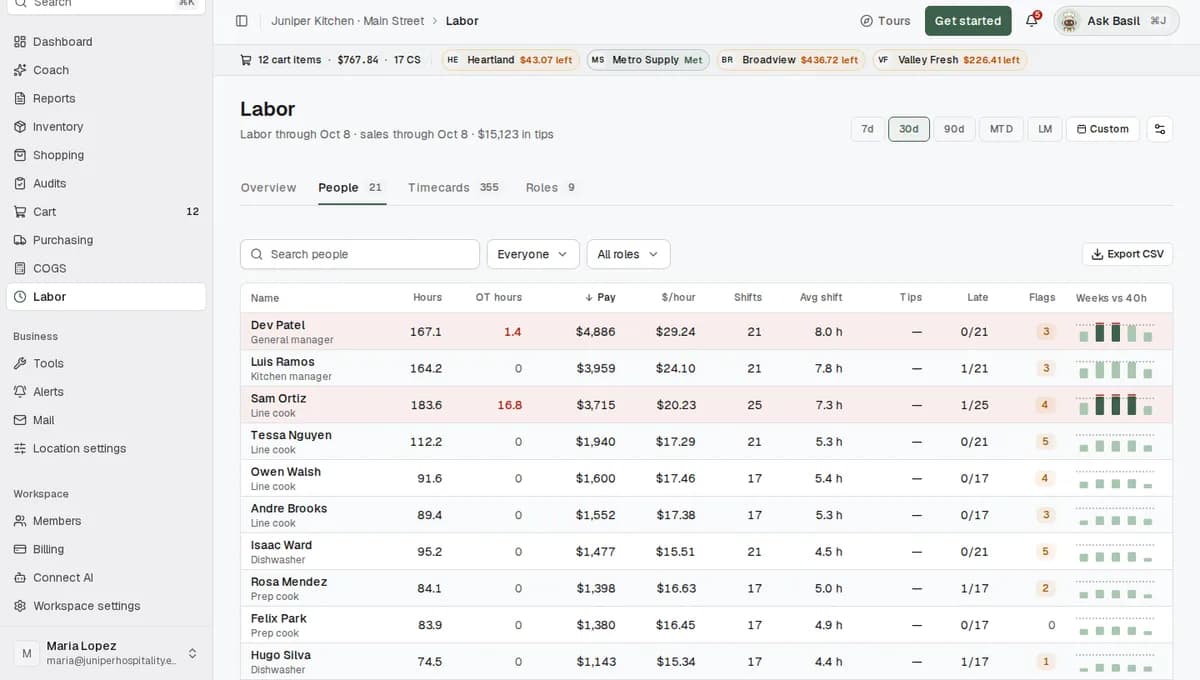
Click a name to open that person. You see their hours, overtime, pay and tips, a calendar of the days they worked over the last year, and their weekly hours against the 40-hour line. Wage changes show as a line like "Line cook: $17.00 → $18.50 from Jul 1". Below that are their schedule and their timecards.
Timecards
The Timecards tab lists every punch: Date, Name, Role, In, Out, Scheduled, Hours, OT, Break, Pay, Tips and Flags. Use the Flag filter to see only the timecards that need a look.
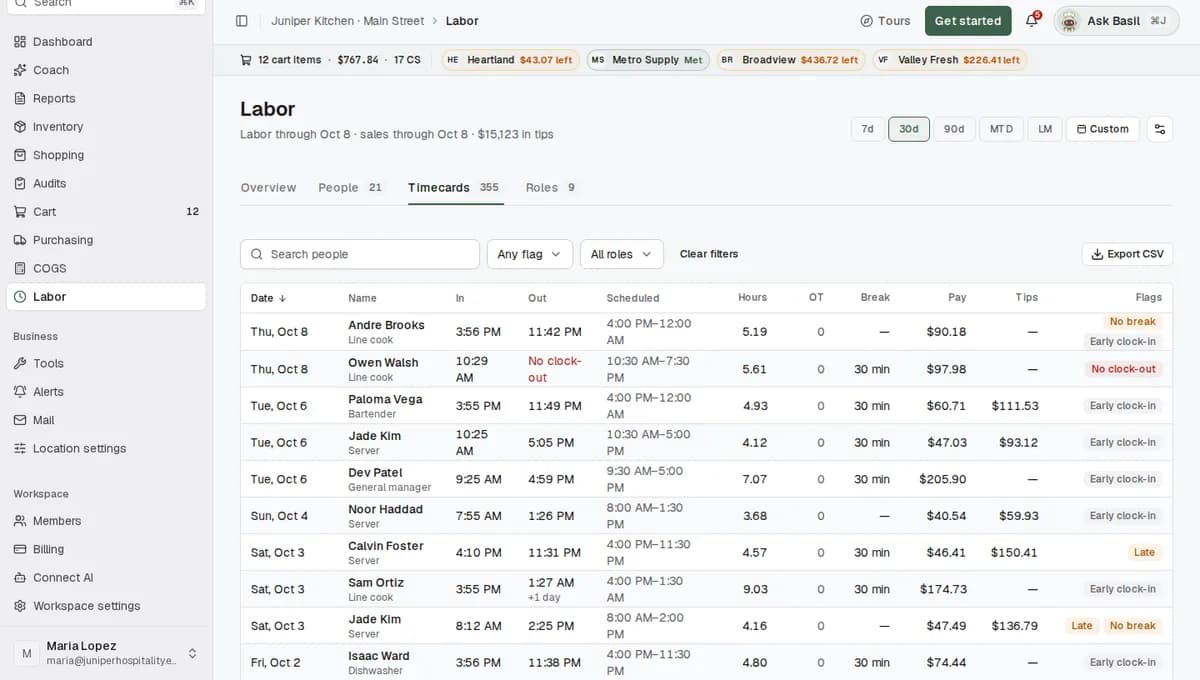
The flags that matter most:
| Flag | What it means |
|---|---|
| No clock-out | The shift has no clock-out, so its hours aren't final. |
| No break | A long shift with no break recorded. You set how long in Labor settings. |
| No pay | The timecard has hours but no pay, so labor cost is too low. |
| Late | The person clocked in after their scheduled start. |
| Not scheduled | Someone worked a shift that wasn't on the schedule. |
You may also see On the clock, Auto clock-out, 12h+ shift, Under 15 min, Entered later, Early clock-in and Left early.
Roles
The Roles tab groups labor by kind of work: Kitchen, Front of house, Bar, Management and Other. For each group and each job title you see People, Hours, OT hours, Labor cost, Avg $/hour, % of labor and % of sales. Use it to see whether the kitchen or the floor is driving your labor %.
Set your target and overtime rules
On the Labor page, click the Labor settings button next to the date range.
Change the settings you need.
Setting What it does Starts at Labor target (% of net sales) The number the charts compare your labor % against. 30 Weekly overtime starts after (hours) Used for the overtime list and the weekly charts. 40 Labor week starts on The first day of each labor week. Monday Expect a break after (hours) Shifts this long with no break recorded get the No break flag. Set it to Off to stop flagging. 6 Accounts that aren't people Leaves out logins that aren't a real person, like a tip-collection or station login. Job titles containing "collection" Click Save. The message "Labor settings saved" appears.
The overtime hours setting only changes the overtime list and the weekly charts. The overtime pay you see comes from the pay data in your scheduling app, including any daily overtime rules.
An account you mark as not a person is left out of hours, people and the overtime list. Your labor cost and tips stay the same.
Tips
- Set Labor week starts on to the first day of your pay week, so the overtime list counts the same week your payroll does.
- Check the overtime list midweek. That's when there's still time to move a shift.
- Use Export CSV on the People or Timecards tab to send the list to your bookkeeper. A CSV file opens in Excel or Google Sheets.
- For an email when labor runs high, open Alerts and start from the Labor over 30% of sales preset. It checks each day's labor after the day ends. Creating alerts needs Full access to Alerts. See Create an alert in plain language.
- Your bookkeeper can read labor without ordering anything. The built-in Bookkeeper role shows Dashboard, Reports, Purchasing, COGS and Labor.
Troubleshooting
The page says "No timecards have come in for this location yet."
The first sync hasn't finished. Syncs run about three times a day between 5 am and 11 pm in your location's time zone. If nothing has come in after a full day, tell our team.
Some days are left out of labor %
What stands out says something like "3 days have sales but no timecards. Those days are left out of labor %." Check those days in your scheduling app for missing punches. Each sync reads the last three days again, so a fix made within three days shows up on its own.
Labor cost looks too low
Look for a line like "120 hours of work have no pay recorded (4% of hours), so labor cost is understated." This usually means salaried managers, whose pay isn't on their timecards. It can also mean someone's wage is missing in your scheduling app. Use the No pay flag on the Timecards tab to find them.
Every number looks about twice as high as it should
Punches are probably coming in from two places, such as your POS and 7shifts. Tell our team. We'll switch 7shifts to schedule-only, so each hour counts once.
A tip-jar or station login shows up as a person
Open Labor settings and add it under Accounts that aren't people, by job title or by person. Then click Save.
The 7shifts sync stopped
If you change your 7shifts password, or 7shifts signs RestaurantMate out, the sync stops until you enter the login again. Open Location settings, choose Integrations, open the menu on the 7shifts row and click Update connection. Enter the login and save. If 7shifts asks for a verification code when RestaurantMate signs in, tell our team.
Overtime here doesn't match my payroll
The overtime list is a projection based on the schedule or each person's usual hours. Overtime pay comes from the pay data in your scheduling app. Also check that Labor week starts on matches your pay week.
I can't see Labor, or the Labor settings button is greyed out
To see Labor in the sidebar, your role needs View on Labor & wages. To change Labor settings, it also needs Full on Location settings. Ask an owner to change your role.
Common questions
Which scheduling apps work?
7shifts and Homebase today. Timecards from Toast and SpotOn also fill the Labor page when that POS is connected. If you use a different app, tell us and we'll add it.
Why does RestaurantMate need my 7shifts password?
7shifts only offers its data connection on some of its plans. So RestaurantMate signs in with your own login instead, from the RestaurantMate device in your restaurant. Homebase connects with an API key, so it doesn't need your password.
Will RestaurantMate change my schedule or timecards?
No. The Labor page and its sync only read from 7shifts and Homebase. Shifts, punches and pay stay as they are in your scheduling app.
Who can see wages?
Only people whose role has View on Labor & wages. By default that's owners and the Admin, Location manager and Bookkeeper roles. The View only role can look at the rest of RestaurantMate but not at wages. People who can't see labor also get a weekly report with labor left out.
Can it warn me before someone hits overtime?
Yes, on the Labor page. Overtime this week shows who will cross 40 hours at their usual pace and roughly what it will cost. Alerts work per day. The Labor over 30% of sales preset emails you after a day's labor comes in, and alerts don't watch each person's hours during a shift.