
Connect your POS so every sale comes into RestaurantMate with its items and modifiers. Your food cost and labor % are then measured against what you actually sold.
Your POS (point of sale) is the system your staff use to ring up orders and take payments. RestaurantMate reads sales from Toast and SpotOn today. If you use a different POS, tell our team and we'll add it on request.
RestaurantMate has no separate Sales page. Once your POS is connected, sales show up where you need them: on the Dashboard, on COGS (what your food costs you), on Labor, in your weekly report and in alerts.
Before you start
Who can do this
- For Toast, most of the setup happens in Toast Web, the website where you manage your Toast account. The person doing it needs the 8.3 Data Export Config permission in Toast. Our team then finishes the connection in RestaurantMate. You have nothing to fill in there.
- For SpotOn, our team sets up the connection with your SpotOn login.
- To check the connection in RestaurantMate, you need to be an owner or have Full access to Location settings at that location. The built-in Admin and Location manager roles have it.
- To see sales once they arrive, a person needs View access to Sales. Owners have it, and so do the built-in Admin, Location manager, Bookkeeper and View only roles. See Give each person only the pages they need.
What to have ready
For Toast:
- A Toast Web login with the 8.3 Data Export Config permission.
- The public key our team sends you. It's explained in step 3 below.
- Your time zone and your closeout hour (the hour Toast ends your business day).
For SpotOn:
- The email and password you use to sign in to SpotOn.
Connect Toast
Toast can send a copy of your sales every night as a set of files. Toast calls this a data export. The files sit on Toast's own secure file server, which Toast calls SFTP. You give RestaurantMate a key to that server, and RestaurantMate collects the files from it. Your Toast password stays with you.
Ask Toast Customer Care to turn on automated nightly data exports for your restaurant group. Your restaurant group is all the restaurants under your Toast account.
In Toast Web, go to Reports > Settings > Data Exports. Turn on these six exports:
- Order Details
- Item Selection Details
- Modifier Selection Details
- Payment Details
- Menu
- Time Entries
Orders, items, modifiers and the menu are what food cost is built from. Payments carry your tips. Time entries are your staff's clock-ins and clock-outs, and they feed the Labor page.
Go to Reports > Settings > SSH Keys and add the public key our team sent you.
An SSH key is a long line of text that works like a key to Toast's file server. The public half is safe to share. Adding it tells Toast to let RestaurantMate collect your export files. Never send us a private key or your Toast password.
Send our team these details. If you can't find them, ask Toast Customer Care when you ask them to turn on the exports.
- The SFTP server address.
- The export username.
- Your restaurant number mapping. This is Toast's list of your restaurants, with an Export ID for each one.
- Your time zone and closeout hour.
Our team finishes the connection.
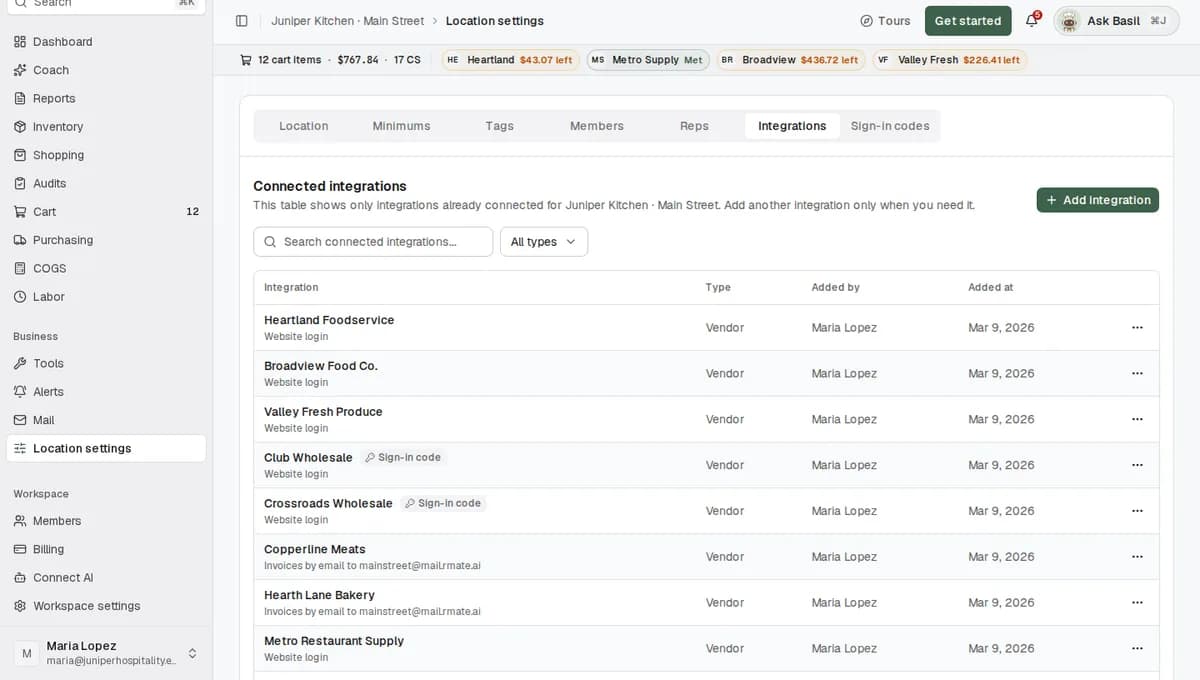
To check it, open Location settings in the sidebar and choose the Integrations tab. Toast is listed in the Connected integrations table with the type POS, marked as connected by RestaurantMate using managed SFTP export setup. It has no fields for you to fill in.
A second restaurant on the same Toast account
If the new location is in the same Toast restaurant group, it usually needs nothing new. Tell our team which location it is. Juniper Kitchen · Riverside, for example, is read with the same export username as Main Street, under its own Export ID.
Connect SpotOn
The RestaurantMate device in your restaurant signs in to SpotOn with your login, in a normal web browser, and reads SpotOn's reports. It reads your orders, items, modifiers and payments, plus SpotOn's labor and payroll reports. See The device: what it does, where it goes, the deposit.
- Tell our team you use SpotOn, and give them the email and password you use to sign in to SpotOn.
- Our team creates the connection for you. SpotOn isn't in the Add integration list in Location settings, so you don't add it yourself.
- You're connected when sales start showing on your Dashboard.
If you change your SpotOn password, send our team the new one. RestaurantMate can't sign in to SpotOn until it has the new password.
What happens next
When sales come in
A sync is one pass where RestaurantMate copies new sales from your POS. Syncs run about three times a day, at random times between 5 am and 11 pm your restaurant's time. Each sync reads the last three days again, so an order that was edited or voided late still ends up right.
Toast sends its export once a night. Your Toast sales usually run through yesterday. The COGS page shows this as "Sales through" and a date. That's normal. SpotOn sales come in with each sync.
What comes in with each order
Every order arrives with its items, modifiers, discounts, taxes, payments and tips. A modifier is an option rung on an item, like Add bacon on a Juniper Smash Burger. Modifiers keep their own lines, so food cost can price the bacon separately from the burger. The same goes for "no bun".
Wherever RestaurantMate shows net sales, it means what your POS rang up for the items sold, after discounts and before sales tax. Modifier charges are counted once.
Where you'll see your sales
| Page | What sales do there |
|---|---|
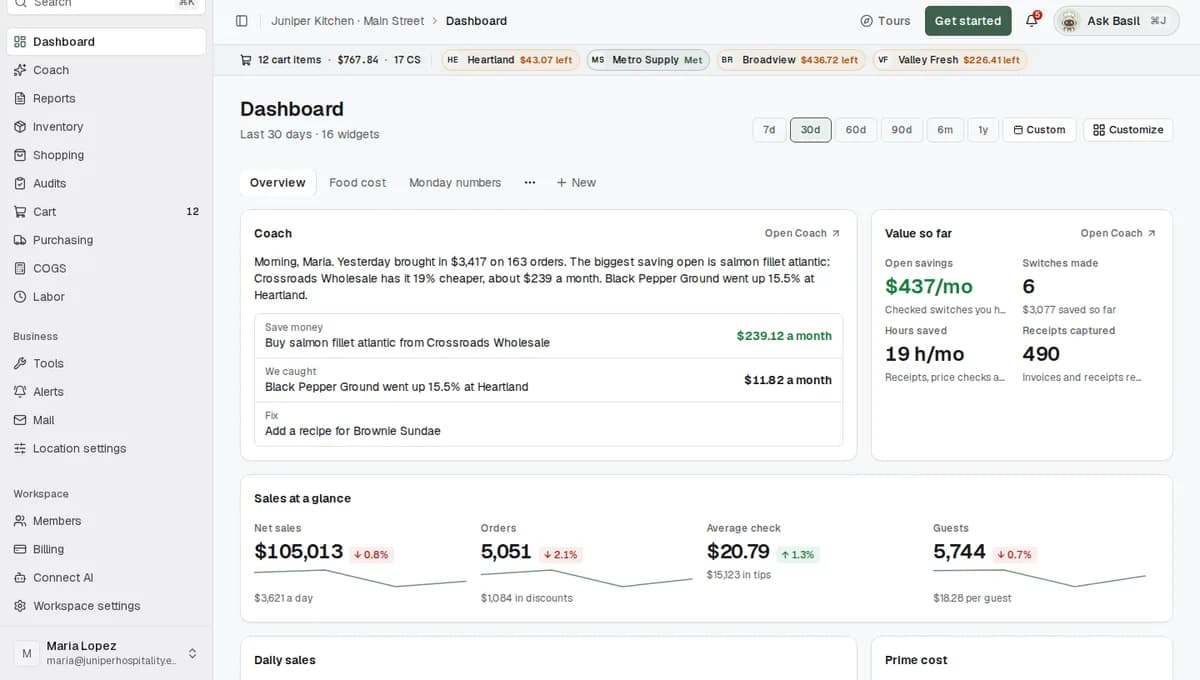
| Dashboard | Sales widgets: Sales at a glance (net sales, orders, average check, guests); Daily sales; Sales by weekday; Sales by category; Best sellers; Dine-in, takeout and delivery; Payment methods; Prime cost (food cost plus labor, as a share of sales); Sales and labor %. |
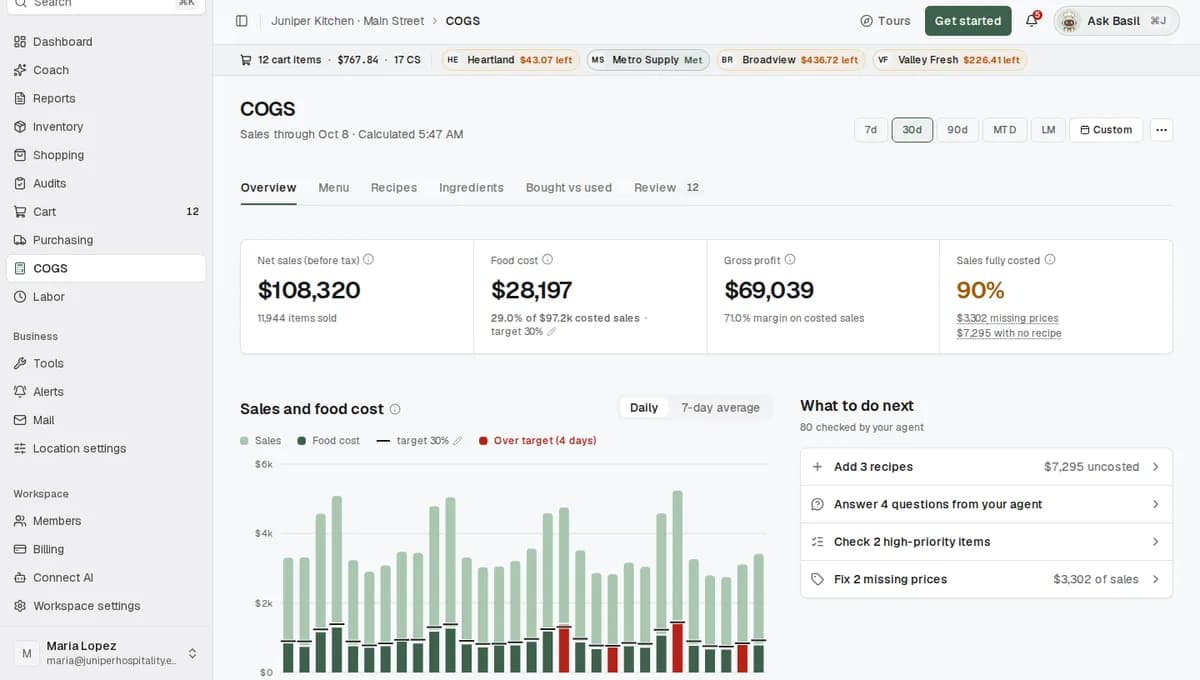
| COGS | Net sales (before tax), and food cost % per day, per menu item, per category and per modifier. |
| Labor | Labor % of sales, sales per labor hour, and staffing next to sales hour by hour. Labor % is your labor cost divided by your net sales. |
| Coach and weekly reports | Sales, orders and average check against last week. |
| Alerts | Alerts on a day's sales: the total, the change on last week, orders and average check. |
| Your agent | Questions like "How did sales last week compare to the week before?" At Juniper Kitchen the agent is called Basil. |
When your menu changes
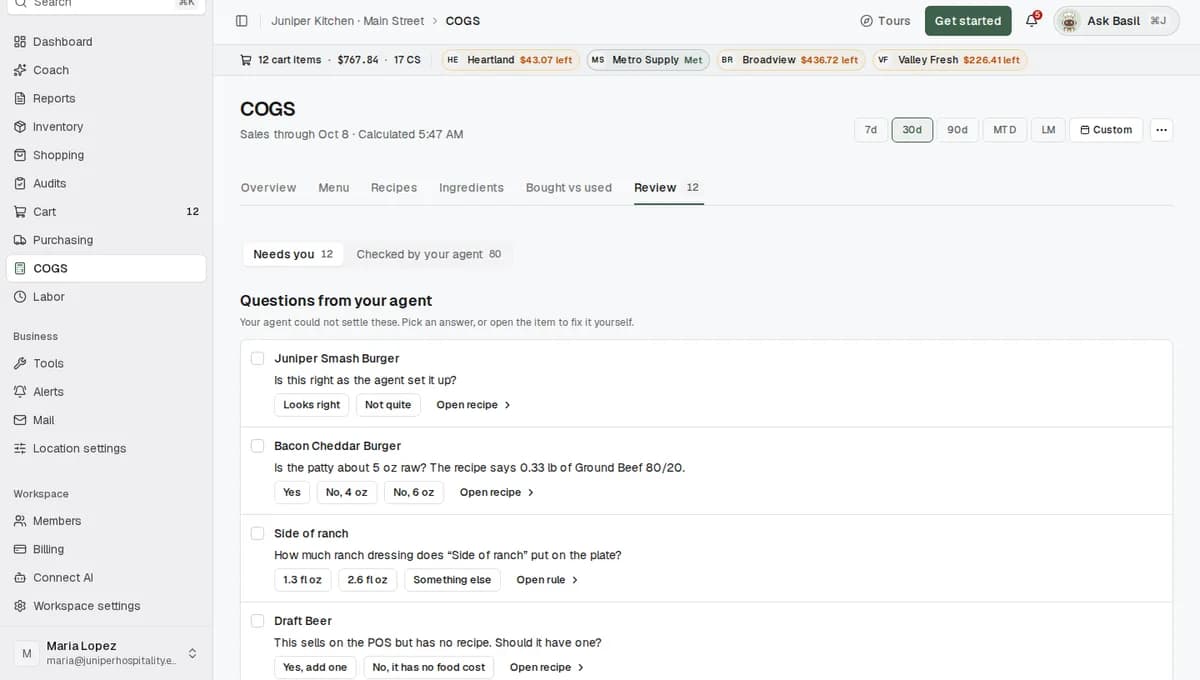
New items and new prices come in with the next sync. A new item, say Soup of the Day, waits in COGS > Review under Items without a recipe until someone adds one. Until then its sales have no food cost. See Read your food cost per plate (COGS).
Tips
Put sales on your Dashboard. Open Dashboard, click Customize, then Add widgets. Pick from the Sales group, click Done, then Save. To start from a ready-made layout instead, click New, choose Start from a preset and pick Sales.
Staff clock in on Toast and you also use 7shifts? Tell our team. They connect 7shifts for the schedule only, so hours aren't counted twice. See Connect labor and read the Labor page.
Get an email about a slow day. On Alerts, type something like "Email me when a day's sales are down more than 20% on last week". Creating alerts needs Full access to Alerts. See Create an alert in plain language.
Choose who sees sales. Sales and wages have separate access. The built-in View only role sees sales but not wages.
Weekly report food cost needs costed sales. The weekly report shows food cost % only when at least 80% of that week's sales are costed. Recipes for your best sellers cover the most sales. See Coach suggestions and your weekly report.
Troubleshooting
My sales stop at yesterday
Toast sends its export once a night, so "Sales through" shows yesterday's date. Today's sales arrive tomorrow.
A day's sales changed after I looked at them
Each sync reads the last three days again. If someone edited or voided an order after the day closed, the new numbers replace the old ones.
Sales by category shows only one category
Some SpotOn menus come in without categories, so every item lands in one group, and COGS says "Every item sold is in one POS category". Ask our team to set your categories.
Sales fully costed dropped, or orders are missing items
At a busy location, some order details can take more than one try to come in. RestaurantMate retries them every night. Until they arrive, food cost covers less of your sales and Sales fully costed on the COGS page drops. If it hasn't recovered after the next night, tell our team.
A drop can also mean new menu items. Check COGS > Review for Items without a recipe.
I can't see sales anywhere
Your role may not include View access to Sales. Ask an owner to change your role. If nobody at the location sees sales, open Location settings > Integrations and check that the POS is listed.
My POS isn't Toast or SpotOn
Only Toast and SpotOn bring sales in today, even if you see other systems in the Add integration list. Tell our team which POS you use and we'll add it on request.
Common questions
Which POS do you support?
Toast and SpotOn today. If you use another POS, we add it on request.
Do you need my POS password?
For Toast, no. Toast sends a nightly data export to RestaurantMate, and you add our key in Toast Web once. For SpotOn, yes. The RestaurantMate device signs in with your SpotOn login to read your reports.
How up to date are my sales?
Toast sales run through yesterday. SpotOn sales sync about three times a day.
Can RestaurantMate change anything in my POS?
No. It only reads your sales.
What if my menu changes?
New items and prices come in with the next sync. New items show up in COGS > Review under Items without a recipe.