
Click Add on the Purchasing page and drop up to 20 receipts, invoices, bills or price sheets at once. RestaurantMate reads each file and fills in the vendor, date, number and total. You check the rows and click Submit.
Receipts, bills and price sheets
Every file you upload becomes one of three types of document:
- Receipt. An invoice or receipt for food and supplies, printed or handwritten. Vendor invoices go in as receipts too. Their lines count in your food cost (what the food you buy costs you, also called COGS) and add to the price history for each item.
- Bill. A bill for something other than food and supplies, like electricity, rent or a repair. Bills are kept out of food cost.
- Price sheet. A price list a vendor sends you, read line by line.
You don't have to upload invoices that already reach RestaurantMate another way. Vendors you connected with your website login have their invoices pulled once a day. PDF invoices that your listed vendor reps email to your RestaurantMate inbox are imported from there. Upload is for the rest, such as handwritten slips, paper receipts from a store run and bills that come in the mail.
Before you start
- Your access. You need to be an owner or have Edit access to Purchasing at this location. The built-in roles Admin, Location manager, Counts & purchasing, Buyer and Bookkeeper all have it. Counts & purchasing is the role picked by default when you invite someone. People with view-only access see the Add button greyed out, and hovering over it says why. See Give each person only the pages and locations they need.
- The right location. Files are added to the location you have open. Check the location name at the top of the sidebar first. Each location's files are stored privately for that location.
- Your files. PDF, JPG, PNG, WebP or HEIC files work. HEIC is the format iPhones save photos in. You can add up to 20 files at a time, each up to 20 MB. Spreadsheets (Excel or CSV) can't be uploaded here.
- A phone or a computer. Both work. On a phone you can pick several photos from your photo library or files in one go.
Upload a stack of paperwork
In this example, the kitchen manager at Juniper Kitchen · Main Street has a week of paper on the desk. There are four handwritten slips from Valley Fresh Produce, a paper receipt from a Club Wholesale run, the electric bill from Larkspur Power & Light and a new price list from Prairie Meats. She took a photo of each slip and the receipt. The bill and the price list are PDFs.
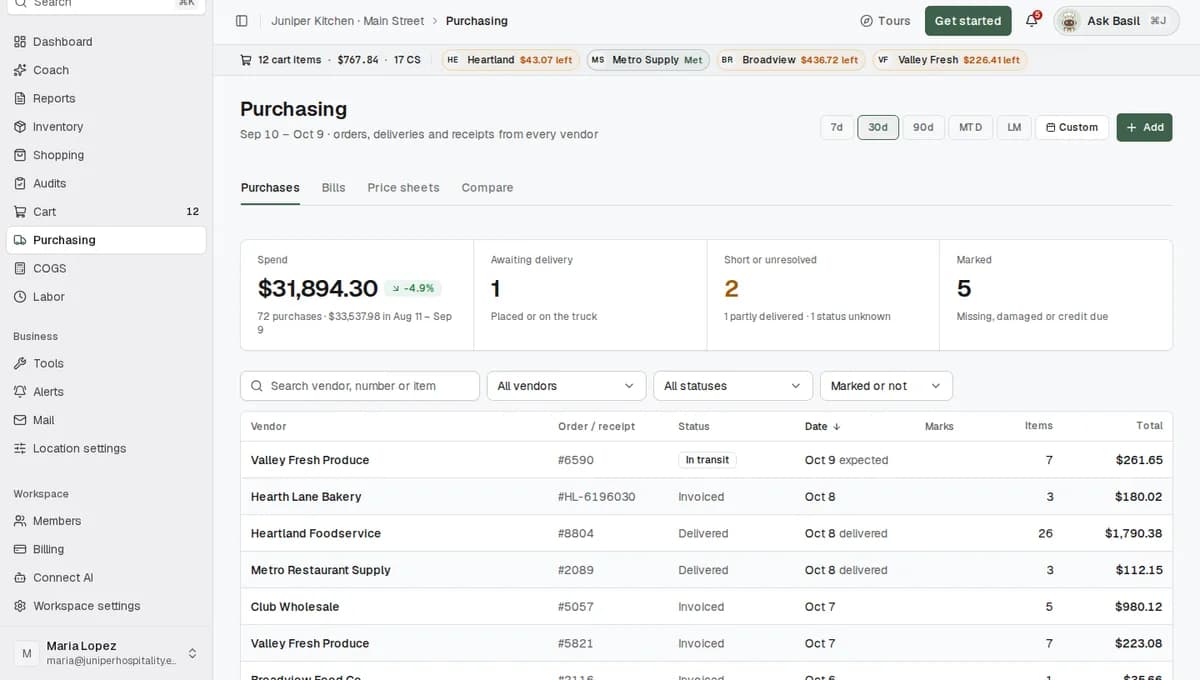
Open Purchasing. Click Purchasing in the sidebar (the truck icon). The Add button is at the top right and stays there on every tab: Purchases, Bills, Price sheets and Compare.
Click Add. A window called Add documents opens. It says "Drop receipts, bills or price sheets. We read each one and fill in the details for you to check."
Add your files. Drag the files onto the box that says Drop files here or click to choose, or click the box to pick them. On a phone, tap the box and select several photos at once. Each file shows up as a row right away.
Wait while each file is read. Under each file name, a status line changes from Uploading to Reading. When RestaurantMate's AI has read the file, the line shows what it found, for example "Club Wholesale receipt, 14 items · Oct 7, 2026 · #88104 · $412.37". Five files are read at a time, so in a big stack the last rows fill in a little later.
Check each row. Each row starts with a tick box (a check box), then the columns File, Type, Vendor and Category. Look at each one:
- Type is Receipt, Bill or Price sheet. If RestaurantMate wasn't sure, it shows Pick a type, and you choose.
- Vendor is one of this location's vendors. When the name on the paper doesn't match any of them, you see New: followed by the name as printed, such as "New: Larkspur Power & Light". You can edit that name. For a new vendor, answer What do you buy from them? with Food & supplies or Bills & services. Pick a bill category too if it's Bills & services. The new vendor is created only when you click Submit.
- Category is for bills only. RestaurantMate reads it from the bill and fills in a category such as Utilities, Rent or Repairs & maintenance. Change it if it's wrong. When it's empty, the field says "Read from the bill".
The date, number and total come from the file, so you don't type them.
Put one vendor's slips together. Handwriting can read as several spellings of the same name. When that happens, a note appears above the rows, for example "3 files look like they're from the same vendor. Use "Valley Fresh Produce" for all of them?" Pick a different vendor in the note if needed, then click Apply. If they really are from different vendors, click Keep separate.
To set the vendor for any rows yourself, tick two or more rows. A bar shows something like "3 selected · Set vendor". Pick the vendor and click Set vendor for selected.
Look at rows that start unticked. RestaurantMate checks every file against what you already have. A row starts unticked, with a note under it, in two cases:
- The same vendor and number are already in RestaurantMate: "Already uploaded (Oct 1). Tick it to add it again."
- The same document is in this batch twice, like a PDF and a photo of the same bill: "Same document as IMG_2231.jpg. Tick it to add it too."
Leave these rows unticked and they're skipped. Tick one only if it really is a separate document.
Fix or remove any row that needs you. A row that can't be added yet says what's missing:
- "Not a receipt, bill or price sheet. Pick a type or remove it."
- "Pick a vendor."
- "Give the new vendor a name."
- "Couldn't read." followed by the reason and a Retry button.
To take a row out of the batch, click the remove button at the end of the row.
Click Submit. The footer shows where the batch stands, for example "12 ready · 3 reading · 1 couldn't read". The button shows how many ticked rows will be added. In this example that's Submit 6, because the slip that was already uploaded stays unticked. Click it.
When everything is saved, a message says "Added 6 documents. Follow their progress in the list." The window closes and Purchasing opens the tab that fits what you added. That is Bills if every file was a bill, Price sheets if every file was a price sheet, and Purchases for anything else.
If you close the window before you submit, RestaurantMate asks, for example, "Discard 4 documents? They have not been added to Purchasing yet." Click Keep editing to go back to the rows, or Discard to drop them. Nothing is added to Purchasing until you click Submit.
What happens next
After you submit, each document is read in full. This is the same reading that runs on invoices from email and from vendor websites.
- Receipts are read line by line. That covers the item name, pack size, quantity, unit price and totals. Each line is matched to an item at your location, so its price goes into price history and your food cost. The purchase shows up on the Purchases tab. If the order is already in RestaurantMate, the receipt attaches to it when the order or invoice number matches. If not, the receipt gets its own row, labelled "Built from a receipt".
- Handwritten slips are read with a few extra rules. Unit words such as lbs, cs (case), dozen, ea (each), caja (box) and manojo (bunch) are read as the unit, so they stay out of the item name. Spanish produce names are understood. For vendors you added by hand, RestaurantMate also stores a clean English name for each item, so "Yukon Gold Potatoes" one week and "Yukon Gld Pot." the next count as the same item.
- Bills are read for the vendor, bill number, date, due date, service period, total and the charge lines. They're filed by category on the Bills tab and kept out of food cost. The Status column there shows Processing while a bill is read, then Ready.
- Price sheets are read line by line onto the Price sheets tab.
Open any purchase to check it against the paper. The receipt also checks its own math. If the lines don't add up to what the vendor billed, it says so in numbers, for example "The lines come to $276.50; the vendor billed $286.50, $10.00 more." To see more about the receipt view, read Find every invoice, receipt and bill on the Purchasing page.
RestaurantMate doesn't add marks such as Damaged or Short when it reads a file. If something arrived damaged, short or wrong, add the mark yourself on that line. See Mark items damaged, short or wrong.
Tips
- Photograph the whole page so the vendor name, date, number and total are all in the picture.
- Upload all of one vendor's slips in the same batch. If they read as different spellings, the same-vendor note can then fix them with one click on Apply.
- Got more than 20 files? Submit the first 20, then click Add again for the rest.
- One file is one document. A receipt that mixes food and non-food lines can't be split into a purchase and a bill, so it goes in as one type.
- A bill has to go to a Bills & services vendor, and a receipt or price sheet to a Food & supplies vendor. Once a vendor is set up as Bills & services, its bills land on the Bills tab, including the ones it emails you.
- For an order that came with no paperwork, click Or record an order by hand at the bottom left of the Add documents window and type in the lines.
- Email import takes only PDF attachments, from senders you've listed as vendor reps, whether they arrive in the RestaurantMate inbox or a connected Gmail or Outlook. If a vendor emails you a photo of a receipt, save the photo and upload it here.
Troubleshooting
The Add button is greyed out. Hover over it to see why. You need Edit access to Purchasing at this location. Ask an owner to change your role.
"Skipped 2 files. Only PDFs and photos (JPG, PNG, WebP, HEIC) can be read." Those files were in another format, such as a spreadsheet or a Word file. Save them as a PDF or take a photo of the page, then add them again.
"Skipped 1 file over 20 MB." Make the file smaller. A long scanned PDF can be split into parts, or you can take a photo of each page instead.
"Up to 20 files at a time. Add the rest in another batch." Submit the rows you have, then click Add again for the rest.
A row says "Couldn't read." Click Retry. If it fails again, remove the row and add a clearer copy of the page.
A row says "Not a receipt, bill or price sheet. Pick a type or remove it." RestaurantMate couldn't tell what kind of document it is. Pick the type yourself, or remove the row if the file isn't a receipt, bill or price sheet.
A row is refused because the type doesn't fit the vendor. Bills need a Bills & services vendor. Receipts and price sheets need a Food & supplies vendor. Change the type on the row, or pick the right vendor. To change what you buy from an existing vendor, go to Location settings > Reps. Owners and people with full access to Location settings can open that page.
The message says "Added 5 documents. 1 needs a look." The window stays open. The row that wasn't saved says why. Fix it and click Submit again. If the message is "None were saved. Each row says why.", read the note on each row.
I submitted, but I can't find the document. Each document is read after you submit, so follow its progress in the list. Bills are placed by their bill date, so an older bill can fall outside the date range at the top of the page. Pick a wider range: 7d, 30d, 90d, MTD (month to date), LM (last month) or a custom range. On the Purchases tab you can also type the vendor or the receipt number into the search box.
A bill shows "Couldn't read" on the Bills tab. Hover over it to see the reason. Upload a clearer copy of the bill.
Common questions
Can I upload photos from my phone? Yes. JPG, PNG, WebP and HEIC photos all work, up to 20 at a time. Tap Drop files here or click to choose and select several photos.
Will it read handwritten receipts from my produce vendor? Yes. Units like lbs, cs and manojo are read as units, and Spanish produce names are understood. If one vendor's slips come back as several spellings, one click on Apply puts them all under one vendor.
What if I upload the same invoice twice? RestaurantMate catches it when the vendor and number match a document you already have. The row says "Already uploaded" and starts unticked, so it's skipped unless you tick it.
Does RestaurantMate mark items damaged or short when it reads the file? No. It fills in the type, vendor, date, number and total, plus the category for bills. Marks such as Damaged or Short are notes your team adds after checking the delivery.
Will my electric bill count in food cost? No. Bills go to the Bills tab and are kept out of food cost, item prices, orders and inventory. Upload it as a bill, to a Bills & services vendor.