
Free for your first 60 days. Then $99 a month per location. Each location's 60 days start when it's set up and live. Add a card on the Billing page whenever you like, and you won't be charged until a trial ends.
Before you start
Who can do this. Only owners of the workspace see the Billing page. Your workspace is your business's account in RestaurantMate. It holds all your locations and the people you invite. Anyone else sees "Ask the account owner to add a payment method." where an owner would see a button.
To let a business partner handle billing too, invite them as an owner. Click Members in the sidebar, then Invite Members, and pick Owner ("Everything, including members and billing"). People with a role, including the built-in Admin and Bookkeeper roles, can't open Billing. See Give each person only the pages they need.
What it costs.
- Each location is free for its first 60 days. The 60 days start when our team has set the location up and it's live, not when you sign up or add it. We let you know the day they start.
- After its trial, each location costs $99 a month.
- Nothing is charged at sign-up. You don't need a card to start, and setup is free.
- The RestaurantMate device has a $300 refundable deposit, charged within your first month, when we ship the device. One device covers up to two locations. The deposit isn't part of your monthly bill.
What to have ready. The card you want to pay with.
How billing works
A location is one restaurant at one address. RestaurantMate bills each location on its own.
| Word | What it means |
|---|---|
| Free trial | 60 days free for each location, starting the day it goes live. Two locations that go live on different days end their trials on different days. |
| Payment method | The card you save for the monthly charge. |
| Subscription | The monthly plan that pays for your locations. A workspace has one subscription, so you get one invoice a month however many locations you have. |
| Part month | When a location's trial ends partway through your billing month, you pay only for the days after its trial ended. |
| Grace period | If a trial ends and nobody has added a payment method, the location keeps working for 7 more days while a red banner asks for one. |
| Locked | After the grace period, the location's pages are closed until someone adds a payment method. Nothing is deleted. |
| Billing portal | A page run by Stripe, the payment company RestaurantMate uses. You go there to change your card, download invoices or cancel. |
Here's how it works for Juniper Hospitality, which runs two restaurants:
- Juniper Kitchen · Main Street went live on September 1, 2026. Its trial runs until October 31, 2026.
- Juniper Kitchen · Riverside went live on October 5, 2026. Its trial runs until December 4, 2026.
The owner adds a card on October 9. The first charge is $99 on October 31, for Main Street. Riverside joins the same subscription on December 4. For its first part month, Juniper pays only for Riverside's days from December 4. After that, the monthly charge is $198 for both locations.
Step 1: Open the Billing page
- In the sidebar, find the Workspace group at the bottom and click Billing.
- You can also start from any location page. While a location is on its trial, a banner at the top of the page says when the trial ends. Click Add a payment method in the banner. It opens the same Billing page.
The Billing page opens with the line "Each location is billed on its own, after its free trial."
Step 2: Add a payment method
- Find the card headed $99 a month per location. The line under it says how many locations are billed today. If every location is still on its trial, it also says when the first charge will be: "No location is billed yet. You won't be charged until October 31, 2026, when the first free trial ends."
- Click Add a payment method. A payment form from Stripe opens on the page.
- Enter your card details and confirm.
- When the card is saved, a confirmation appears. Click Proceed to App to go back to the Billing page.
Adding a card during a trial doesn't charge anything. The first charge happens on the day the earliest trial ends.
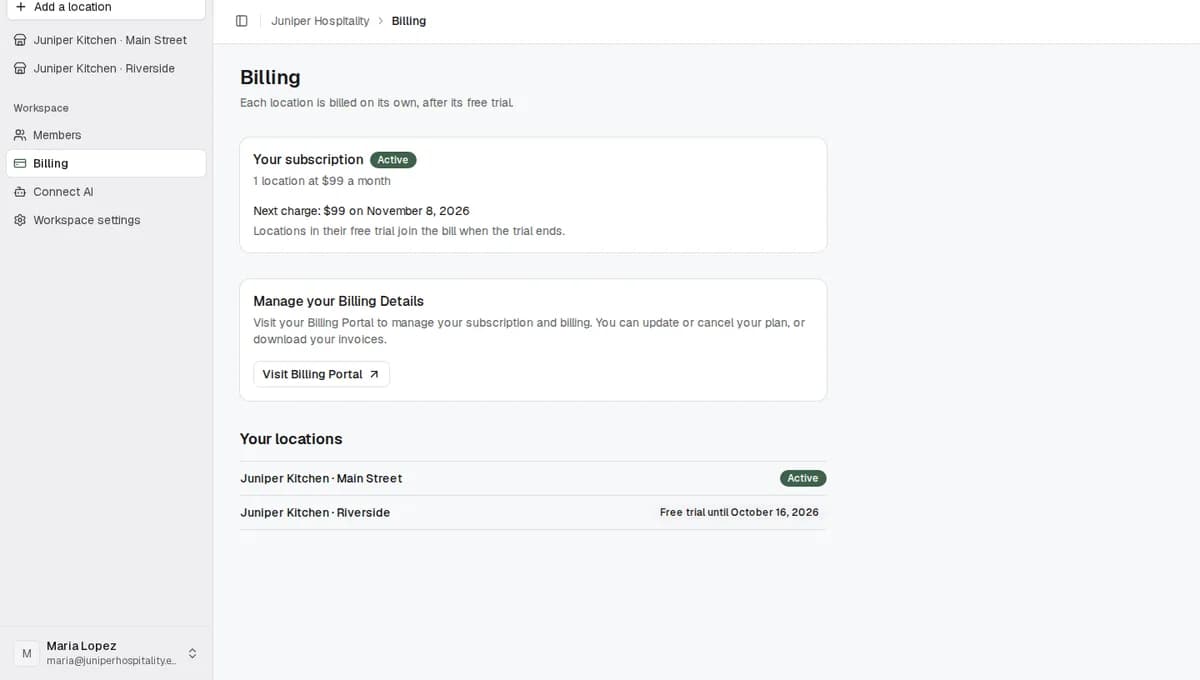
Step 3: Check your subscription and your locations
Once your card is saved, the Billing page shows three parts.
Your subscription says how many locations you pay for and when the next charge is. The badge next to the heading shows its status.
| Status | What it means |
|---|---|
| Card on file | Your card is saved and nothing has been charged yet. The line below says when the first charge is, for example "Card on file. First charge: $99 on October 31, 2026." |
| Active | You're paying. The line below shows the next charge, for example "Next charge: $198 on January 31, 2027." |
| Payment failed | The last charge didn't go through. Update your card in the billing portal. |
| Unpaid or Inactive | The subscription isn't being paid. Check your card in the billing portal, or write to us. |
Manage your Billing Details has the Visit Billing Portal button. See the next section.
Your locations lists every location with a label.
| Label | What it means |
|---|---|
| Free trial until October 31, 2026 | The location is in its free trial. It isn't charged before that date. |
| Active | The trial is over and the location is paid for on your subscription. |
| Payment failed | The last charge didn't go through. Update your card. |
| Trial ended, 5 days to add a payment method | The trial is over and nobody is paying for this location. Add a payment method before the days run out. |
| Locked until a payment method is added | The location's pages are closed. Its data is still there. |
| Free | We don't bill this location. Our team sets this, for example for a demo location. |
Step 4: Change your card, download invoices or cancel
You manage your card and invoices in the billing portal. The Visit Billing Portal button appears once you've added a card.
- On the Billing page, under Manage your Billing Details, click Visit Billing Portal. The Stripe billing portal opens.
- Do what you came for:
- To change cards, update or replace your card there.
- To get invoices for your bookkeeper, download them from the list of past invoices.
- To stop paying, cancel your subscription.
If you cancel, your subscription runs to the end of the period you've already paid for. The Your subscription card then says, for example, "Cancels on December 31, 2026. Your locations keep working until then." After that date, each location gets 7 days to add a payment method again before it locks.
What happens next
With a card on file
- Nothing is charged while a location is on its trial.
- In the last 14 days of a trial, that location's pages show a reminder: "The free trial for Juniper Kitchen · Main Street ends on October 31, 2026. Billing for it starts that day, on the card you have on file." There's nothing for you to do.
- On the day the trial ends, the location joins your subscription and your card is charged.
- A location you add later gets its own 60 days free, starting when it goes live. When its trial ends, it joins the same subscription.
Without a card
Say nobody adds a card for Juniper Kitchen · Riverside, whose trial ends on December 4, 2026.
- Until December 4. The grey trial banner shows on Riverside's pages with the Add a payment method button.
- December 4 to December 11. This is the 7-day grace period. Riverside still works, and the banner turns red: "The free trial for Juniper Kitchen · Riverside has ended. Please add a payment method within 7 days to keep using RestaurantMate." The number of days goes down each day.
- From December 11. Riverside is locked.
When a location is locked
- Every page of that location opens the lock screen. It says "The free trial for Juniper Kitchen · Riverside has ended" and "Add a payment method to pick up right where you left off. Nothing has been deleted."
- Your other locations keep working. The lock screen lists them under Your other locations, so you can switch with one click.
- If you've connected ChatGPT or Claude through Connect AI, it can't see the locked location's data.
- A location that is still being set up, and still shows its welcome screen, is never locked. Its trial hasn't started yet.
To open the location again, an owner clicks Add a payment method on the lock screen and adds a card on the Billing page. The location opens with all its data where you left it.
What each banner means
| Banner | What to do |
|---|---|
| "Juniper Kitchen · Main Street is on a free trial until October 31, 2026. Add a card now and you won't be charged until then." | Nothing yet. Add a card whenever you like. |
| "The free trial for Juniper Kitchen · Main Street ends on October 31, 2026. Billing for it starts that day, on the card you have on file." | Nothing. Your card is charged from that day. |
| "The free trial for Juniper Kitchen · Riverside has ended. Please add a payment method within 5 days to keep using RestaurantMate." | Click Add a payment method before the days run out. |
| "The subscription for Juniper Kitchen · Riverside has ended. Please add a payment method within 5 days to keep using RestaurantMate." | Your subscription was cancelled. Add a payment method to keep using this location. |
| "Your last payment did not go through. Please update your payment method." | Click Update payment method, then Visit Billing Portal, and update your card. |
| "Ask the account owner to add a payment method." | You aren't an owner. Let the owner know. |
Tips
- Add your card early. You still pay nothing before the trial ends, and you won't miss the end of a trial during a busy week.
- Add a location whenever you like. Its 60 days don't start until our team has set it up and it's live.
- Download your invoices from the billing portal once a month and send them to your bookkeeper. The Bookkeeper role can't open the Billing page.
Troubleshooting
You can't find Billing in the sidebar
Only owners see it. Ask an owner to add the card, or to invite you as an owner under Members. If the page opens but says "You cannot manage billing", the same applies.
It says "We could not start checkout. Please try again."
Wait a minute, then click Add a payment method again. If it keeps happening, send us a message from the contact page.
There's no Add a payment method button
There are two reasons this happens.
- You've already added a card. To change it, click Visit Billing Portal.
- The page says "There is nothing to pay for on this account." Every location is marked Free, so there's nothing to bill.
Your payment failed
The banner on your location pages says "Your last payment did not go through. Please update your payment method." Click Update payment method, then Visit Billing Portal, and update or replace your card.
Common questions
Do I need a card to start?
No. Nothing is charged at sign-up. Each location is free for its first 60 days. Add a card whenever you're ready. You won't be charged before the trial ends.
When does my free trial start?
On the day the location is fully set up and live, with its vendors connected and RestaurantMate ready to use. It doesn't start when you sign up or add the location, and we let you know the day it starts. Each location has its own trial, so a location you add later gets its own 60 days.
How am I billed for more than one location?
You pay $99 a month for each location whose trial has ended. All of them are on one subscription, with one invoice a month. Locations still on their trial aren't charged.
Can I cancel?
Yes, any time, in the billing portal. Your locations keep working until the end of the period you've paid for. After that, each location has 7 days to add a payment method before it locks. Nothing is deleted when a location locks.
Is the device deposit charged on the Billing page?
No. The $300 refundable deposit for the RestaurantMate device is separate from your monthly bill. We charge it within your first month, when we ship the device. One device covers up to two locations.